DBaaS – Prerequisites
Prerequisites for DBaaS Subscription
DBaaS requires that your Cloud Avenue Tenant should have ECC connectivity before requesting DBaaS Subscription. Also if you have multiple Cloud Avenue Tenant then you need to decide what DBaaS deployment model would be suitable for your needs. Below topics explains each of the prerequisites and sequence:
ECC Connectivity
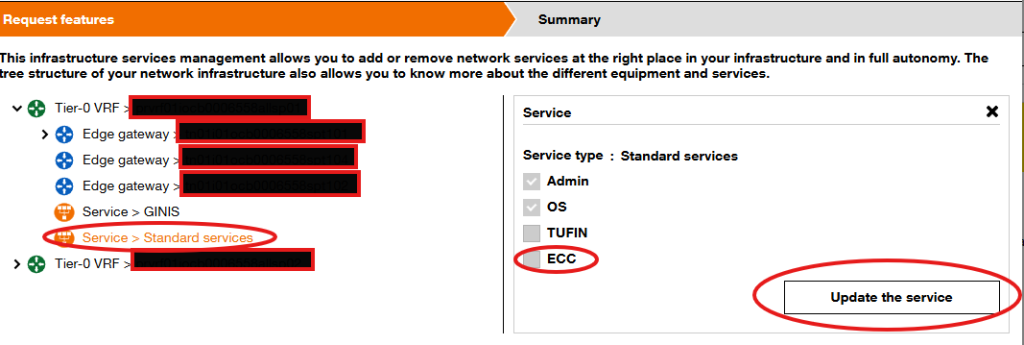
Customers can request ECC connectivity through Selfcare portal:
- Login to customer space
- Go to requests page, click “Make a request”
- Select “Order a service from the catalog”
- Choose “Modification of network services and gateways”
- Select “Service > Standard Services,” then “Update the service”
- Select “ECC” option for implementation
External IP Address
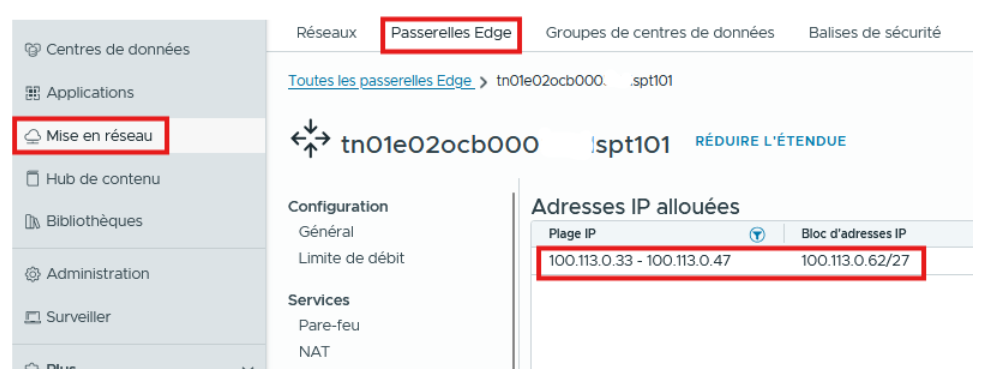
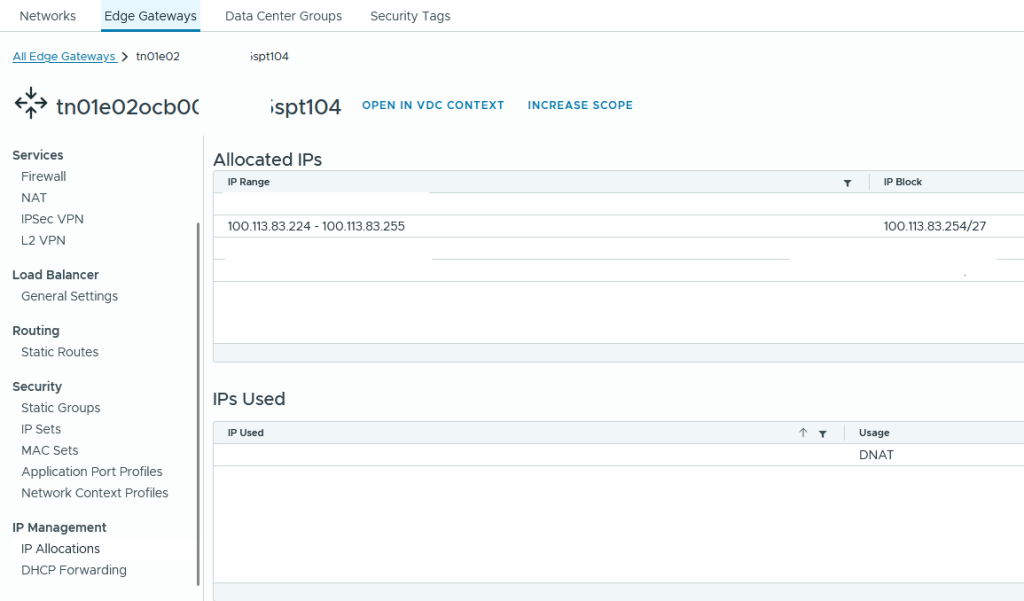
To access DBaaS services, a subnetwork 100.113.X. X/27 or 10.94.X. X/27 needs to be available on your Edge Gateway “T1”, check From the Networking / Edge Gateways / IP Address Allocations tab if not then reach out to support.
Deployment Model
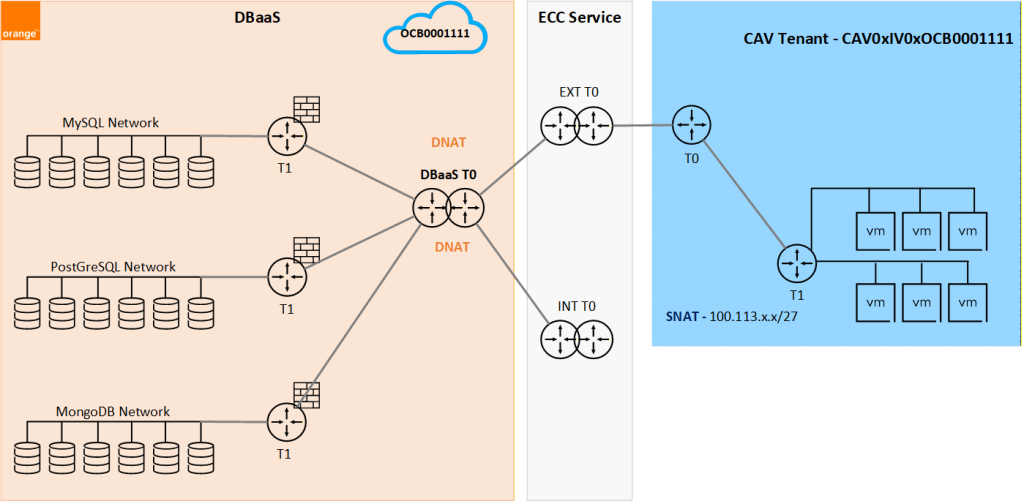
Depending upon your environment and how many Cloud Avenue Tenants, you can either opt for dedicated or shared DBaaS Tenant and each can come with certain variations, Below are some examples for each model to help you understand and choose the best model and the needed network prerequisites for them.
Dedicated DBaaS Tenant (Default)
Each Cloud Avenue VCD tenant when requesting DBaaS subscription is created a DBaaS Tenant with same name as his contract / BSS ID resulting in a simpler network architecture and billing.
Option 1
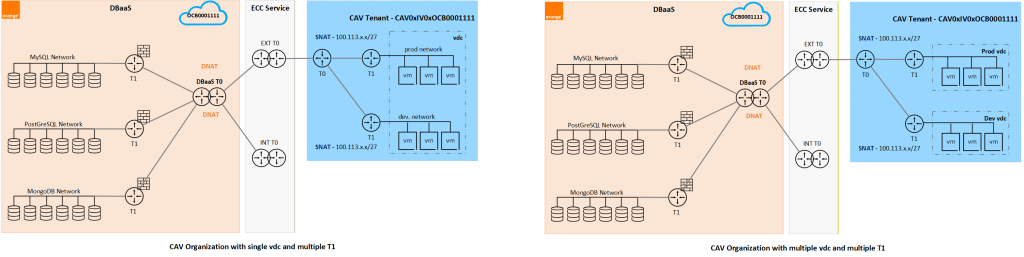
Customer with single cloud avenue organization named “CAV0xIV0xOCB000XXXX” having single vdc with single or multiple application VM’s network (requiring access to DBaaS) connected to single Edge Gateway “T1”. Then customer to request DBaaS tenant with the information of NAT range available on their Edge Gateway “T1” (either 100.113.X. X/27 or 10.94.X. X/27).
Option 2
Customer with single cloud avenue organization named “CAV0xIV0xOCB000XXXX” having multiple application VM’s network (requiring access to DBaaS) connected to different Edge Gateway “T1” either in a single or multiple vdc. In this case customer would be required to reach out to support via Service desk desk change management, if any of their edge gateway don’t have the needed NAT ranges. They can either request distribution of IP from existing NAT ranges (either 100.113.X. X/27 or 10.94.X. X/27) or request a new NAT range.
Then customer to request DBaaS tenant with the information of NAT range available on all their Edge Gateway “T1” (either 100.113.X. X/27 or 10.94.X. X/27) that has application VM networks attached to it.
Shared DBaaS Tenant
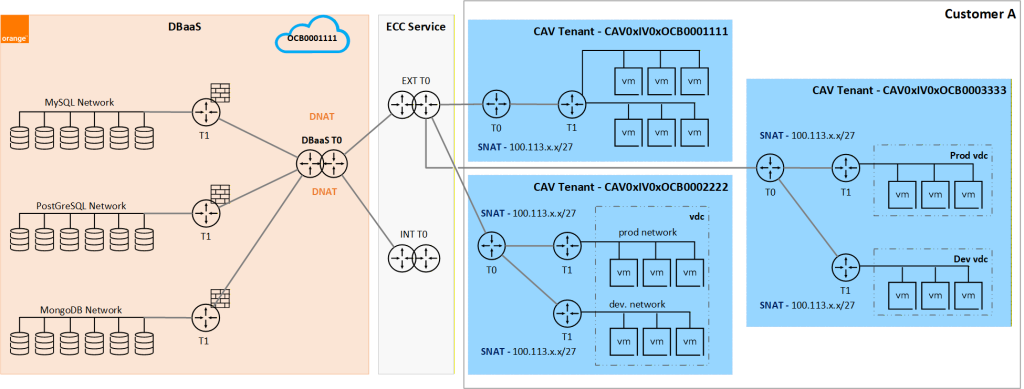
Customer with multiple cloud avenue organizations “CAV0xIV0xOCB000XXXX” having single or multiple application VM’s network (requiring access to DBaaS) connected to different or same Edge Gateway “T1” across single or multiple vdc’s. In this case customer would be required to reach out to support via Service desk desk change management if any of their edge gateway don’t have the needed NAT ranges. They can either request distribution of IP from existing NAT ranges in same vcd organization (either 100.113.X. X/27 or 10.94.X. X/27) or request a new NAT range.
Customer don’t want to manage separate DBaaS tenant for each VCD organization, then customer to request DBaaS single tenant with the information of NAT range available on their Edge Gateway’s “T1” (either 100.113.X. X/27 or 10.94.X. X/27) for each of the cloud avenue Tenant / organization.
Prerequisites for DBaaS Database Connectivity
Once the DBaaS Subscription is approved, you can provision the database via the DBaaS Self Service Portal. After successful provisioning you would get the connection details which would be an IP address and credentials. To connect to the database from your tenant you need to have the following in place:
NAT Rule
- Identify the external IP address allocated on your edge gateway that would be used for creating NAT rule. From the Edge Gateways > IP Address Allocations tab
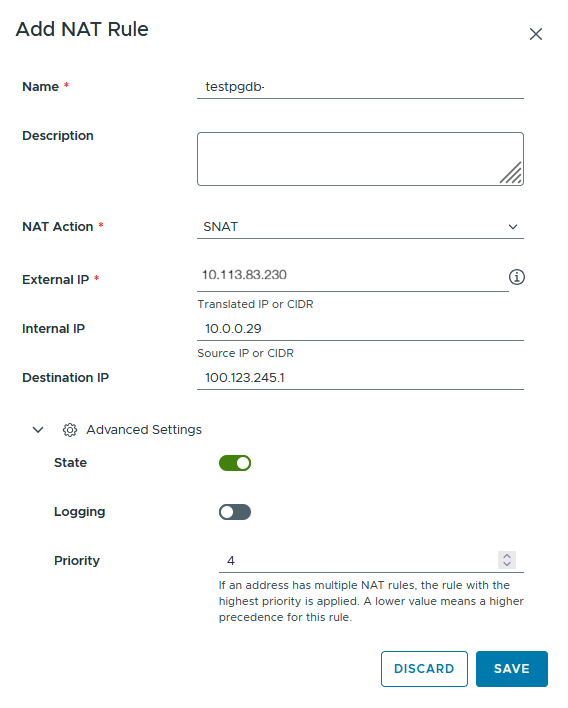
- Create NAT rule:
- The NAT action must be “SNAT“
- The “external IP” address must from the range allocated to your edge gateway
- The “internal IP” address must correspond to an address or network that you have created and need access to DBaaS databases
- The “Destination IP address“: should be the Database IP that you have created (check
- Set the priority to between 0-5, lower the better
This rule should have a higher priority than the one allowing you to access the any other network or internet because the route taken is the same
Firewall Rule
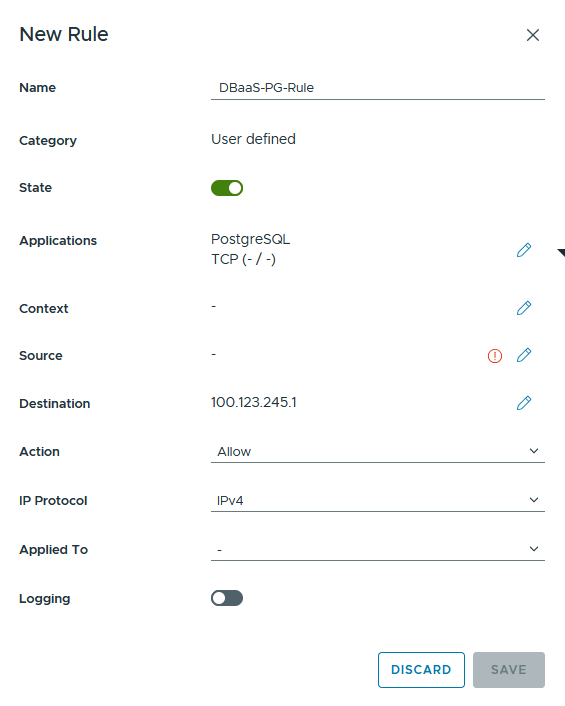
- Create a rule allowing your vm or network to access the DBaaS database.. From the Edge Gateways > Services > Firewall tab
- In Application search either by database type or by database port and choose the correct database type
- The “Source” address must correspond to NAT rule external IP
- The “Destination” address must correspond to DBaaS database IP