-
Overview
-
Q & A
-
Practical sheets
-
-
- Aucun article
-
-
- Aucun article
-
-
-
- Backup : Agent-Level B&R via NSS for IAAS offer
- Backup : Create VCOD Backup
- Backup : Netbackup Agent Installation for Linux
- Backup : Netbackup Agent Installation for Windows
- Backup : Overall Design for VCOD Offer
- Backup : User's Guide for VCOD Offer
- NSX-T : Configuring a Distributed Firewall
- NSX-T : Create VPN Ipsec
- NSX-T : Creation of T1
- NSX-T : DNAT configuration
- NSX-T : How to configure a Gateway Firewall
- NSX-T : SNAT configuration
- NSX-T: Create and Configure a Geneve Overlay Segment
- NSX-T: How to configure an IPSEC solution
- vCenter : Clone a VM
- VCenter : Create a new VM
- VCenter : Create a snapshot of a VM
- VCenter : Reset cloudadmin password
- VCenter : Storage Vmotion on a VM
- VCenter : Upgrade Vmware tools on a VM
-
-
Services
-
-
- Aucun article
-
- Aucun article
-
- Aucun article
-
- Aucun article
-
- Aucun article
-
- Aucun article
-
- Aucun article
-
-
-
- Aucun article
-
- Aucun article
-
- Aucun article
-
-
- Aucun article
-
- Aucun article
-
-
Adding a Resource
Overview
An Organization Administrator can access:
- Public Catalogs
- Your Private Catalogs
Catalogs can contain:
- vApp templates
- Support files in ISO format
Public Catalogs
Public catalogs provide templates for ready-to-deploy vApps.
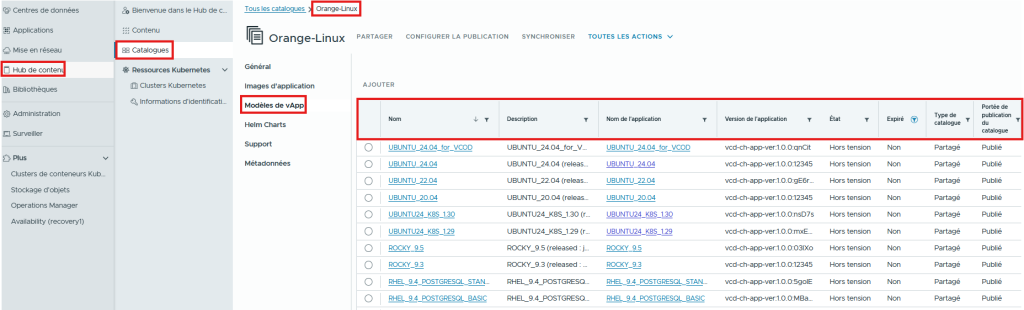
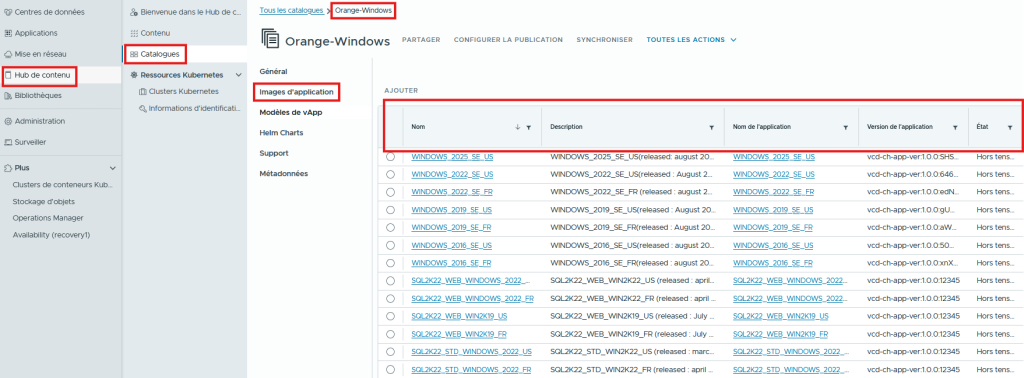
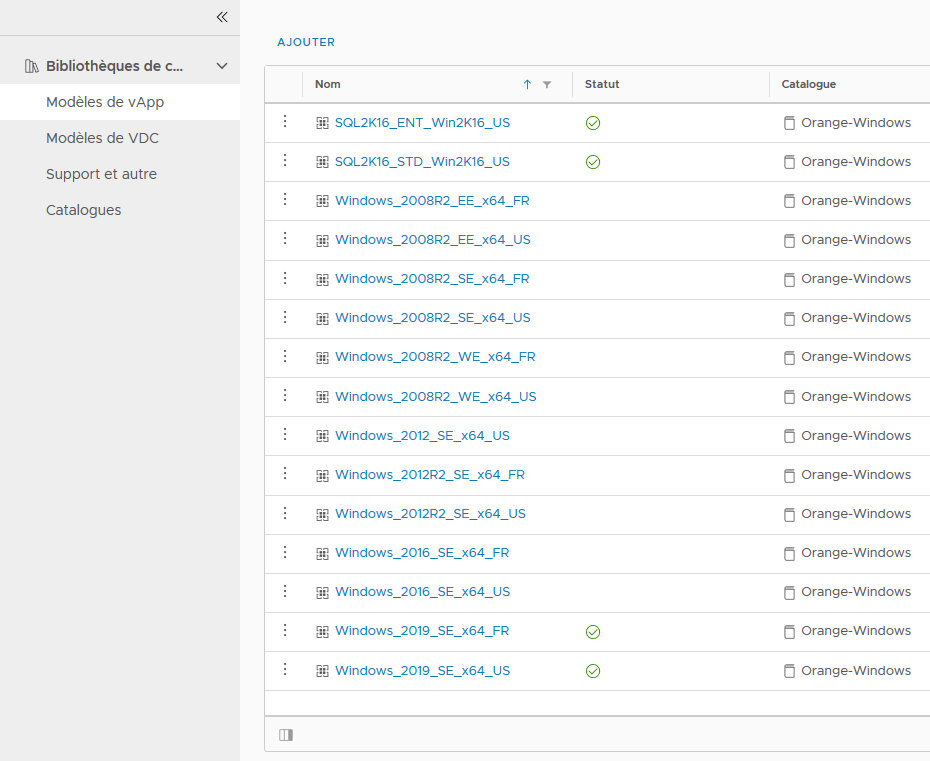
These vApps contain a VM with an OS or middleware already installed or preconfigured. For External Clients, here are the catalogs available from the Content Hub / Catalogs space.
- Orange-Linux Contains pre-installed VMs with the most common supported Linux distributions (Debian, Redhat, CentOS, Ubuntu).
- Orange-Windows This catalog contains pre-installed VMs with the most common supported Windows distributions.
- cse-tkgm-template This catalog contains VMs pre-installed with container management software; used to deploy a Kubernetes cluster.

For Internal Clients, here are the available catalogs:
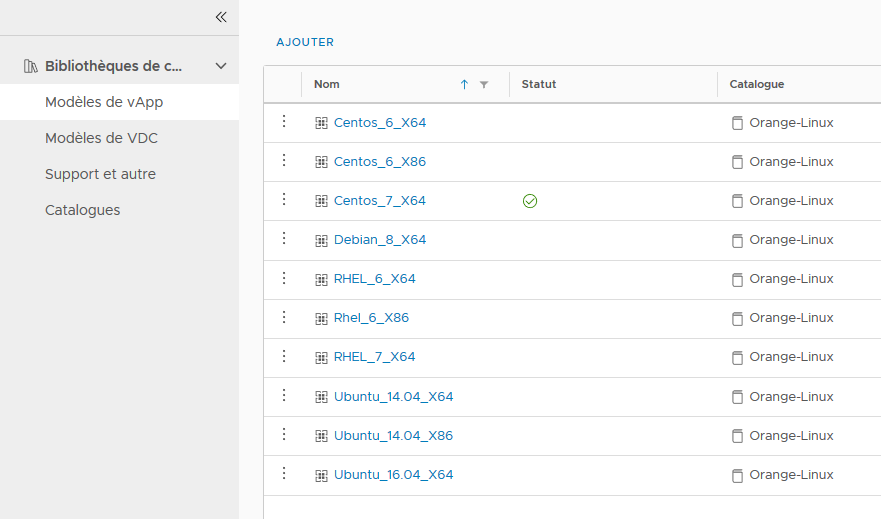
- Orange-Linux-Internal Contains virtual machines pre-installed with the most common supported Linux distributions (Ubuntu, RHEL, OBS Master, PLATON_RHEL Models).
- Orange-Windows-Internal This catalog contains virtual machines pre-installed with the most common supported Windows distributions (W2K19, W2K22, Windows OBS Master, Windows PLATON Models, SQL ENT/STD Models).
Private Catalogs
Each client manages their own Private Catalogs.
Note!
The storage of these catalogs consumes the vDC storage space in the order displayed by vCloud Director.
The download via the Portal is functional for small virtual machines (<50 GB).
For larger virtual machines, an FTPS server is available. In this case, please contact support for more information (@IP/credentials).
How to create your Catalogs
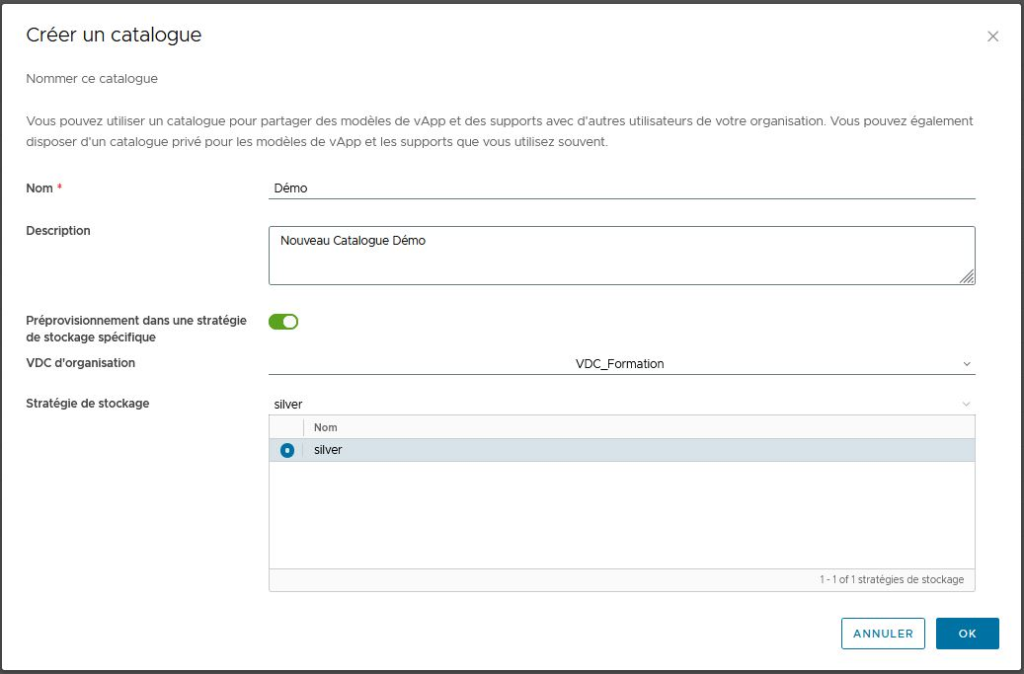
Select Content Hub / Catalogs / NEW
- Enter a Name, a Description
- Activate the option Pre-provisioning in a specific storage strategy if you want to deploy your catalog on a specific storage.
Click OK
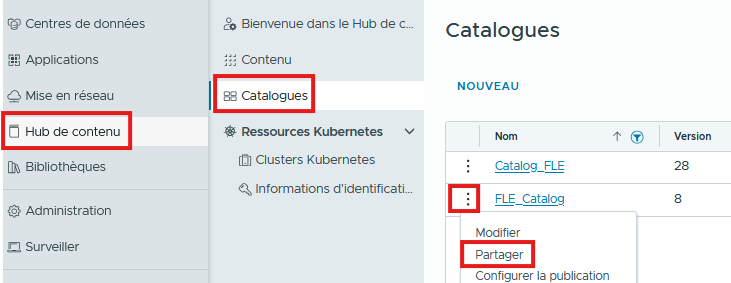
If you need to share the Catalog with other Users:
Select the catalog.
Click on the SHARE button and SAVE.
Add a Media File (.ISO)
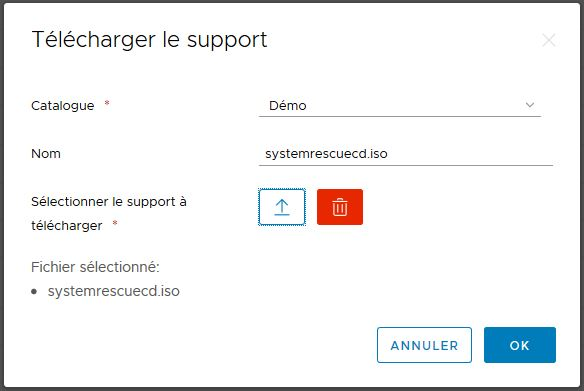
Select Content Hub / Catalogs / Support / ADD. Choose the Catalog and the File to Upload.
Click OK.
Add a vApp Template (.OVA)
Select Content Hub / Catalogs / vApp Templates / ADD
Choose the File to Upload and NEXT.
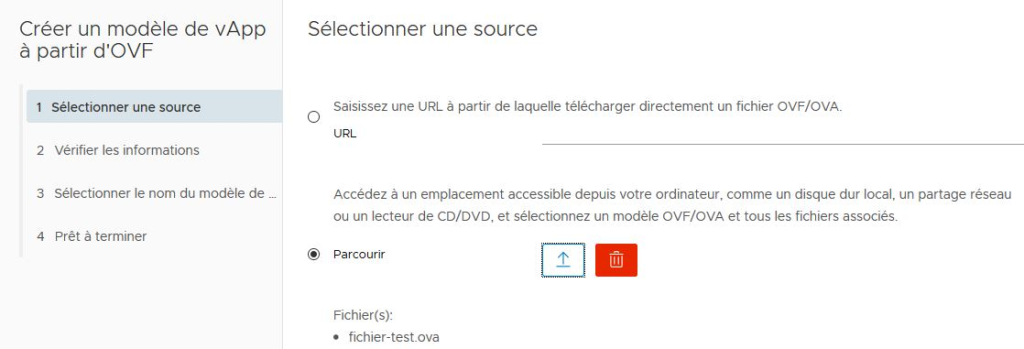
At the verification step, click on NEXT and specify:
- Template Name
- The Target Catalog
and NEXT. Check the information and click on FINISH. Verify that the Template has been uploaded to the Catalog.
Delete a Catalog

Warning!
If you want to delete a Catalog, you must first delete the OVA and ISO files located in the Catalog.
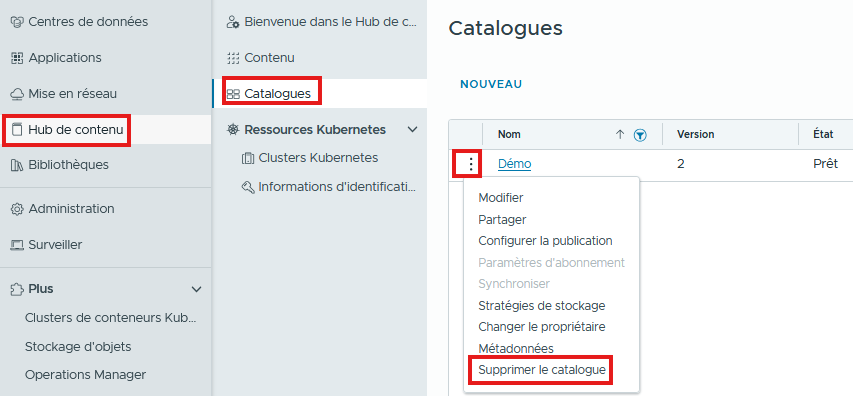
From Content Hub / Catalogs, select the Catalog, click on ACTIONS / Delete Catalog.