-
Overview
-
Practical sheets
-
-
- Aucun article
-
-
- Aucun article
-
-
-
- Backup : Agent-Level B&R via NSS for IAAS offer
- Backup : Create VCOD Backup
- Backup : Netbackup Agent Installation for Linux
- Backup : Netbackup Agent Installation for Windows
- Backup : Overall Design for VCOD Offer
- Backup : User's Guide for VCOD Offer
- NSX-T : Configuring a Distributed Firewall
- NSX-T : Create VPN Ipsec
- NSX-T : Creation of T1
- NSX-T : DNAT configuration
- NSX-T : How to configure a Gateway Firewall
- NSX-T : SNAT configuration
- NSX-T: Create and Configure a Geneve Overlay Segment
- NSX-T: How to configure an IPSEC solution
- vCenter : Clone a VM
- VCenter : Create a new VM
- VCenter : Create a snapshot of a VM
- VCenter : Reset cloudadmin password
- VCenter : Storage Vmotion on a VM
- VCenter : Upgrade Vmware tools on a VM
-
-
Q & A
-
Services
-
-
- Aucun article
-
- Aucun article
-
- Aucun article
-
- Aucun article
-
- Aucun article
-
- Aucun article
-
- Aucun article
-
-
-
- Aucun article
-
- Aucun article
-
- Aucun article
-
-
-
- Aucun article
-
- Aucun article
-
-
Troubleshooting “Network Not Appearing in VM Dropdown”
Problem
My network does not appear in the dropdown list of available networks at the VM level.
Cause
Several possibilities:
1) Your VM is not in the correct vAPP
You are trying to connect your VM to a vAPP network but your VM is not part of this VAPP.
The network
2) VM not in the right vAPP
You are trying to connect your VM to a vAPP network but your VM is not part of this
Solution 1 : (Your network is not declared in the vAPP of your VM)
You add your desired network in the vAPP’s available networks to be visible and selectable in the VM
Identify the VAPP of the VM.
- Under vCD
- menu Application
- select your VM
- View the name of the VAPP
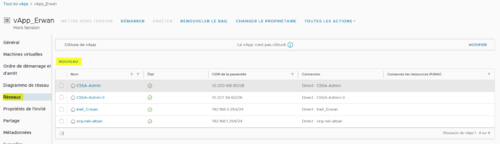
Add the Network in your vApp
- under VCD
- Applications Menu / Virtual Application
- Select your VAPP (Virtual Application)
- Click on Details / Networks
- Click on New
- Select the type of network.
- Organization VDC Network
- or vAPP Network
- Select your network
- Add
Result: your network is now available for the VMs of your vAPP.
Add a network to your VM
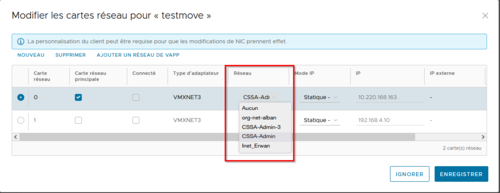
- under VCD
- Applications/ Virtual Machine Menu
- Select your VM
- Click on Details / Network Maps
- Click on Modify
- select the network card to modify.
- Network: select the network from the dropdown menu.
Result: following the addition of the network in the VAPP, the VMs of the vAPPs see all the networks available in the VAPP.
Solution 2 (Your VM is not in the correct vAPP)
It moves the VM in the VAPP with the network to connect.
follow the procedure “Move or Copy a VM”
Solution 3 (Your network is an isolated network)
Your VM must be part of a VAPP where your isolated network is available
check procedures 1 and/or 2
Solution 4 (Your network belongs to another VDC)
You must share your Network to the other VDCs.
For NGP:
See Creating a Data Center Group and Organization Network (NGP)
For Cloud Avenue:
Consult the Organization Network
Then recheck procedure 11