-
Overview
-
Q & A
-
Practical sheets
-
-
- Aucun article
-
-
- Aucun article
-
-
-
- Backup : Agent-Level B&R via NSS for IAAS offer
- Backup : Create VCOD Backup
- Backup : Netbackup Agent Installation for Linux
- Backup : Netbackup Agent Installation for Windows
- Backup : Overall Design for VCOD Offer
- Backup : User's Guide for VCOD Offer
- NSX-T : Configuring a Distributed Firewall
- NSX-T : Create VPN Ipsec
- NSX-T : Creation of T1
- NSX-T : DNAT configuration
- NSX-T : How to configure a Gateway Firewall
- NSX-T : SNAT configuration
- NSX-T: Create and Configure a Geneve Overlay Segment
- NSX-T: How to configure an IPSEC solution
- vCenter : Clone a VM
- VCenter : Create a new VM
- VCenter : Create a snapshot of a VM
- VCenter : Reset cloudadmin password
- VCenter : Storage Vmotion on a VM
- VCenter : Upgrade Vmware tools on a VM
-
-
Services
-
-
- Aucun article
-
- Aucun article
-
- Aucun article
-
- Aucun article
-
- Aucun article
-
- Aucun article
-
- Aucun article
-
-
-
- Aucun article
-
- Aucun article
-
- Aucun article
-
-
- Aucun article
-
- Aucun article
-
-
Managing Snapshots
Overview
The Snapshot allows you to capture an image of your VM at a specific point in time. It is not a VM BACKUP.
It is advisable to use snapshots before performing significant updates that could potentially cause application malfunctions, for example.
Prerequisites
- Know how to access your VMs
- The VMware Tools must be installed and up to date on the VMs.
- Have sufficient storage resources on your VDC.
Snapshot Management
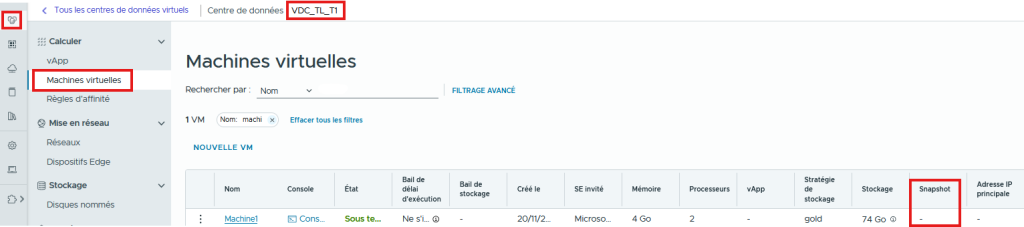
From the menu Data Centers > Virtual Machines > in the Snapshot column, verify that there are no snapshots on your VM.
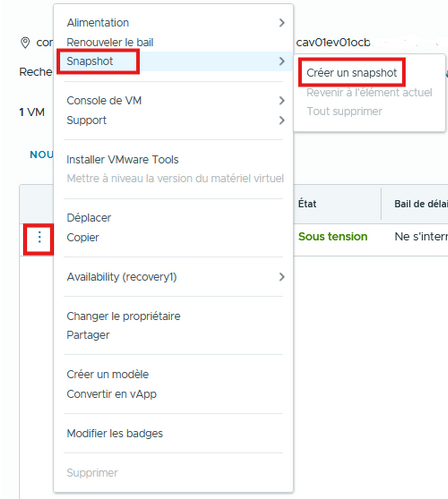
Select your machine then Snapshot > Create a snapshot
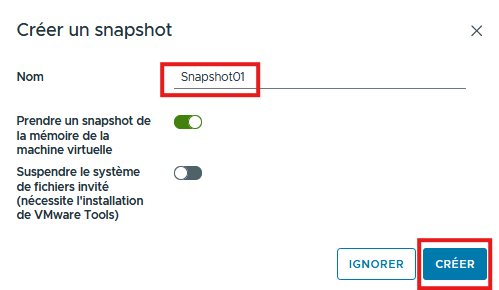
Create a Snapshot
When creating a Snapshot, you can:
- Take a Virtual Memory Snapshot
- Suspend the guest Operating System
You cannot create more than one snapshot per VM; you must delete the existing one to create a new one.
View your snapshots
You can view the details of a snapshot by clicking on the “Info” icon in the snapshot column.

A snapshot will consume storage equivalent to the size of your VM’s disks on the storage strategy used by it.
If you decide to keep the RAM, the consumed storage will be equal to the size of the disks plus the RAM.
Restore/Delete your snapshots
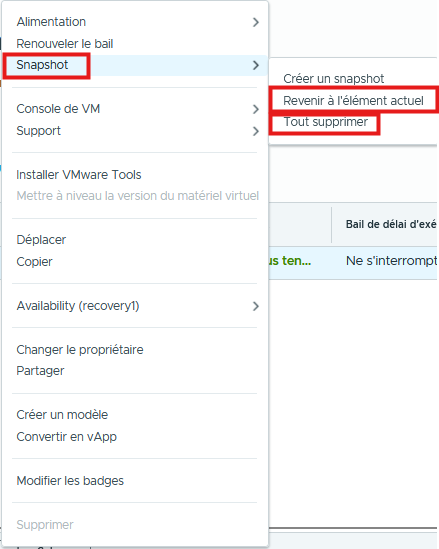
To restore a snapshot and revert to a previous state, select “Revert to current item“.
To delete a snapshot, select “Delete all“.