-
Overview
-
Practical sheets
-
-
- Aucun article
-
-
- Aucun article
-
-
-
- Backup : Agent-Level B&R via NSS for IAAS offer
- Backup : Create VCOD Backup
- Backup : Netbackup Agent Installation for Linux
- Backup : Netbackup Agent Installation for Windows
- Backup : Overall Design for VCOD Offer
- Backup : User's Guide for VCOD Offer
- NSX-T : Configuring a Distributed Firewall
- NSX-T : Create VPN Ipsec
- NSX-T : Creation of T1
- NSX-T : DNAT configuration
- NSX-T : How to configure a Gateway Firewall
- NSX-T : SNAT configuration
- NSX-T: Create and Configure a Geneve Overlay Segment
- NSX-T: How to configure an IPSEC solution
- vCenter : Clone a VM
- VCenter : Create a new VM
- VCenter : Create a snapshot of a VM
- VCenter : Reset cloudadmin password
- VCenter : Storage Vmotion on a VM
- VCenter : Upgrade Vmware tools on a VM
-
-
Q & A
-
Services
-
-
- Aucun article
-
- Aucun article
-
- Aucun article
-
- Aucun article
-
- Aucun article
-
- Aucun article
-
- Aucun article
-
-
-
- Aucun article
-
- Aucun article
-
- Aucun article
-
-
-
- Aucun article
-
- Aucun article
-
-
Importing a vApp
Importing a vApp from a data center
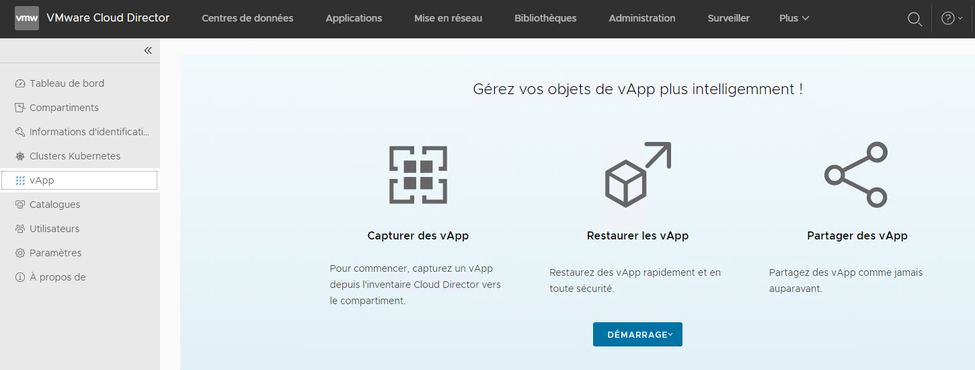
The vApp menu allows you to import/restore vApps from the data center (Vcd).
To create your first vApp import:
Click on the “Start” button, then “Import from data center.”
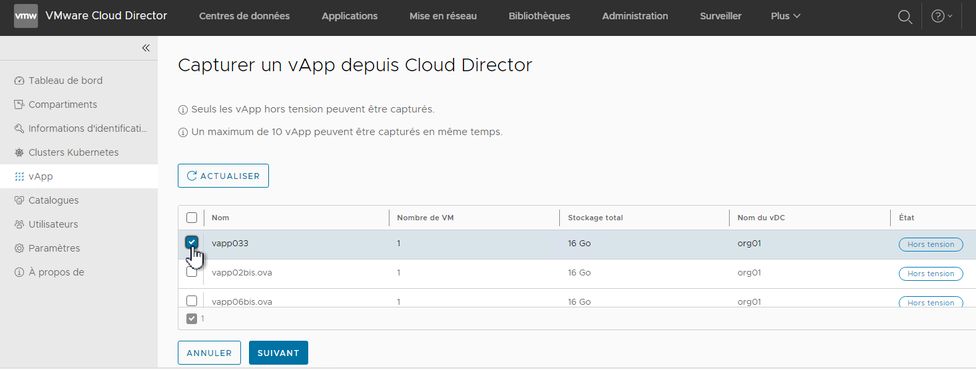
Select the vApp to be imported by checking the checkbox, then click “Next.”
Please note: The vApp must be turned off to be imported.
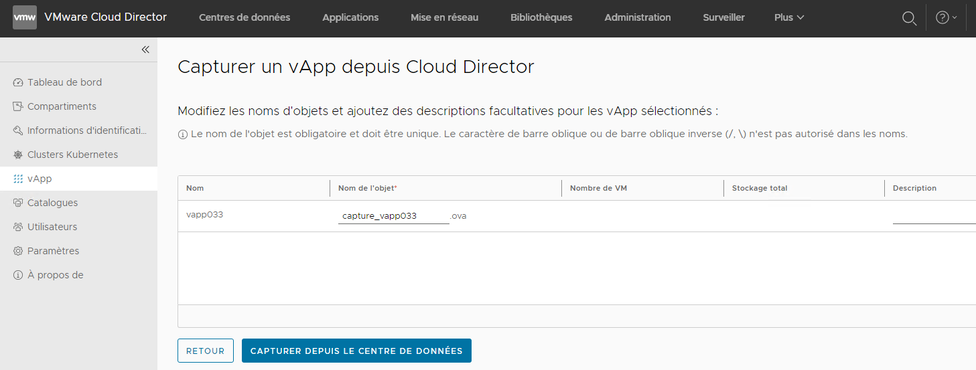
Provide a name for the vApp to be imported
Click on “Import from Data Center”
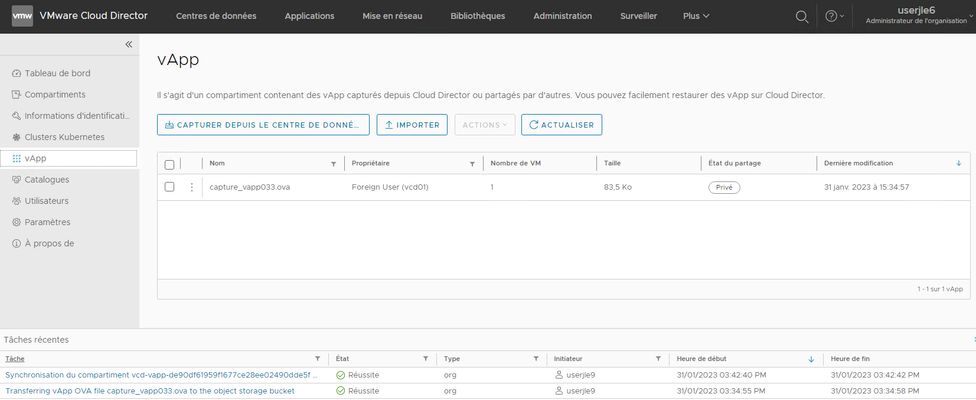
Check in the bottom frame named “Recent Tasks” that the import has “Success” status.
Once imported, the vApp appears in the list.
Restoring a vApp from a data center
The vApp menu allows you to import/restore vApps from the data center (Vcd)
!!!WARNING!!! Restoring a vApp does not restore its network interface configurations
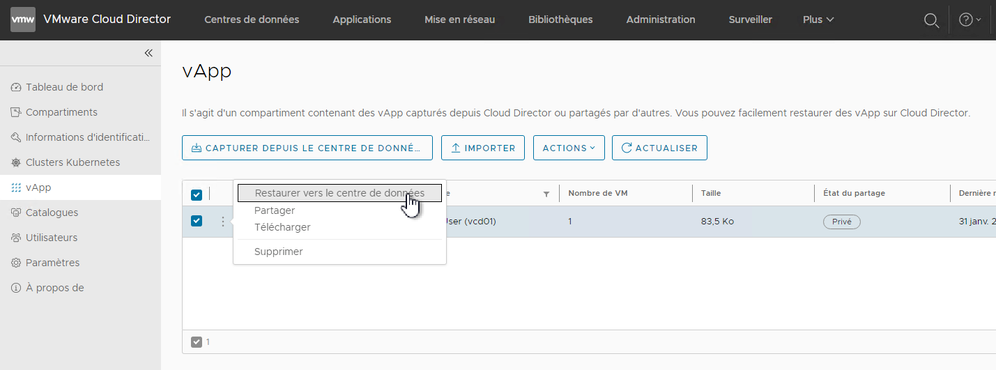
Provide a name for the vApp to be restored
Change the VM settings if necessary
Click on the “Restore” button
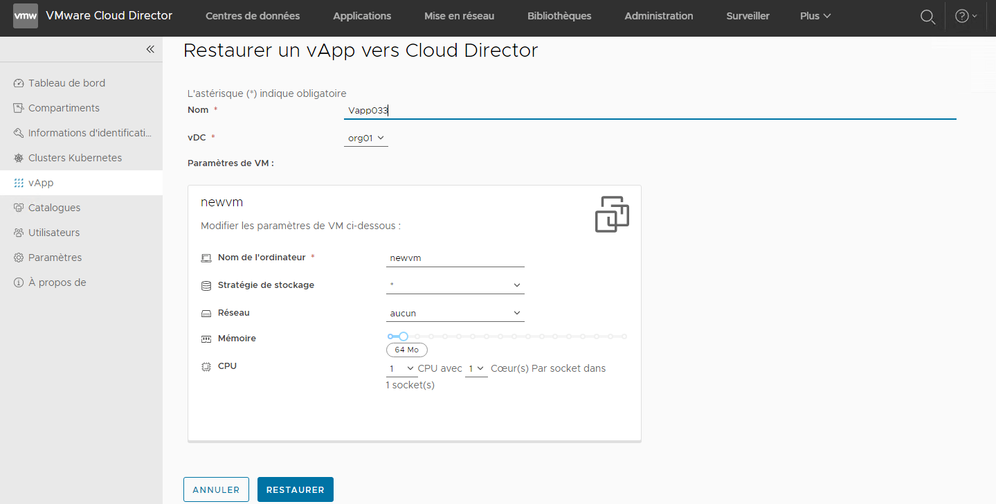
Check in the bottom frame named “Recent Tasks” that the restoration has “Successful” status.
Once restored, the vApp appears in VMware Cloud Director.
