-
Overview
-
Practical sheets
-
-
- Aucun article
-
-
- Aucun article
-
-
-
- Backup : Agent-Level B&R via NSS for IAAS offer
- Backup : Create VCOD Backup
- Backup : Netbackup Agent Installation for Linux
- Backup : Netbackup Agent Installation for Windows
- Backup : Overall Design for VCOD Offer
- Backup : User's Guide for VCOD Offer
- NSX-T : Configuring a Distributed Firewall
- NSX-T : Create VPN Ipsec
- NSX-T : Creation of T1
- NSX-T : DNAT configuration
- NSX-T : How to configure a Gateway Firewall
- NSX-T : SNAT configuration
- NSX-T: Create and Configure a Geneve Overlay Segment
- NSX-T: How to configure an IPSEC solution
- vCenter : Clone a VM
- VCenter : Create a new VM
- VCenter : Create a snapshot of a VM
- VCenter : Reset cloudadmin password
- VCenter : Storage Vmotion on a VM
- VCenter : Upgrade Vmware tools on a VM
-
-
Q & A
-
Services
-
-
- Aucun article
-
- Aucun article
-
- Aucun article
-
- Aucun article
-
- Aucun article
-
- Aucun article
-
- Aucun article
-
-
-
- Aucun article
-
- Aucun article
-
- Aucun article
-
-
-
- Aucun article
-
- Aucun article
-
-
Windows Update Configuration (WSUS)
Overview
Please note !
All VMs you wish to connect to Cloud Avenue’s WSUS (Windows Update Service) must have access to the SUO service area.
Open up a shell window and key in netstat -nrv in order to check that a persistent route is in place to the following subnet:
57.199.209.192/27
via the Admin Subnet Gateway, otherwise please add the this indispensible static route.
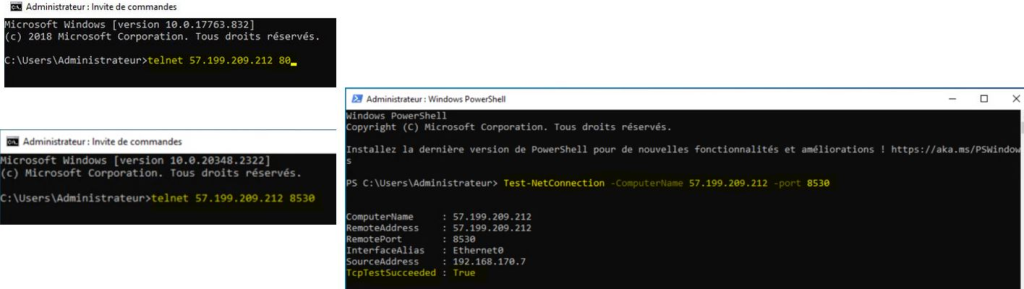
Test access to the WSUS server :
- on Cloud Avenue: please open a shell window and key in ‘telnet 57.199.209.212 80’
- on NGP: please key in ‘telnet 57.199.209.212 8530
OR - key in ‘Test-NetConnection -ComputerName 57.199.209.212 -port 8530’
Examples are provided below:
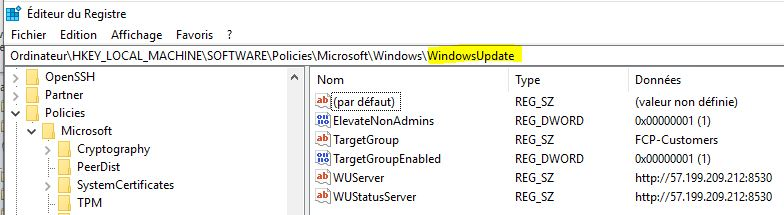
Check the Windows registry for the following entries :
- HKEY_LOCAL_MACHINE\SOFTWARE\Policies\Microsoft\Windows\WindowsUpdate\
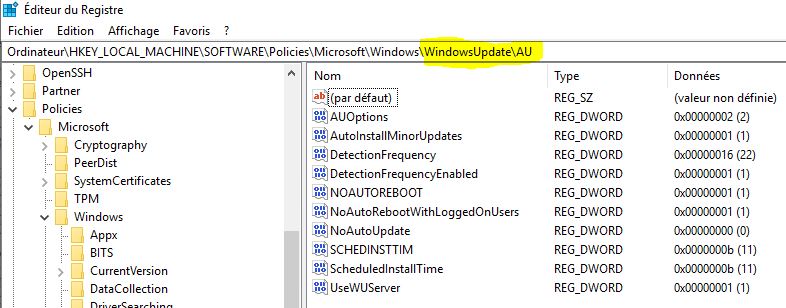
Check the Windows registry for the following entries:
- HKEY_LOCAL_MACHINE\SOFTWARE\Policies\Microsoft\Windows\WindowsUpdate\AU
Check that the Windows Update Service is set up as :
- Started and Automatic

Launching a Windows Update upgrade is as follows:
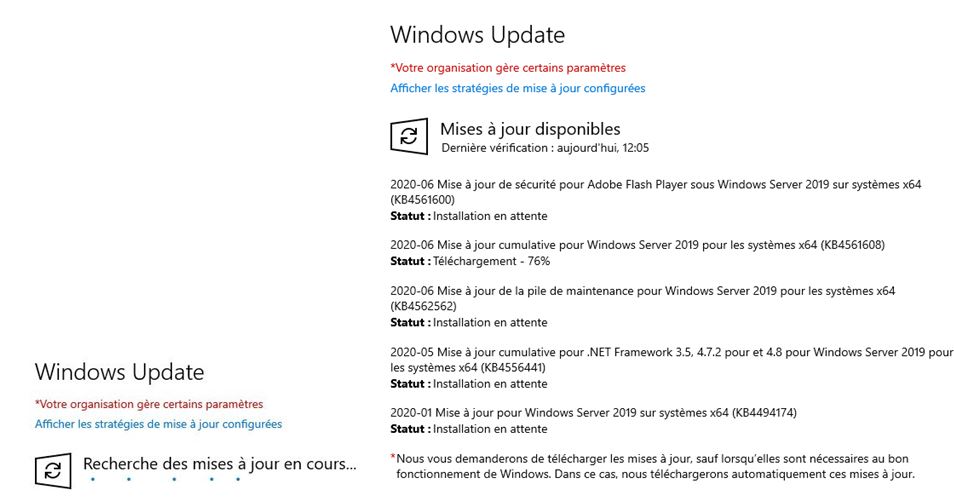
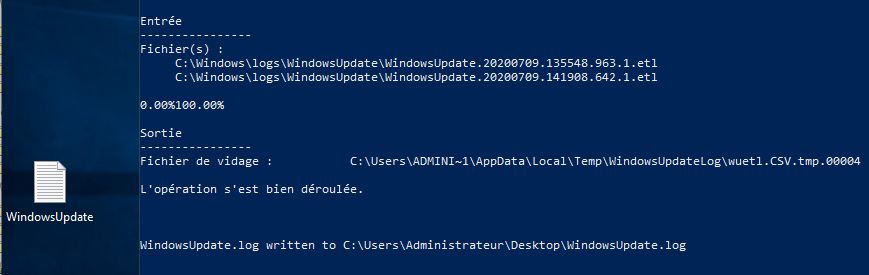
To generate a log for any given Windows file, please use the following powershell command:
- Get-WindowsUpdateLog
A WindowsUpdate.log file is created on the desktop.