-
Overview
-
Practical sheets
-
-
- Aucun article
-
-
- Aucun article
-
-
-
- Backup : Agent-Level B&R via NSS for IAAS offer
- Backup : Create VCOD Backup
- Backup : Netbackup Agent Installation for Linux
- Backup : Netbackup Agent Installation for Windows
- Backup : Overall Design for VCOD Offer
- Backup : User's Guide for VCOD Offer
- NSX-T : Configuring a Distributed Firewall
- NSX-T : Create VPN Ipsec
- NSX-T : Creation of T1
- NSX-T : DNAT configuration
- NSX-T : How to configure a Gateway Firewall
- NSX-T : SNAT configuration
- NSX-T: Create and Configure a Geneve Overlay Segment
- NSX-T: How to configure an IPSEC solution
- vCenter : Clone a VM
- VCenter : Create a new VM
- VCenter : Create a snapshot of a VM
- VCenter : Reset cloudadmin password
- VCenter : Storage Vmotion on a VM
- VCenter : Upgrade Vmware tools on a VM
-
-
Q & A
-
Services
-
-
- Aucun article
-
- Aucun article
-
- Aucun article
-
- Aucun article
-
- Aucun article
-
- Aucun article
-
- Aucun article
-
-
-
- Aucun article
-
- Aucun article
-
- Aucun article
-
-
-
- Aucun article
-
- Aucun article
-
-
Organization Network (NGP)
Overview
An organization network allows you to connect virtual machines to each other. An organization network can be routed to an NSX gateway (T1)
A network has a scope that extends over one VDC or over a VDC group.
More details HERE

Warning !
For a network carried by a VDC group to be routed to a gateway, it is necessary to add the gateway to the relevant VDC group.
Prerequisites
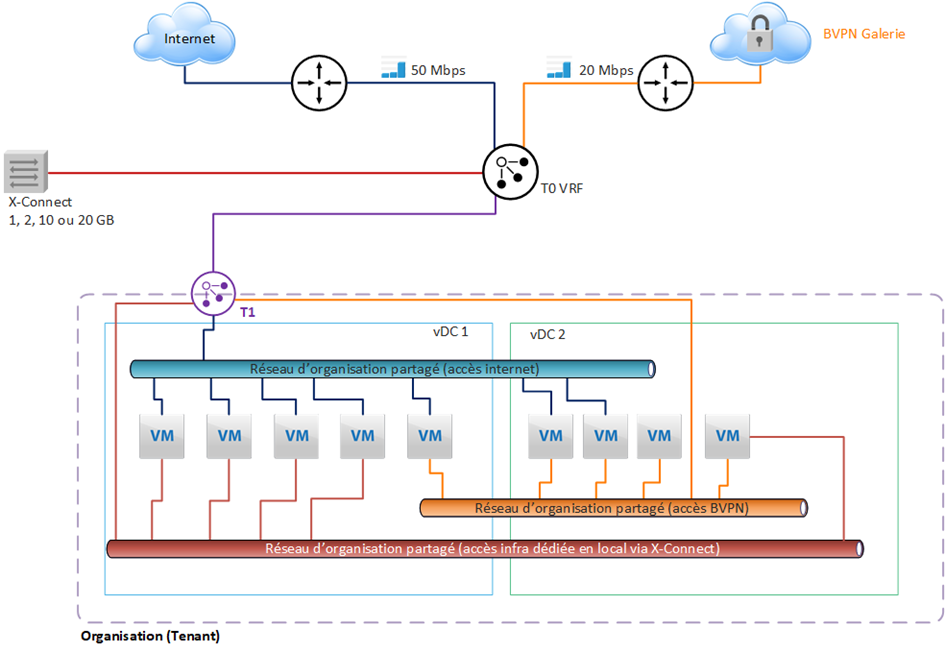
Warning !
For a VM to have an interface configured on a network, you must add the chosen network to the vApp containing the VM from the Action submenu of a vApp.
Creating a network
To create an organization network, go to the Networking > Networks > NEW tab.

Choose the scope of your VDC :
We recommend choosing a data center group that you have created beforehand. This will allow you to easily share this network between different VDCs.

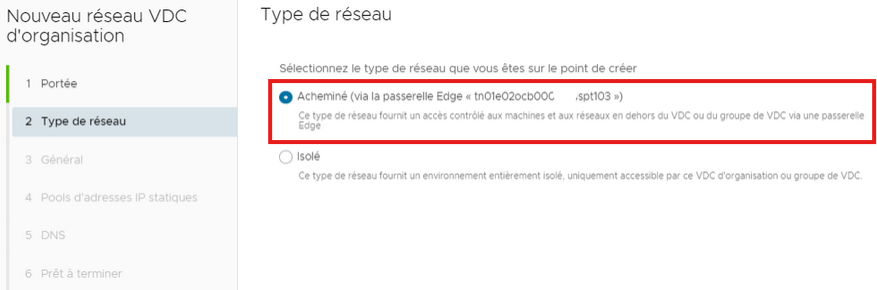
Choose whether your network must be routed to a gateway or whether it must be isolated.
As a reminder, the gateway must have been added to the data center group in order to be able to route the network.
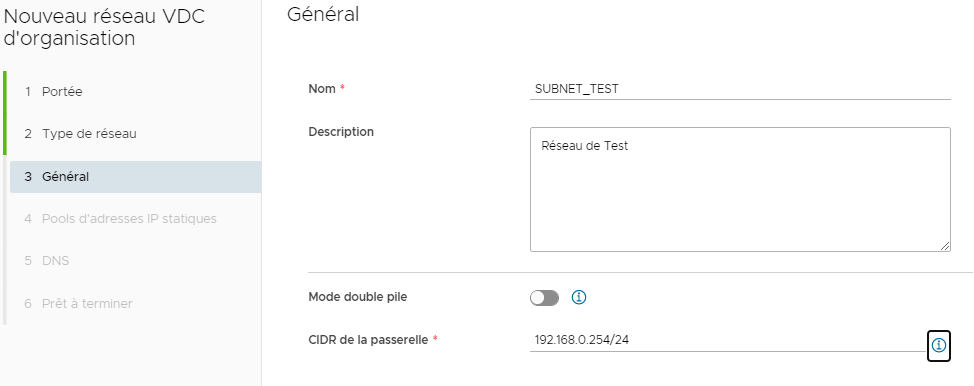
Choose a name for your network and determine the IP address of your gateway in the network you want to create.
Create an IP address pool.
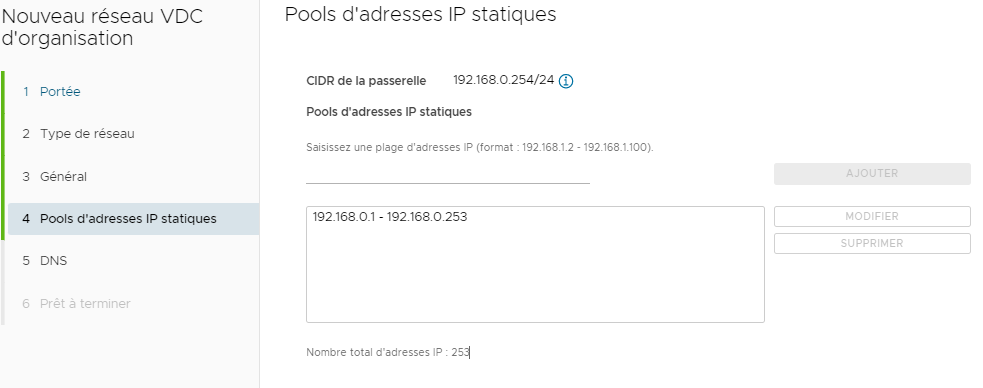
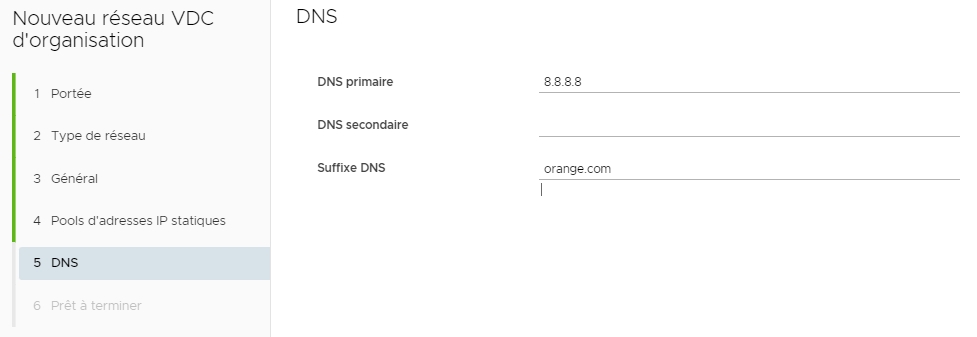
Then you can configure a DNS if needed (this will avoid having to configure DNS in the guest OS of each VM)
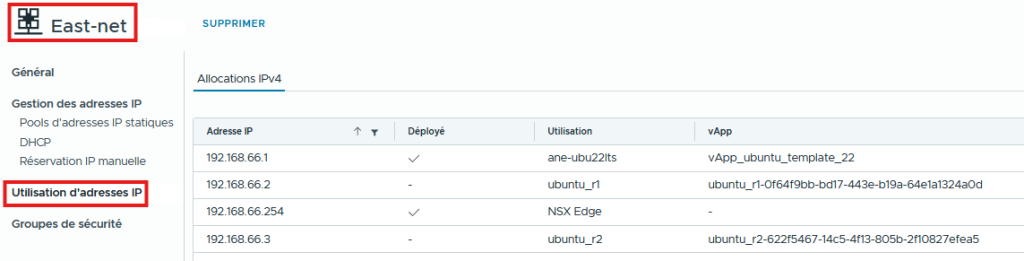
By clicking on a network we can access new options.

You can view the list of consumed IP addresses via IP address usage
You can add your network to a security group, which is useful for managing your firewall.
Add a network to a vApp
To be able to put a Network on a VM that is in a vApp, the network must be associated with the vApp and then added to the VM.
From Applications > Virtual Applications > Add > Add network

You will then have to select the desired network.
Delete an Organization Network
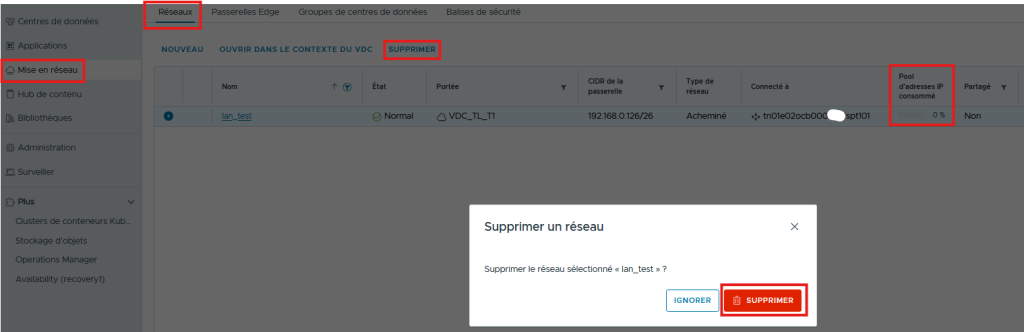
To be able to delete an organization network, no IP from the pool must be used by a VM and it must not be attached to a vApp
As a reminder, organization networks are attached to vApps and not to VMs, so it is necessary to power off the vApp and then, from the Networks tab, select the network and click DELETE.
Go back to the Networking section, select the Org-Net and click Delete and confirm the deletion.