Cloud Avenue Wiki
-
Overview
-
Practical sheets
-
-
- Aucun article
-
-
- Aucun article
-
-
-
- Backup : Agent-Level B&R via NSS for IAAS offer
- Backup : Create VCOD Backup
- Backup : Netbackup Agent Installation for Linux
- Backup : Netbackup Agent Installation for Windows
- Backup : Overall Design for VCOD Offer
- Backup : User's Guide for VCOD Offer
- NSX-T : Configuring a Distributed Firewall
- NSX-T : Create VPN Ipsec
- NSX-T : Creation of T1
- NSX-T : DNAT configuration
- NSX-T : How to configure a Gateway Firewall
- NSX-T : SNAT configuration
- NSX-T: Create and Configure a Geneve Overlay Segment
- NSX-T: How to configure an IPSEC solution
- vCenter : Clone a VM
- VCenter : Create a new VM
- VCenter : Create a snapshot of a VM
- VCenter : Reset cloudadmin password
- VCenter : Storage Vmotion on a VM
- VCenter : Upgrade Vmware tools on a VM
-
-
Q & A
-
Services
-
-
- Aucun article
-
- Aucun article
-
- Aucun article
-
- Aucun article
-
- Aucun article
-
- Aucun article
-
- Aucun article
-
-
-
- Aucun article
-
- Aucun article
-
- Aucun article
-
-
-
- Aucun article
-
- Aucun article
-
-
Firewall
Overview
You can configure a Firewall on each T1 Edge of your Organization. This allows you to manage the Security of your North <> South traffic.
The Traffic Management is UNDER the responsibility of the Organization’s Administrators.
More Details HERE
Prerequisites
Firewall Rules Management
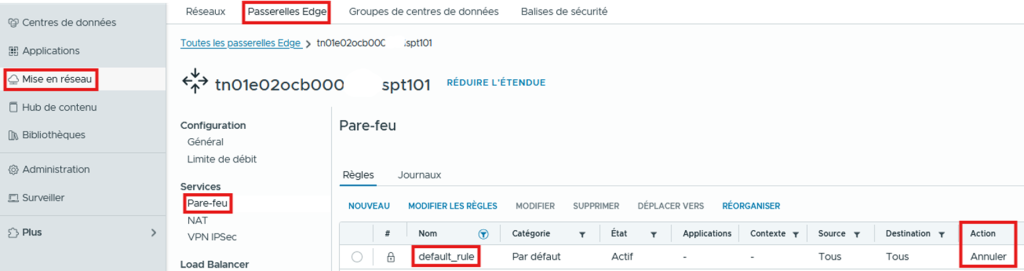
From Networking / Edge Gateways / Firewall :
- By default, the Firewall is configured to block all Incoming/Outgoing Traffic from the T1 (Drop = Deny). This rule is not modifiable.
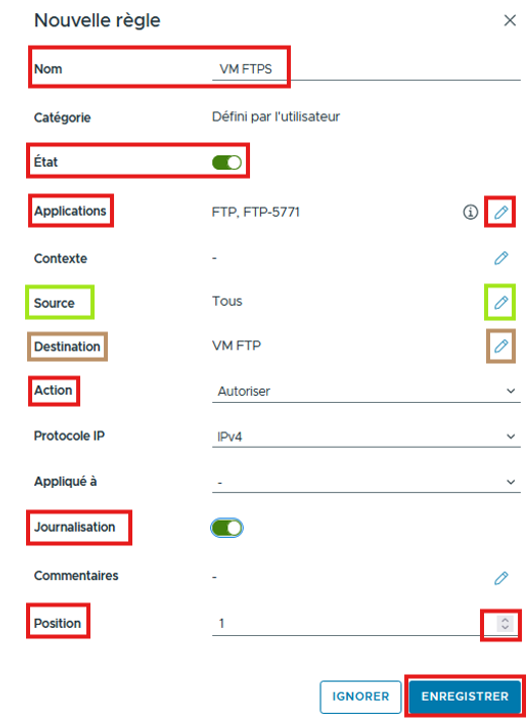
To create a Firewall rule, click on NEW then :
- Choose a Name
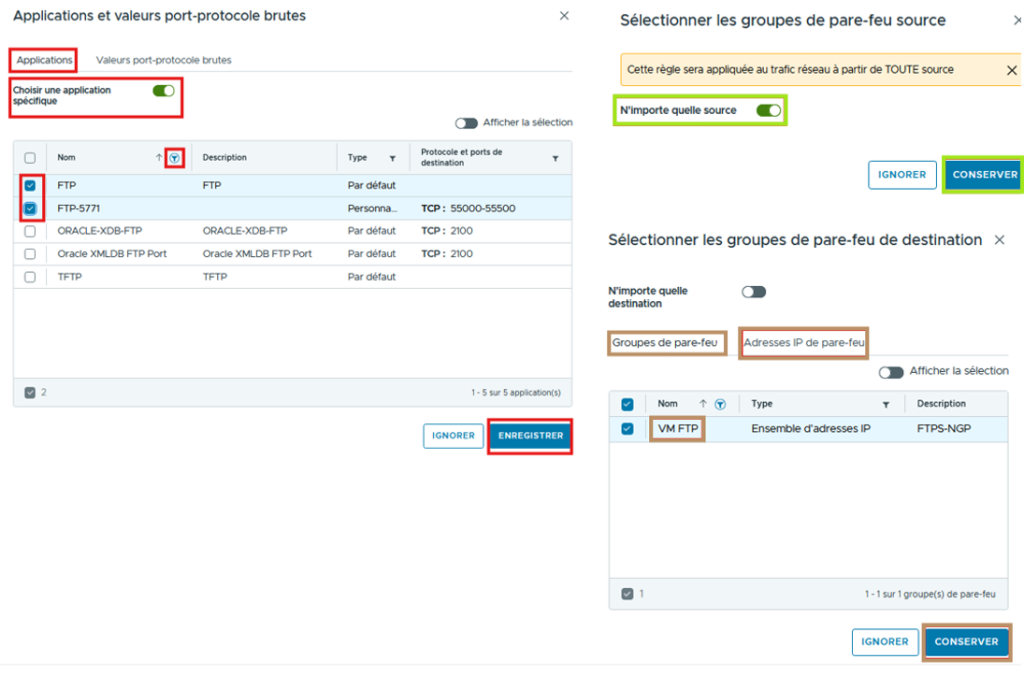
- Select one or more Applications (Ports) to which the rule applies
- Select a Source and a Destination –>
- Any
- IP/VM Groups
- An @IP
If you have Enabled Logging for your Firewall Rule, you can view the logs by selecting SHOW LOGS
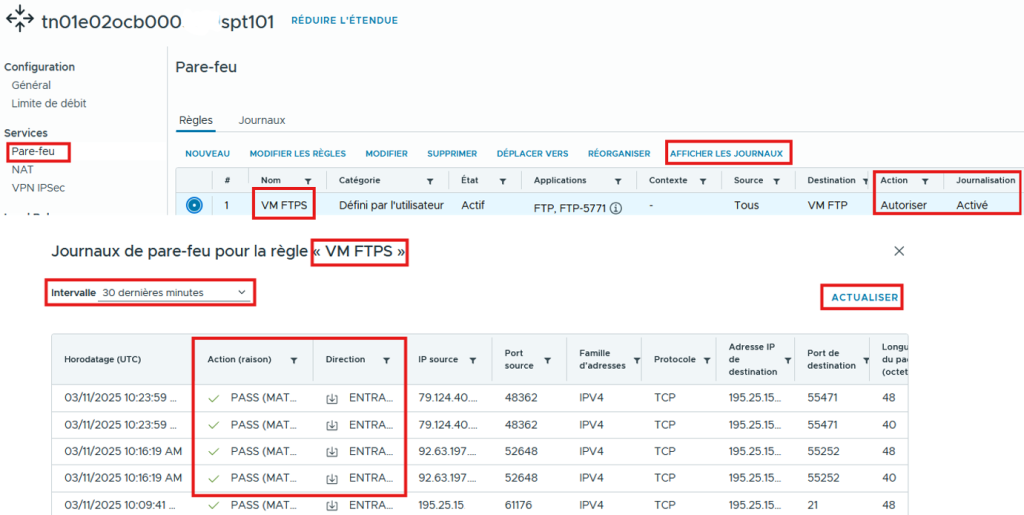
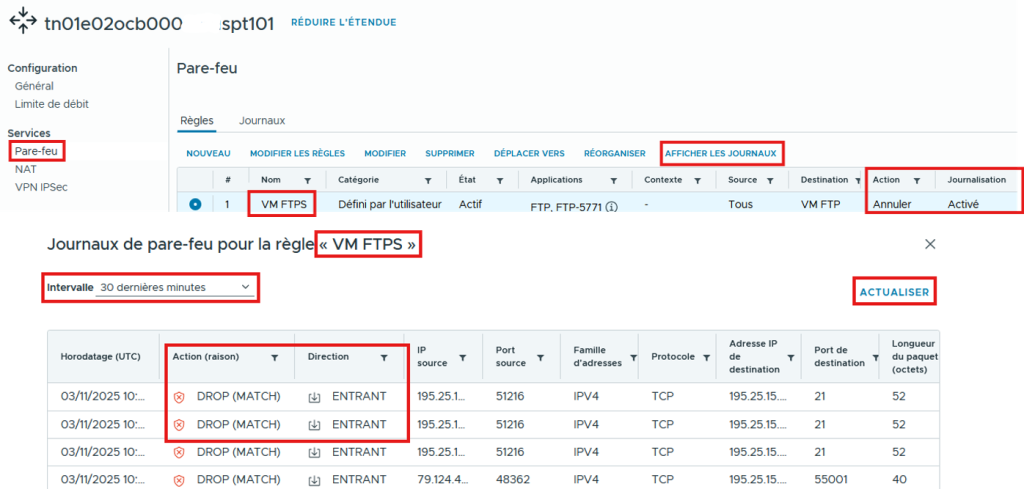
It is possible to modify existing rules by clicking on MODIFY RULES
You can:
-
- Create a new rule at the top of the list (applies first)
-
- Create a new rule above the selected one
-
- Delete a rule
-
- Modify the position (The order of rules is crucial)
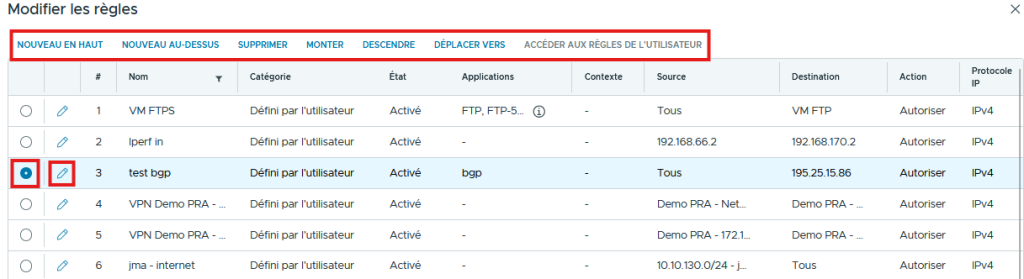
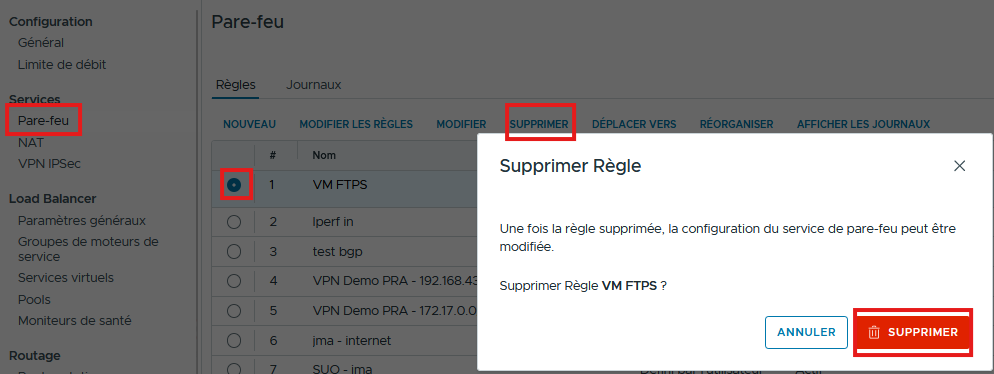
Select DELETE to remove a rule.