Cloud Avenue Wiki
-
Overview
-
Practical sheets
-
-
- Aucun article
-
-
- Aucun article
-
-
-
- Backup : Agent-Level B&R via NSS for IAAS offer
- Backup : Create VCOD Backup
- Backup : Netbackup Agent Installation for Linux
- Backup : Netbackup Agent Installation for Windows
- Backup : Overall Design for VCOD Offer
- Backup : User's Guide for VCOD Offer
- NSX-T : Configuring a Distributed Firewall
- NSX-T : Create VPN Ipsec
- NSX-T : Creation of T1
- NSX-T : DNAT configuration
- NSX-T : How to configure a Gateway Firewall
- NSX-T : SNAT configuration
- NSX-T: Create and Configure a Geneve Overlay Segment
- NSX-T: How to configure an IPSEC solution
- vCenter : Clone a VM
- VCenter : Create a new VM
- VCenter : Create a snapshot of a VM
- VCenter : Reset cloudadmin password
- VCenter : Storage Vmotion on a VM
- VCenter : Upgrade Vmware tools on a VM
-
-
Q & A
-
Services
-
-
- Aucun article
-
- Aucun article
-
- Aucun article
-
- Aucun article
-
- Aucun article
-
- Aucun article
-
- Aucun article
-
-
-
- Aucun article
-
- Aucun article
-
- Aucun article
-
-
-
- Aucun article
-
- Aucun article
-
-
DHCP
Overview
DHCP enables the automatic assignment of IPs to VMs located behind the Edge. More details HERE
Prerequisites
Create an organization network connected to an Edge Gateway (e.g.: Subnet 10.100.100.0/24).
- Static IP Pool: 10.100.100.1 to 10.100.100.100
- DHCP IP Pool: 10.100.100.150 to 10.100.100.250
DHCP Configuration
DHCP Service
- From the Networking > Networks tab
- Click on the network of your choice
- Click on the DHCP tab and ENABLE it
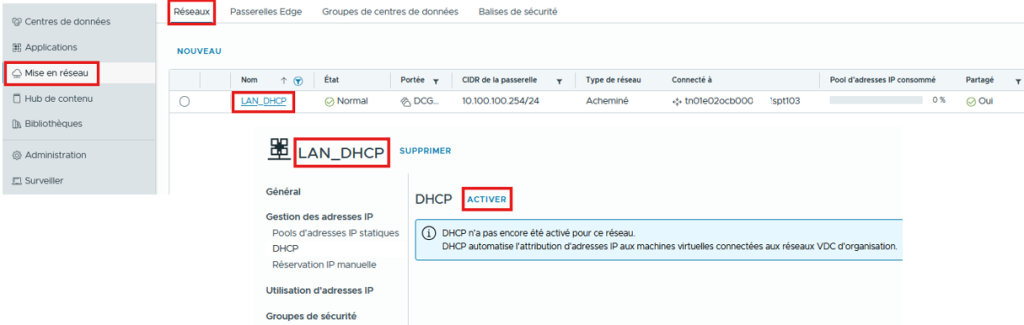
- The subnet is already filled in; it is the one you chose.
- Select the desired DHCP mode
- Network: For isolated networks
- Gateway: When your network is connected to a gateway
- Relay: When your gateway acts as a DHCP relay
- Set the DHCP lease duration
- Configure a DHCP Pool that is not already used.
- You can configure DNS learning by DHCP
- Check and Validate the steps
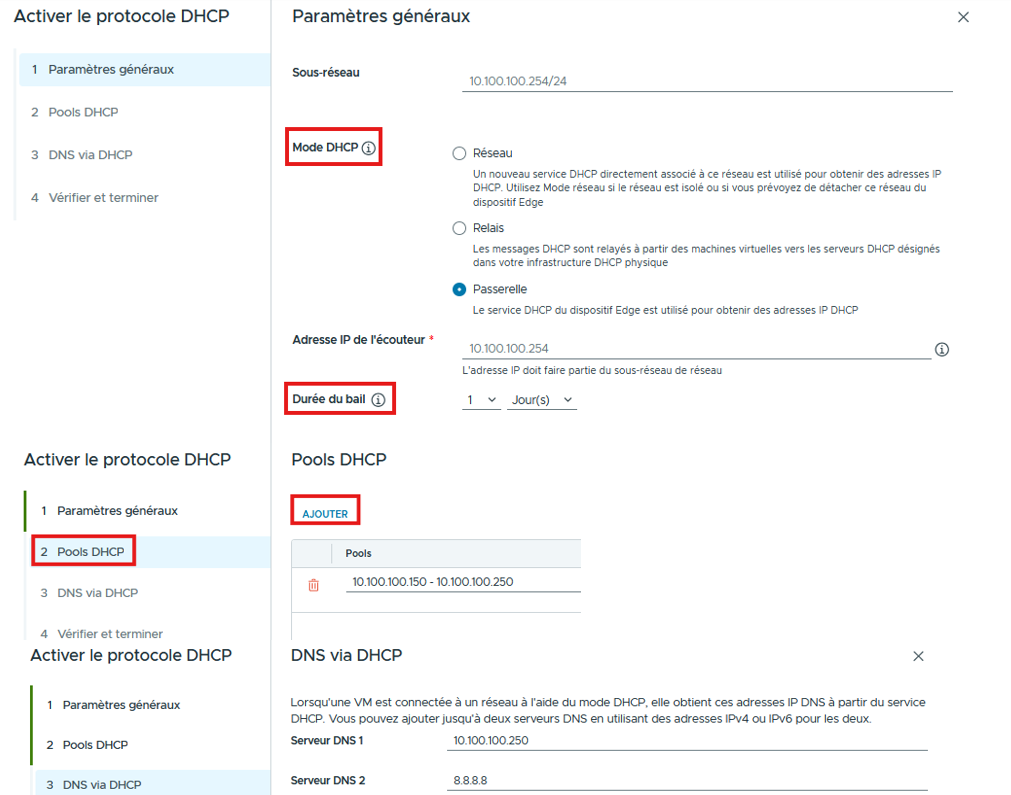
If one of your Pools overlaps another IP address Pool you will get this error message at the last Verification step.

Once finished, you will find the details of your DHCP service.
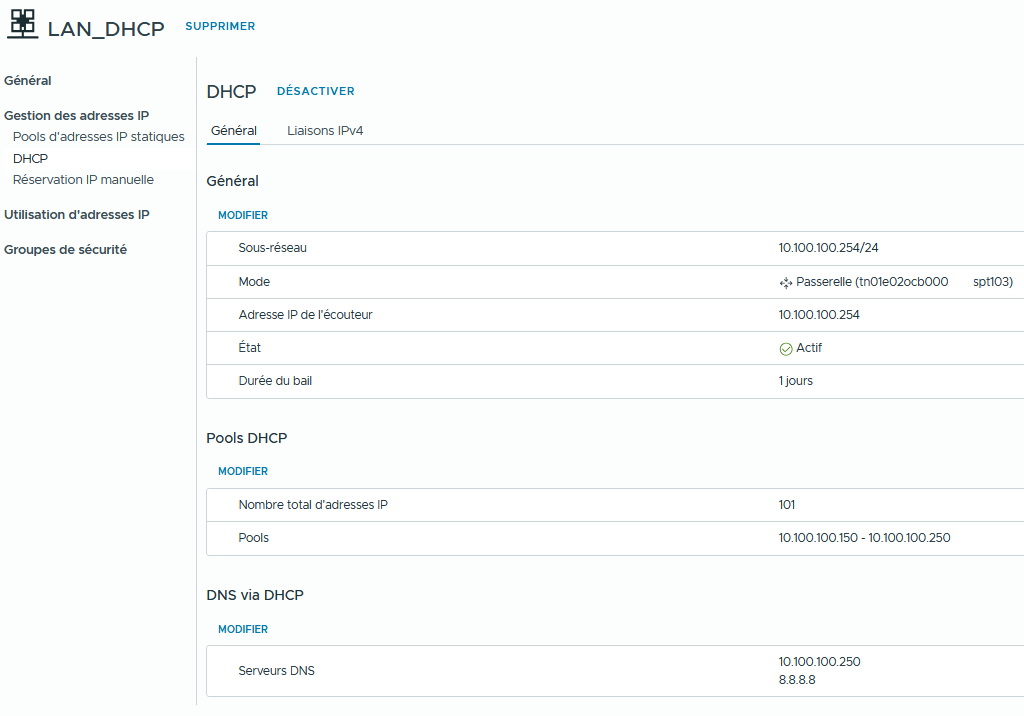
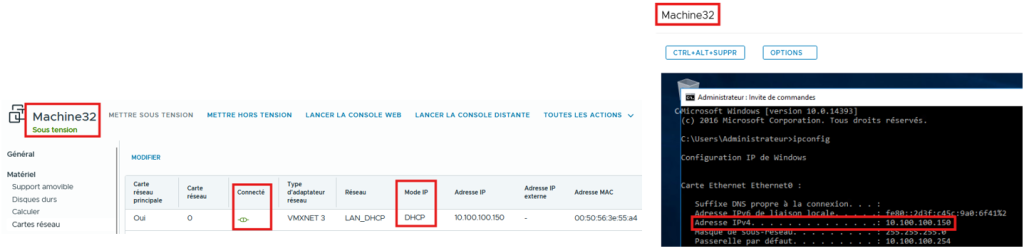
Configure the vNic on the VM in DHCP mode
IPv4 Binding
IPv4 bindings allow you to Reserve and Provide an IP address to a VM via DHCP. More details HERE
- Name your binding
- Describe it if needed
- Provide an IP address contained in an organization network
- Enter the MAC address of your VM
- Set the lease duration
- Enter the IP address of your default gateway if it is different from the DHCP server.
- Enter a unique host name
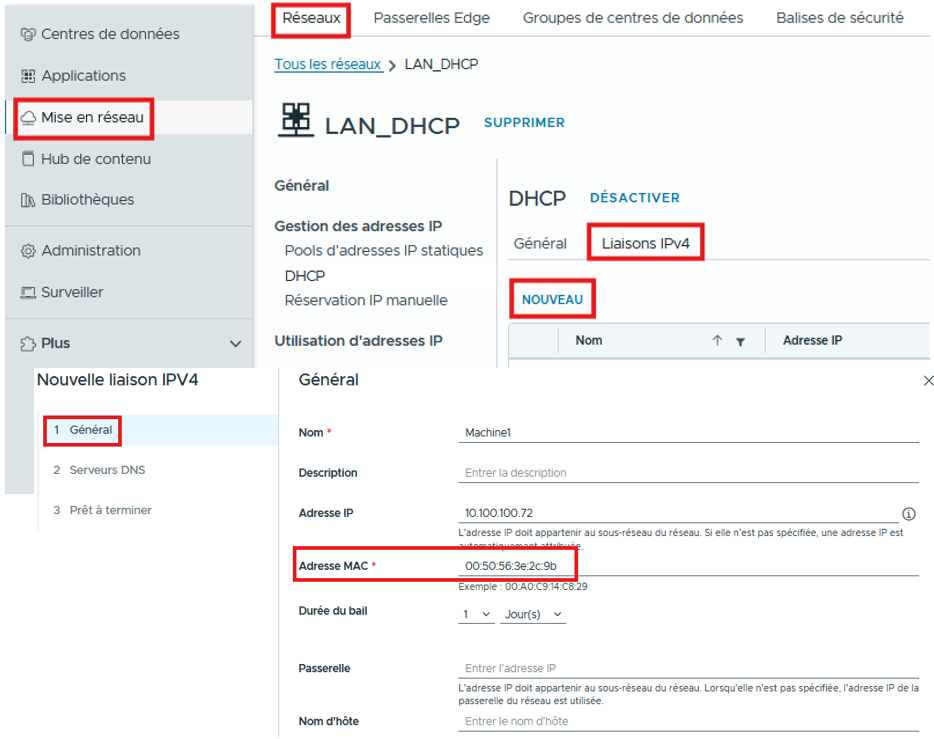
Again, you must make sure that the IP reserved for your VM is not part of an existing IP address pool.

Configure the vNic on the VM in DHCP mode