-
Overview
-
Q & A
-
Practical sheets
-
-
- Aucun article
-
-
- Aucun article
-
-
-
- Backup : Agent-Level B&R via NSS for IAAS offer
- Backup : Create VCOD Backup
- Backup : Netbackup Agent Installation for Linux
- Backup : Netbackup Agent Installation for Windows
- Backup : Overall Design for VCOD Offer
- Backup : User's Guide for VCOD Offer
- NSX-T : Configuring a Distributed Firewall
- NSX-T : Create VPN Ipsec
- NSX-T : Creation of T1
- NSX-T : DNAT configuration
- NSX-T : How to configure a Gateway Firewall
- NSX-T : SNAT configuration
- NSX-T: Create and Configure a Geneve Overlay Segment
- NSX-T: How to configure an IPSEC solution
- vCenter : Clone a VM
- VCenter : Create a new VM
- VCenter : Create a snapshot of a VM
- VCenter : Reset cloudadmin password
- VCenter : Storage Vmotion on a VM
- VCenter : Upgrade Vmware tools on a VM
-
-
Services
-
-
- Aucun article
-
- Aucun article
-
- Aucun article
-
- Aucun article
-
- Aucun article
-
- Aucun article
-
- Aucun article
-
-
-
- Aucun article
-
- Aucun article
-
- Aucun article
-
-
- Aucun article
-
- Aucun article
-
-
Create a security group
Overview
Security groups are essential for managing your NSX-T firewall.
You can create a security group in three different ways.
Security groups are associated with a gateway or a datacenter group.
Prerequisites
Master your network infrastructure
Security Groups
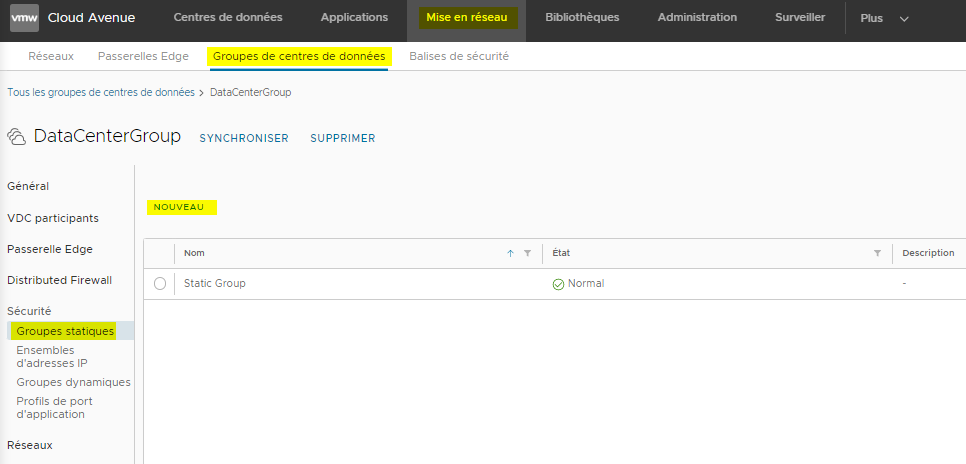
Static Groups
You can use static groups on:
- The Distributed Firewall *
- Your NSX T1 gateway
The distributed firewall manages traffic East West (Between VMs and between VDCs) *
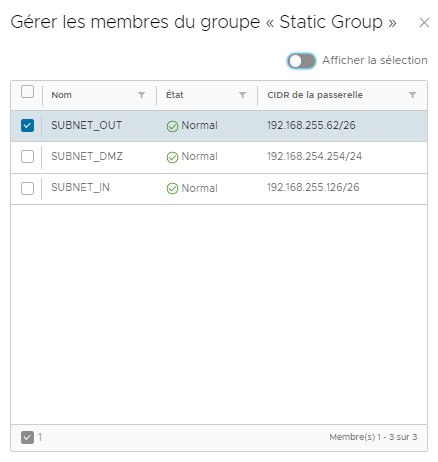
Manage Group Members
The members of the static datacenter group are networks.
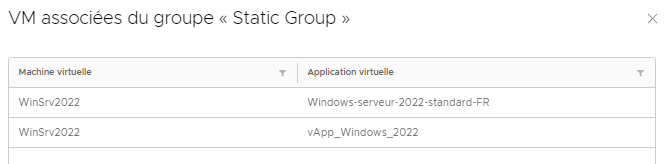
Show Associated VMs
The associated VMs are those with a network card on the group’s member networks.
IP Address Sets
From the tab NETWORKING > Edge Gateways > IP Address Sets
- Click on NEW
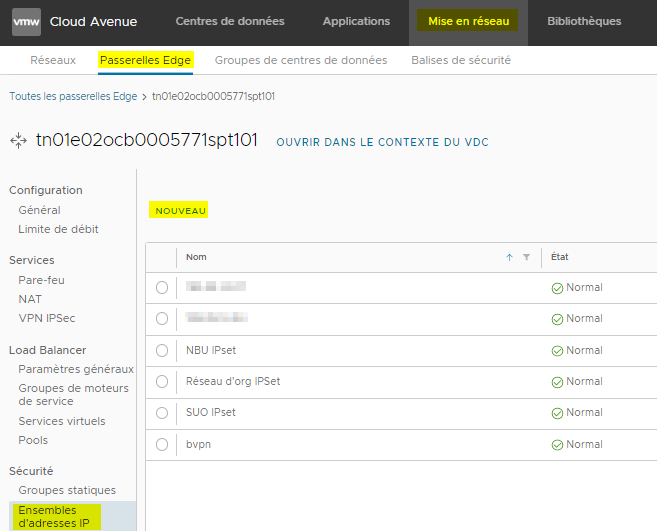
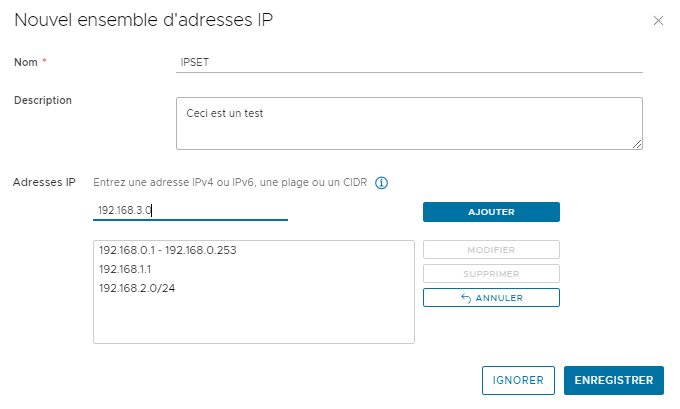
- Name your IP address set.
- Describe it.
- Enter your IP addresses, IP pools, or networks.
Dynamic Groups
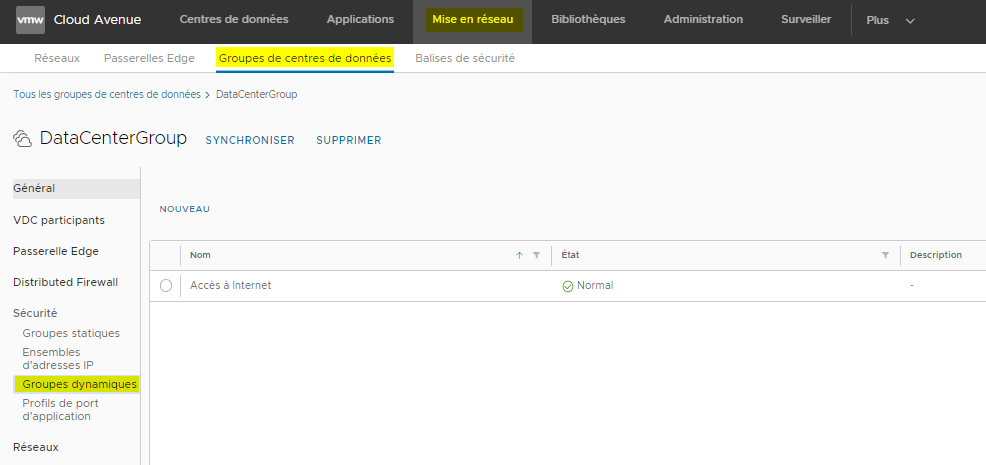
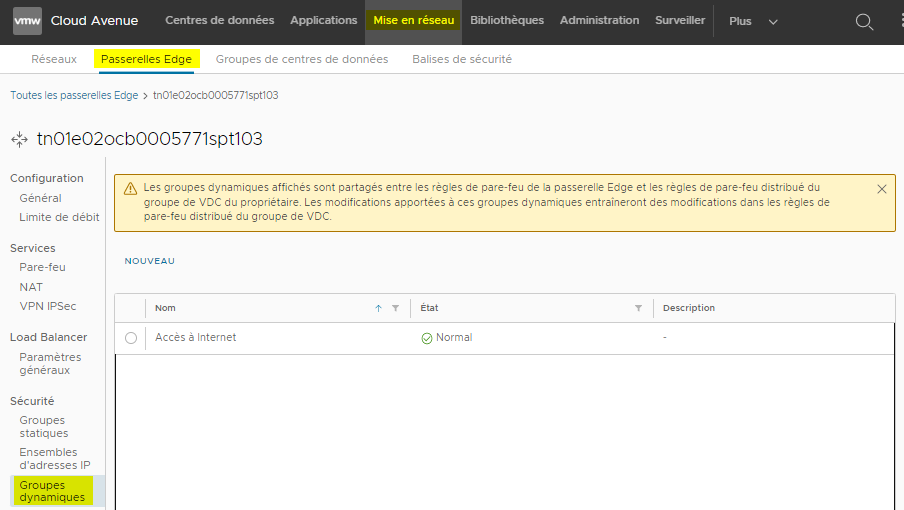
You can create dynamic groups only on gateways connected to a datacenter group or directly on it.
- Click on NEW
Creating the Group
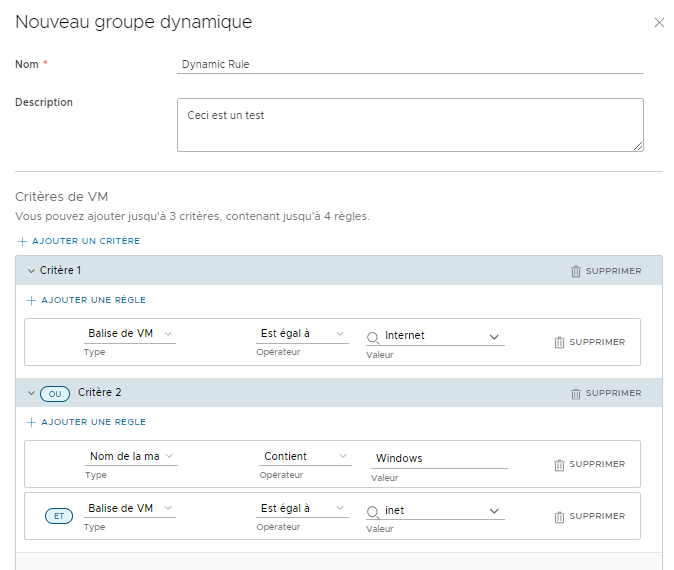
- Enter a Name and a Description
There are two types:
- The tag (TAG)
- The VM name
You can define one or more criteria for group inclusion, with up to three rules per criterion.
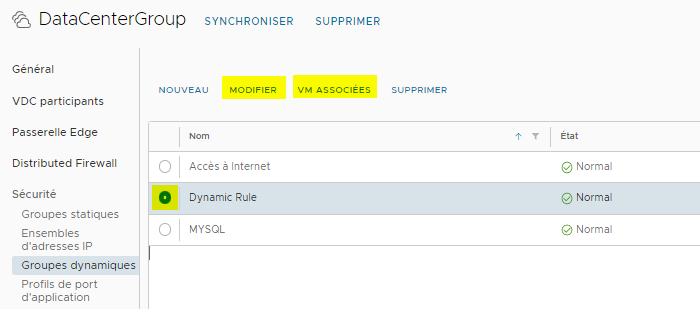
Select your dynamic group
You can:
- Modify it
- View the list of VMs in this group
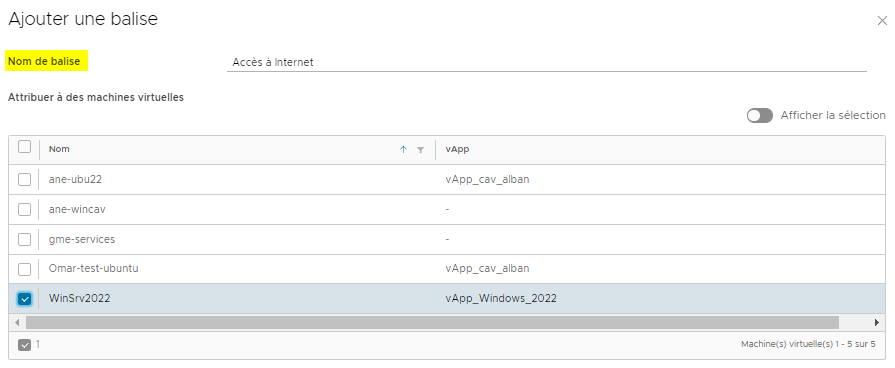
Security Tags
From the tab Networking > Security Tags
- Click on ADD A TAG
- Name your tag
- Choose the VMs that will carry this tag
Application Port Profiles
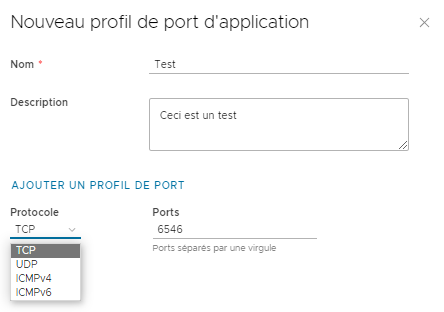
From the tab NETWORKING > Edge Gateways > Application Port Profiles
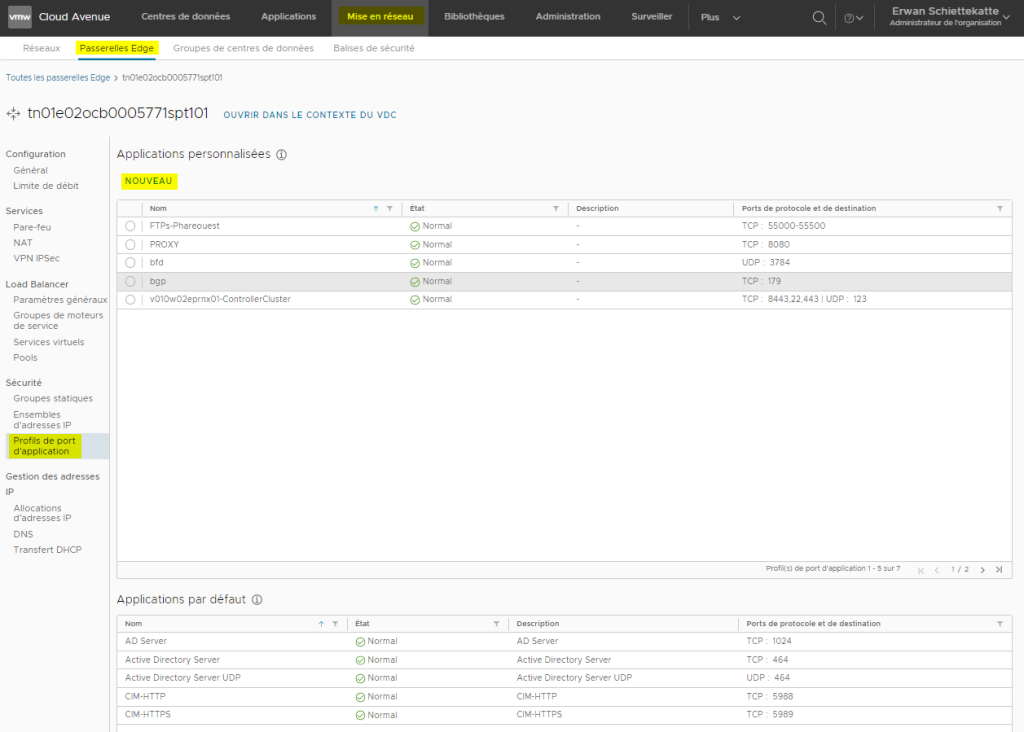
- Name your application port profile.
- Describe it.
- Select the protocol.
- Define the port.
- You can add multiple ports separated by commas.