Troubleshooting Netbackup Errors
Overview
The following checks can be performed if you encounter backup failures
NetBackup Error Reference Guide
You can check the correspondence of your error indicated in your Daily Report by clicking on #.
Prerequisites to verify:
- Verify the list of mentioned prerequisites.
- Check the properties of Volume Shadow Copy (VSS).
Verification via command line:
Open a command (cmd) window as an administrator, then run the following command:
- vssadmin list providers
The result is similar to this:
  Provider : 'Microsoft Software Shadow Copy provider 1.0'

  Provider type: System

  Provider ID: {b5946137-7b9f-4925-af80-51abd60b20d5}

  Version: 1.0.0.7
Ensure that all VSS writers are stable and do not report any errors by running the following command:
- vssadmin list writers
The result is similar to this:
  Provider name : 'WMI Writer'

  Provider ID : {75dfb225-e2e4-4d39-9ac9-ffaff65ddf06}

  Writer instance ID : {088e7a7d-09a8-4cc6-a609-ad90e75ddc93}

  State : [1] Stable

  Last error : Aucune erreur
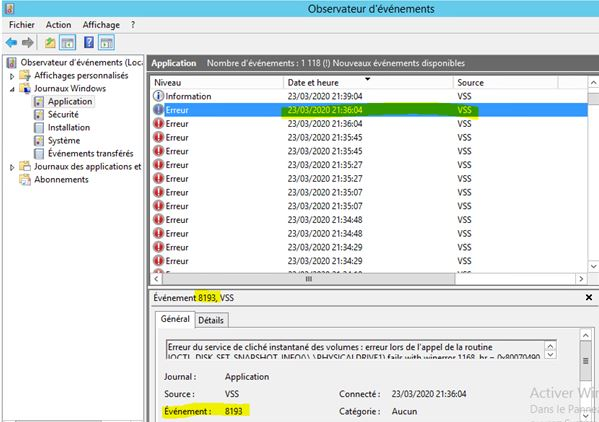
Event Viewer: Reporting 156: VSS – Error 8193
If you encounter a 156 error during a backup in your Daily Reporting, you might also see this message in the Event Viewer of your VM:
Event Viewer: VSS – Error 8193
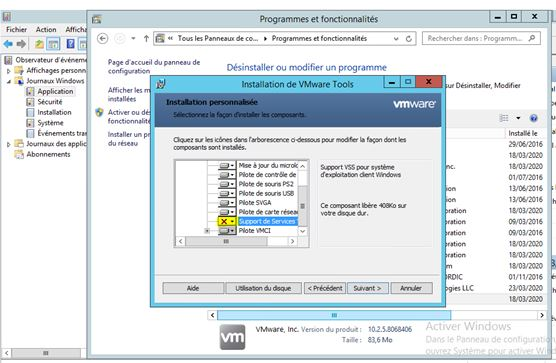
Check from the Control Panel \Program Files\VmWareTools if the VSS Service Support option is installed. If so, uninstall this option, then run a backup again.
If the backup works correctly, monitor this over the next few days to ensure backups continue successfully and that the volume being backed up changes each day.
If, despite having uninstalled the VSS Service Support option, the error persists, please consider uninstalling and then reinstalling VMware Tools.
Warning: Uninstalling VMware Tools may cause network loss on the VM. Be prepared for a possible VM restart and network reconfiguration.
Once VMware Tools are reinstalled to the latest version, run a backup test again and check the VM event logs to see if errors persist.
As a last resort, open a support ticket (Cloud Client Portal – User Guide – Open a support ticket (orange-business.com) and specify:
- Organization/Contract name
- VM name
- Details of the issue and actions taken
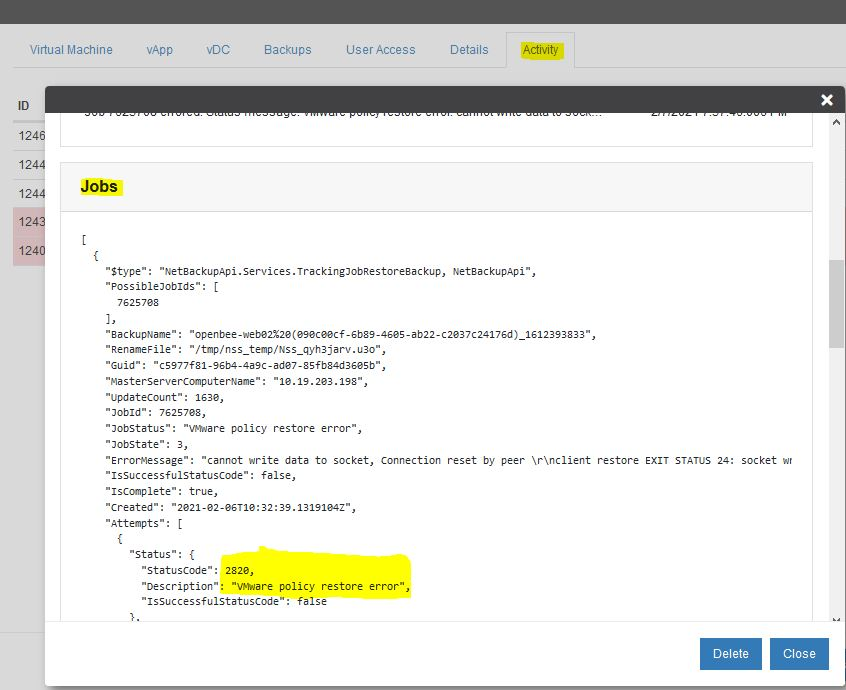
File Restoration: Error 2820 VMware Policy Restore Error
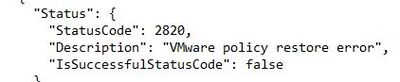
During a file restoration, you may encounter this error:
2820 – VMware policy restore error.
This message occurs when attempting to restore a large VM with one or more disks of several terabytes.
The target datastore does not have enough space to accommodate the restored .vmdk file.
Please file a support ticket or contact the support team.
Re-importing the VM from vSphere will most likely be necessary to make your VM available from the vCD Portal.
This message occurs on large VMs when the target datastore does not have enough free space to accommodate the restored vmdk.
VM Restoration: Partially Restored VM / VM Not Visible in vCD
During a file restoration, you receive the restoration validation email, but the VM is not visible in vCD.
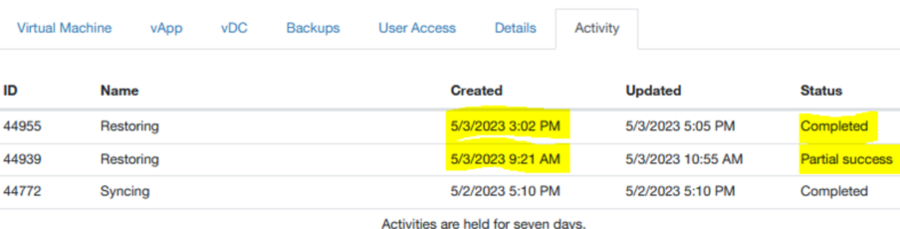
Check the NSS logs from the NetBackup Portal, under the Activity tab.
The restoration status displays Partial Success.
By examining the logs, you may see this message:
Error (400) – STORAGE_QUOTA_EXCEEDED received….Import vApp to vCloud consoleX.cloudavenue.orange-business.com failed.
You need to increase the storage quota of the vDC, then either:
- Request support to perform an import from vCenter, or
- Restart the VM restoration process.