Cloud Avenue Wiki
-
Overview
-
Practical sheets
-
-
- Aucun article
-
-
- Aucun article
-
-
-
- Backup : Agent-Level B&R via NSS for IAAS offer
- Backup : Create VCOD Backup
- Backup : Netbackup Agent Installation for Linux
- Backup : Netbackup Agent Installation for Windows
- Backup : Overall Design for VCOD Offer
- Backup : User's Guide for VCOD Offer
- NSX-T : Configuring a Distributed Firewall
- NSX-T : Create VPN Ipsec
- NSX-T : Creation of T1
- NSX-T : DNAT configuration
- NSX-T : How to configure a Gateway Firewall
- NSX-T : SNAT configuration
- NSX-T: Create and Configure a Geneve Overlay Segment
- NSX-T: How to configure an IPSEC solution
- vCenter : Clone a VM
- VCenter : Create a new VM
- VCenter : Create a snapshot of a VM
- VCenter : Reset cloudadmin password
- VCenter : Storage Vmotion on a VM
- VCenter : Upgrade Vmware tools on a VM
-
-
Q & A
-
Services
-
-
- Aucun article
-
- Aucun article
-
- Aucun article
-
- Aucun article
-
- Aucun article
-
- Aucun article
-
- Aucun article
-
-
-
- Aucun article
-
- Aucun article
-
- Aucun article
-
-
-
- Aucun article
-
- Aucun article
-
-
Restoring a VM
Please note !
The actions below arexto be done from the NetBackup Self-Service portal : here
Restoring a VM
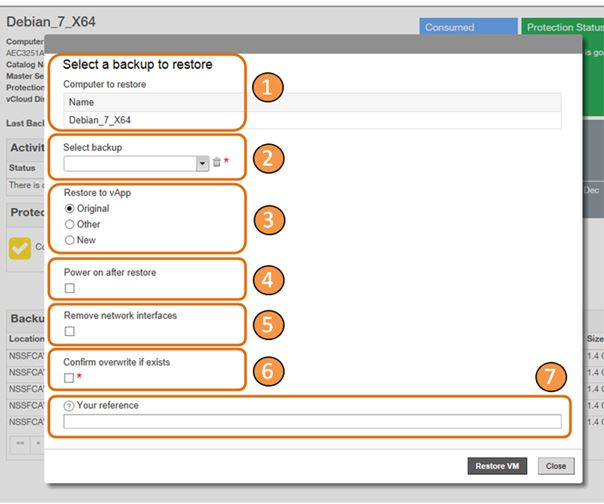
The restoration of a VM is performed using the “Restore VM” action button available after selecting the VM and then clicking on “Action.”
To initiate a restoration, you need to complete the following fields:
- Computer to restore: Verify the machine name for which the restoration will be triggered before confirming.
- Select backup: Choose the backup version you want to use for the restoration based on its date and time.
- Restore to vApp: This field offers 3 options regarding the target vApp for the restoration:
- Original: The VM will be restored to its original vApp, overwriting it if it still exists.
- Other: This option activates the “Select vApp to restore to” submenu (click on its icon). An explorer window opens, allowing you to browse your organization’s vDCs and vApps to select the target vApp.
- New: This option activates the “Select vApp to restore to” submenu, where you must specify a new vApp name.
- Power on after restore: Option to start the VM after restoration.
- Remove network interfaces: Option to remove vNICs. This is useful if network settings need to be reconfigured before bringing the VM online.
- Confirm overwrite if exists: Confirm your choices.
- Your reference: Assign a label to the restoration operation for easy identification.
After verifying all fields, initiate the restoration by clicking on the Restore VM button.
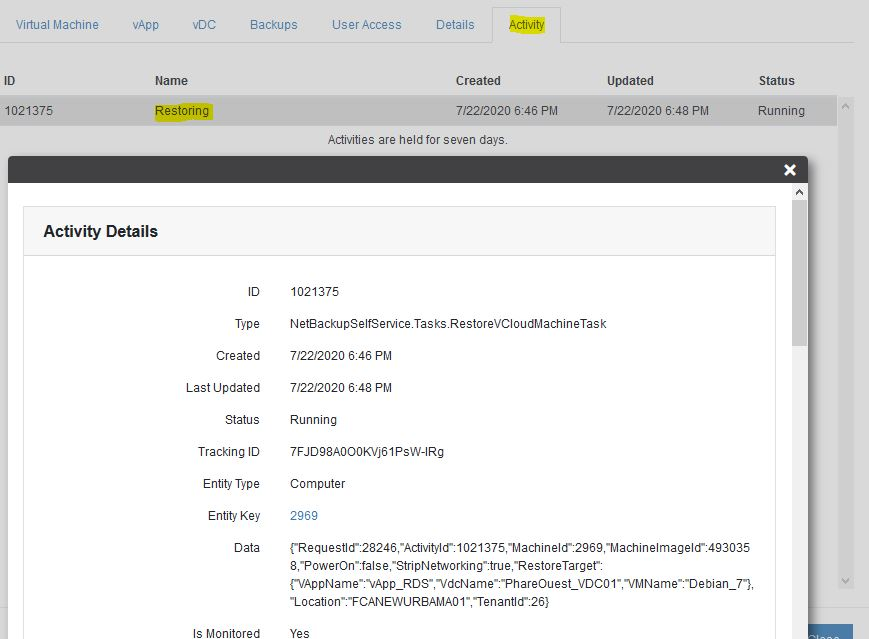
The status of the restoration operation can then be viewed in the Current Activity / View Request section or from the Activity tab.
Once the restoration operation is complete, a notification indicating its result is sent via email to the user who initiated the process.