DBaaS – User Guide
Database as a Service is a managed solution offered by Cloud Avenue, designed to simplify the deployment and operation of databases. It offers a secure, scalable, multi tenancy and ready-to-use database instance without the need to manage underlying infrastructure.
As a managed service solution, DBaaS offers the automation of different administrative tasks like patching, backups, monitoring etc., limiting your administrative tasks.
How to subscribe to and access the service?
CAV DBaaS requires that you have an existing CAV customer which provides you with necessary right to open an change request via the Orange Cloud Portal.
Subscription
- Connect to Orange Cloud Portal – https://selfcare.cloud.orange-business.com/
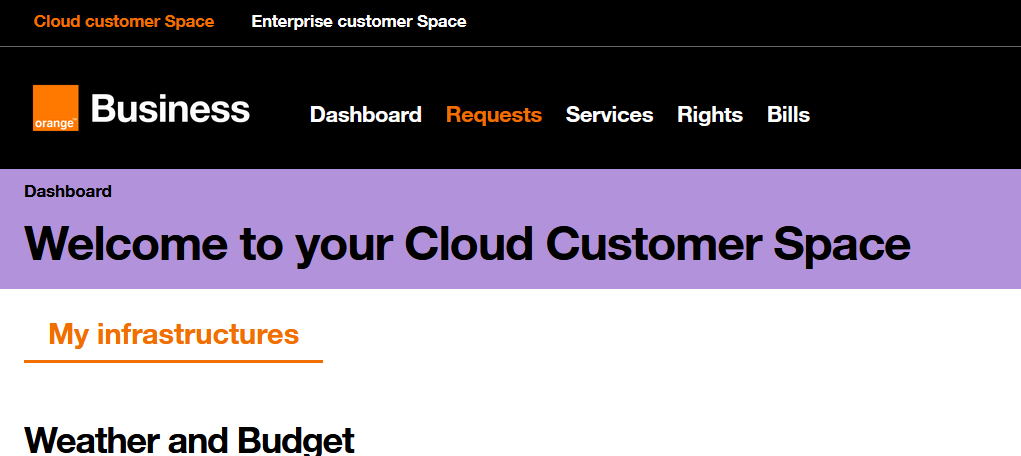
- Login with your credentials, In the Dashboard click Requests
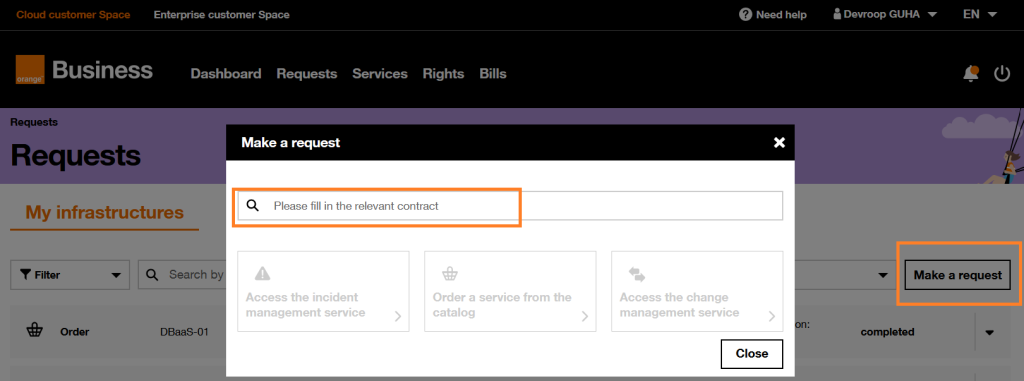
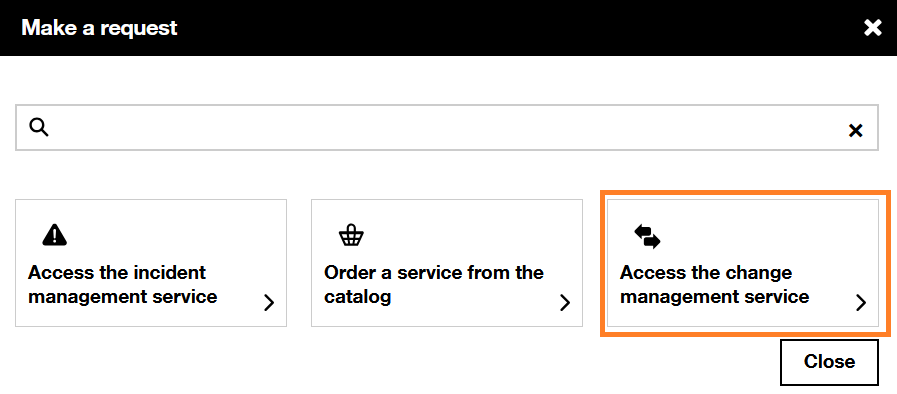
- In the Request page, click “Make a request” and choose the tour contract from the drop down menu and select “Access the change management service”.
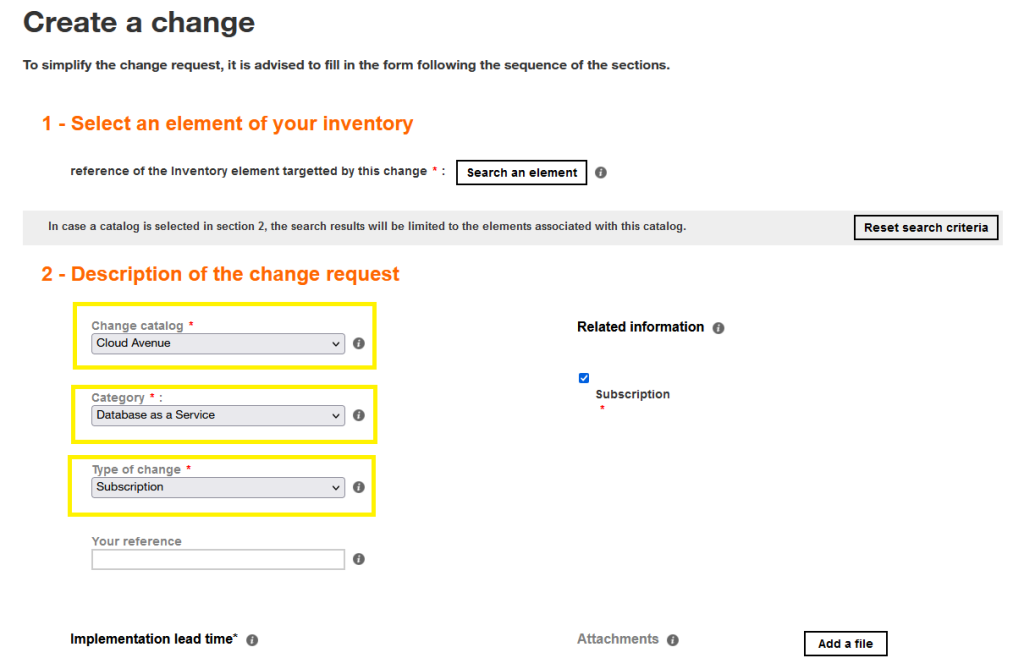
- In the Change Management page, click “Create a change” and choose the options as highlighted below from the drop down menu.
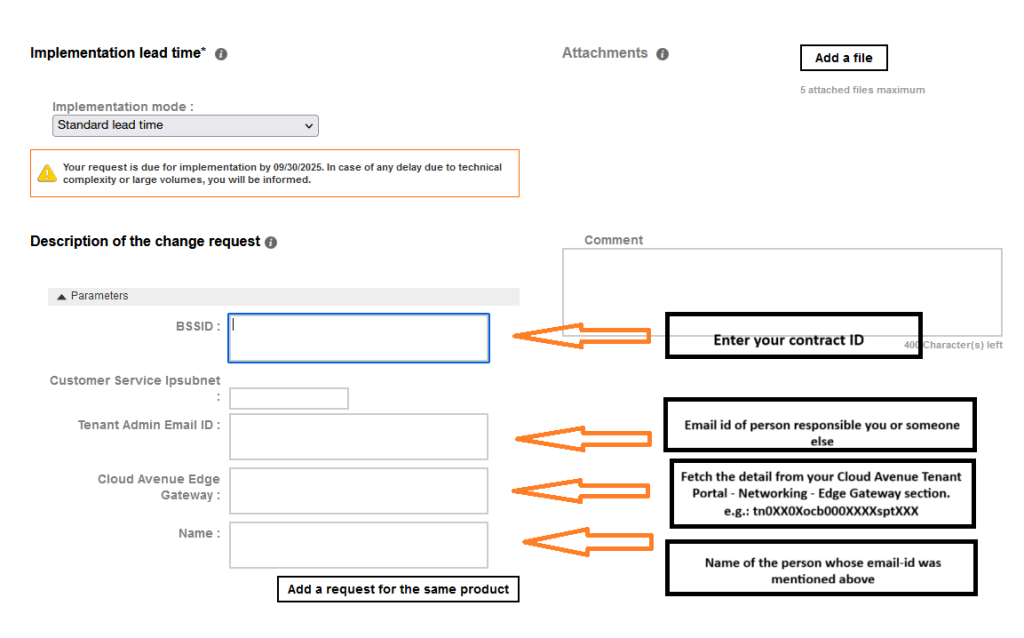
- Fill in the details for the different fields mentioned under the “Description of the change request”. Once done click on “confirm the request”. Refer below screenshot for the value that needs to be filled mandatorily.
- After successful completion of subscription request, you would receive an email containing the credential, link to the DBaaS portal and your tenant detail which is same as your existing CAV contract ID.
- Standard SLA of 5 days is applicable for this request. Once the request is completed customer Tier-0 Gateway would be connected to DBaaS network and customer would be allocated a network subnet (/27) called the fronted network. IP from this range would be used to connect the Database instances.
Service Closure
- Connect to Orange Cloud Portal – https://selfcare.cloud.orange-business.com/
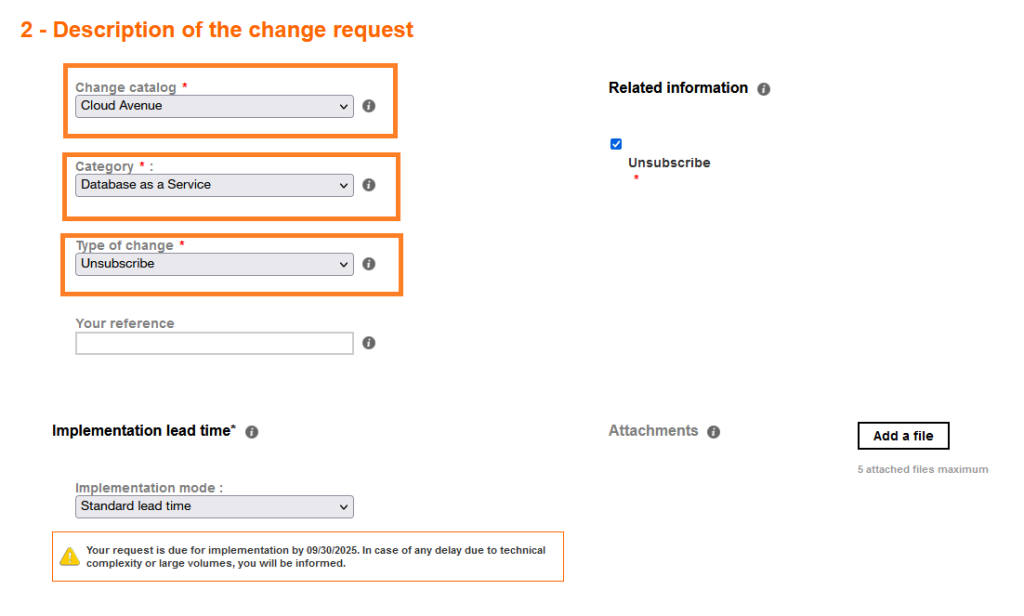
- Open a change request with change type as “Unsubscribe” (as mentioned in step above), with below selection as highlighted below:
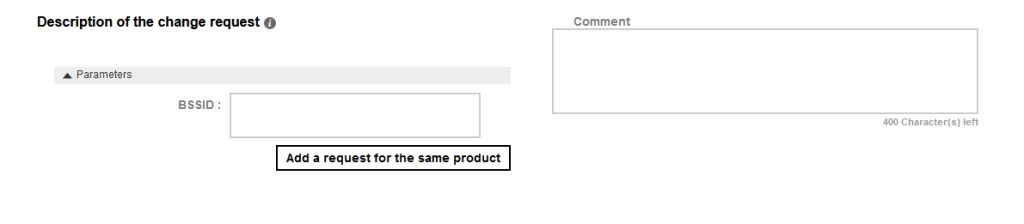
- Fill in the your Contract ID under “Description of the change request” and once done click on “confirm the request”. Refer below screenshot below:
DBaaS Portal Description
User who have requested subscription to DBaaS would have provided an user contact who would be provided with Administrator role is called an Tenant Admin and would be responsible to create other users called tenant users.
Login Page
Connect to URL – https://dbaas.cloudavenue.orange-business.com/
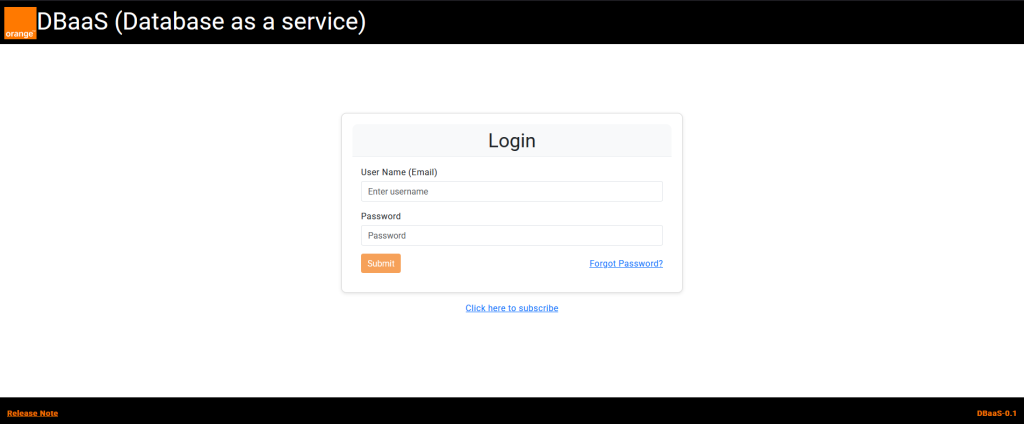
Upon successful login on the main page user would get access to different navigation modules depending upon the rights.
Dashboard
Dashboard provides a centralized view of database provisioning. It features three interactive tiles representing different database technologies.
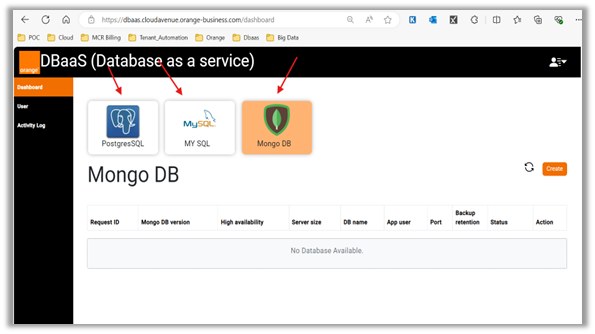
Create Database
Each tenant has a default quota of 5 databases, which can be increased by contacting support team.
User can initiate database provisioning by clicking on a database tile and selecting the Create button from the Dashboard. This triggers the provisioning form for the selected database type. For details about DB provisioning and management refer to DB user manual – https://cloud.orange-business.com/en/?post_type=epkb_post_type_1&p=12243616
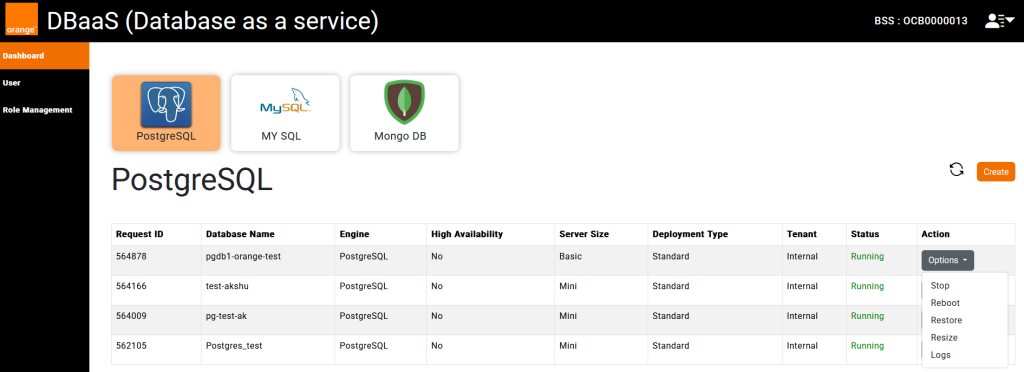
Database Actions
Depending upon the current state of database different actions are available to user namely start, stop, reboot, delete, resize and logs (download)
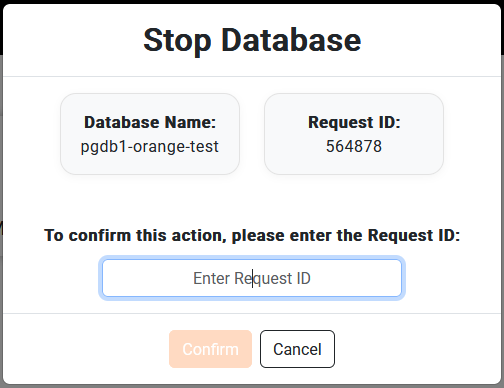
Each action would require a confirmation and user need to input the request id, example to start a stopped DB you need to copy the mentioned id in the text box and click confirm.
User Profile
On the dashboard user will have access to the following navigation options in the top-right header
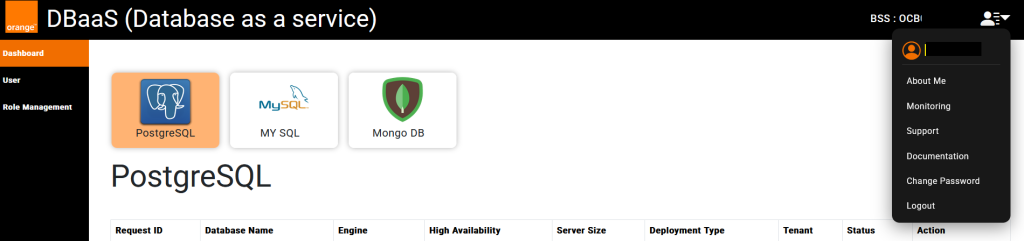
- About Me: View personal details.
- Monitoring: Opens a separate portal, requires different credentials (To be merged in DBaaS portal by Dec 2025)
- Support: Access support resources and contact options.
- Documentation: View comprehensive documentation with detailed information.
- Change Password: Update account password.
- Logout: Securely log out from the system.
User
The User module is exclusive to the Tenant Admin, offering complete control over user accounts within the tenant environment.

- Maximum five active users are allowed at any point in time, can be increased by request.
- Users can be disabled or deleted if required.
- Two default roles are available, Tenant Admin (Full Rights) and Tenant Users (All rights except for user management)
Role Management
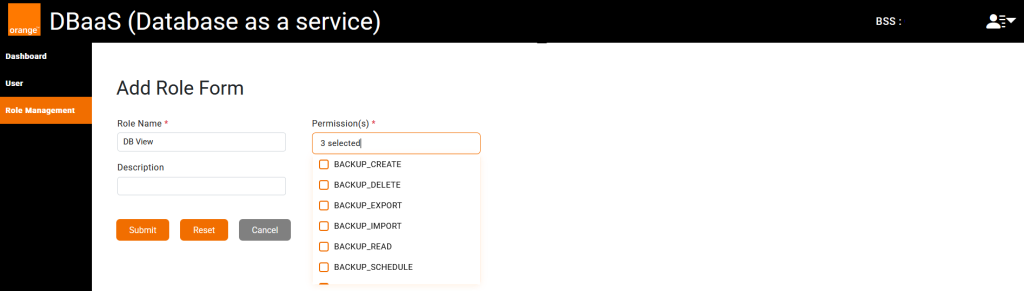
The Roles Management allows the Tenant Admin to create custom roles with limited permissions, if the existing two roles are not enough.