Getting Started with vCloud Director (vCD)
Overview
This practical guide aims to demonstrate the setup of VM replication between VDR and CHA, in order to implement the disaster recovery plan (DRP) for an application.
The practical and pricing details of this feature are described on this page.
Prerequisites
- Be an administrator of at least two VCD organizations on the NGP platform.
- Have paired these two organizations (see this practical guide for the procedure).
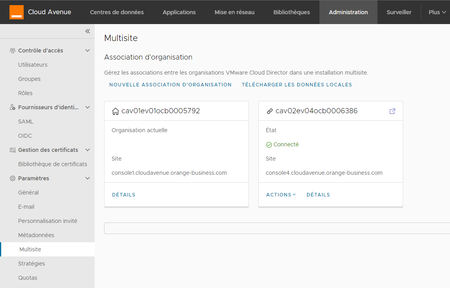
The two vOrgs are paired.
Detailed step-by-step procedure
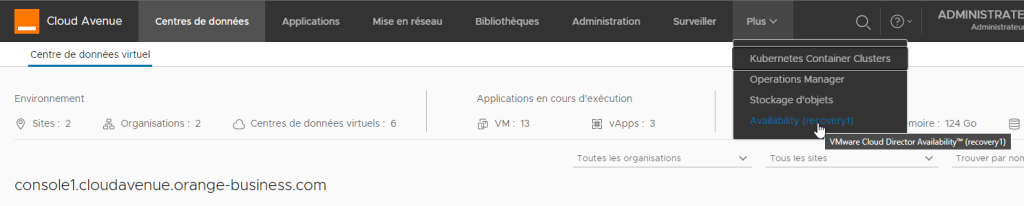
- Log in to the VCDA portal from the VCD portal of the “source” organization, which contains the VMs to be replicated.
- Then, go to the More menu and select the Availability option.
- Since you are connected to the console1 portal, our VCDA site is called recovery1.
- For explanations on topology and VCDA sites, refer to the VM Replication page.
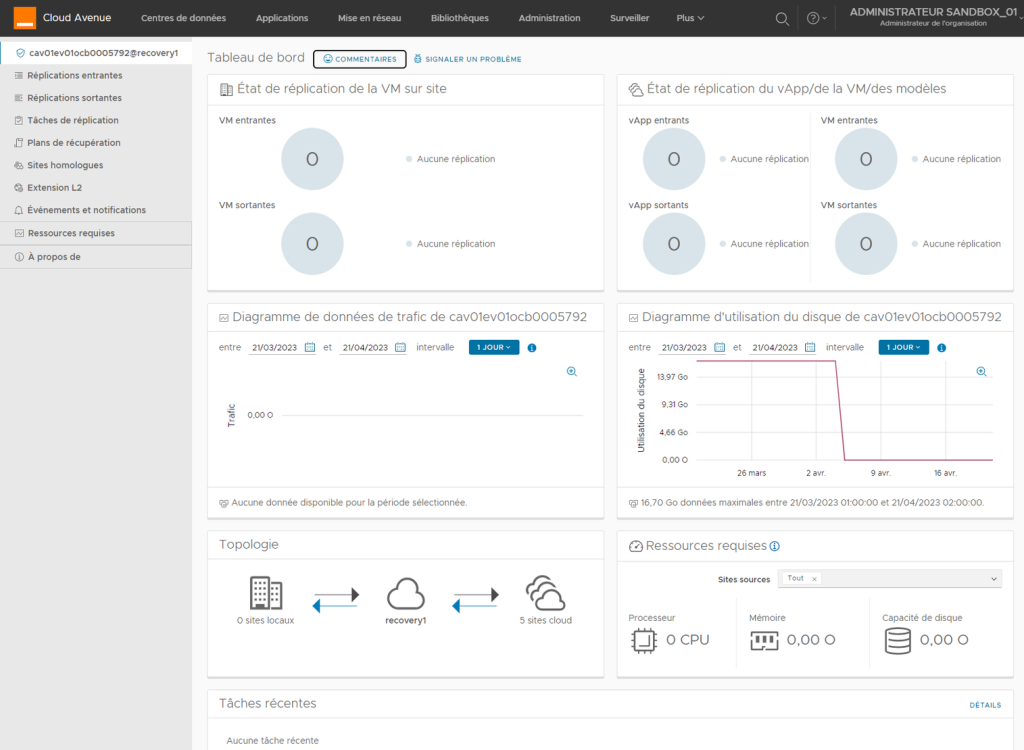
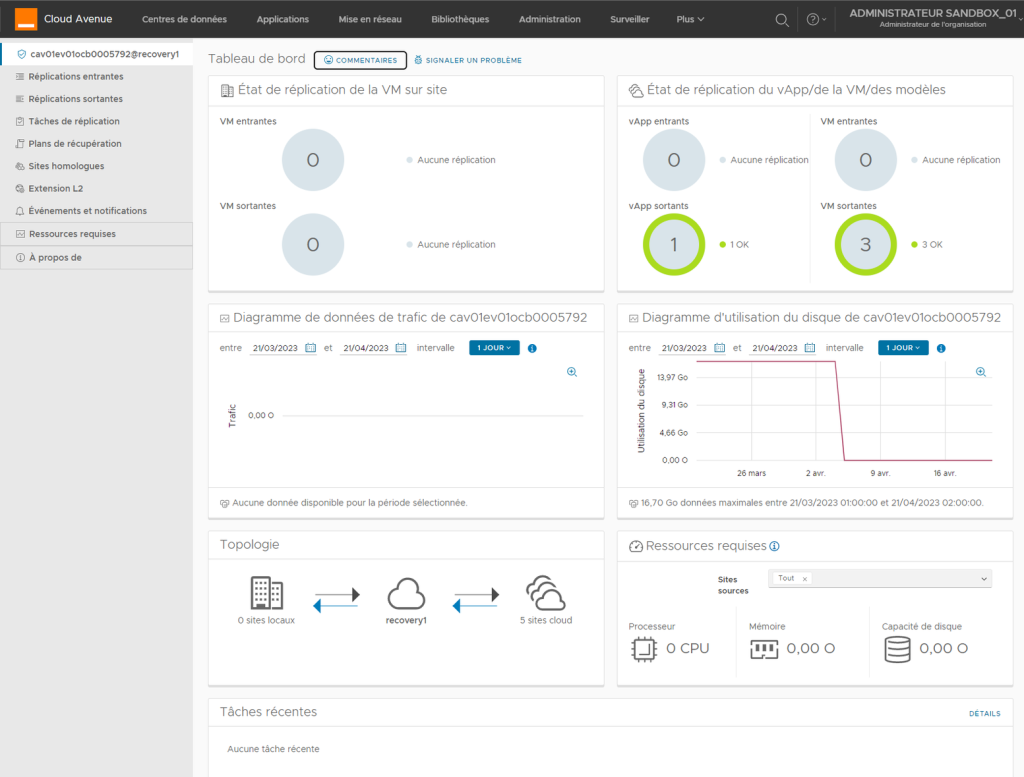
The homepage of the VCDA portal provides an overview of the active configuration.
Since nothing is configured here, all indicators are at zero.
The first step is to configure the remote site, which will receive the VM replicas.
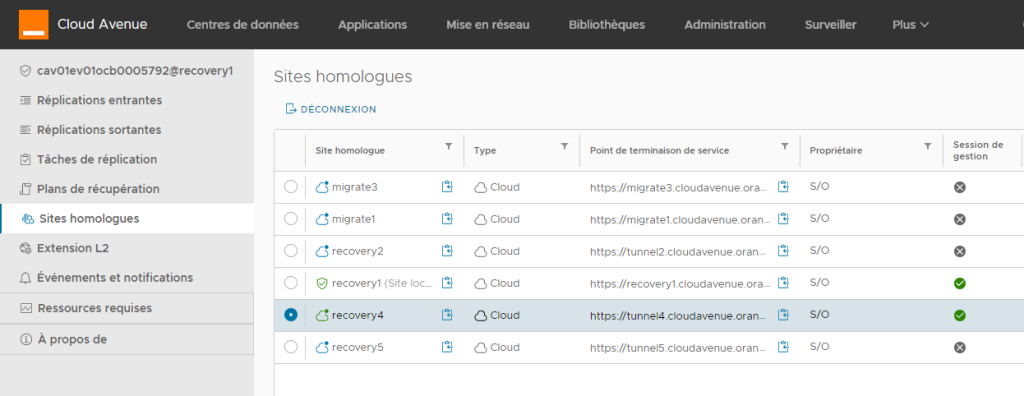
Go to the Approved Sites menu and display the list of VCDA sites.
As mentioned earlier, our VCDA site is named recovery1, which is our source site, on the organization cav01ev01ocb0005792.
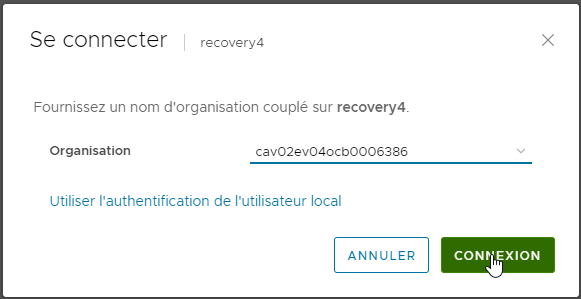
Since we want to replicate to CHA, we will select recovery4 and establish a connection.
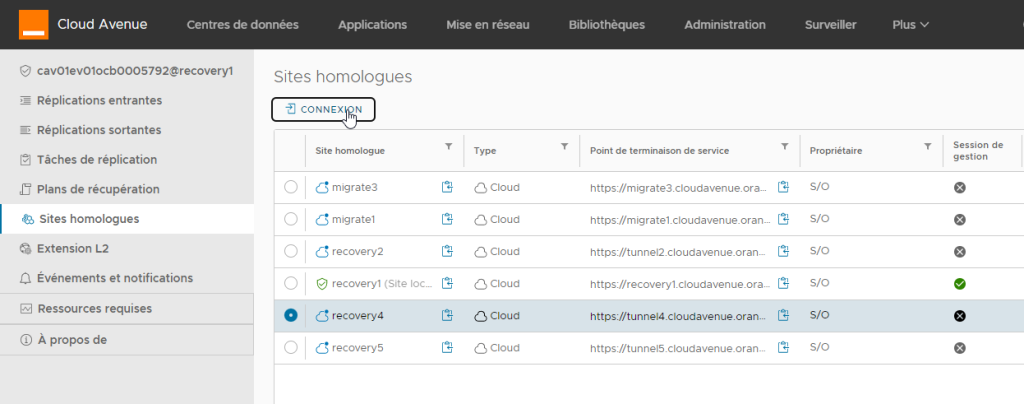
We establish the connection between recovery1 and recovery4 for both organizations cav01ev01ocb0005792 and cav02ev04ocb0006386, which have been paired (see prerequisites).
Our two VCDA sites are connected.
The connection remains valid for 30 minutes within the portal, for any replication configuration.
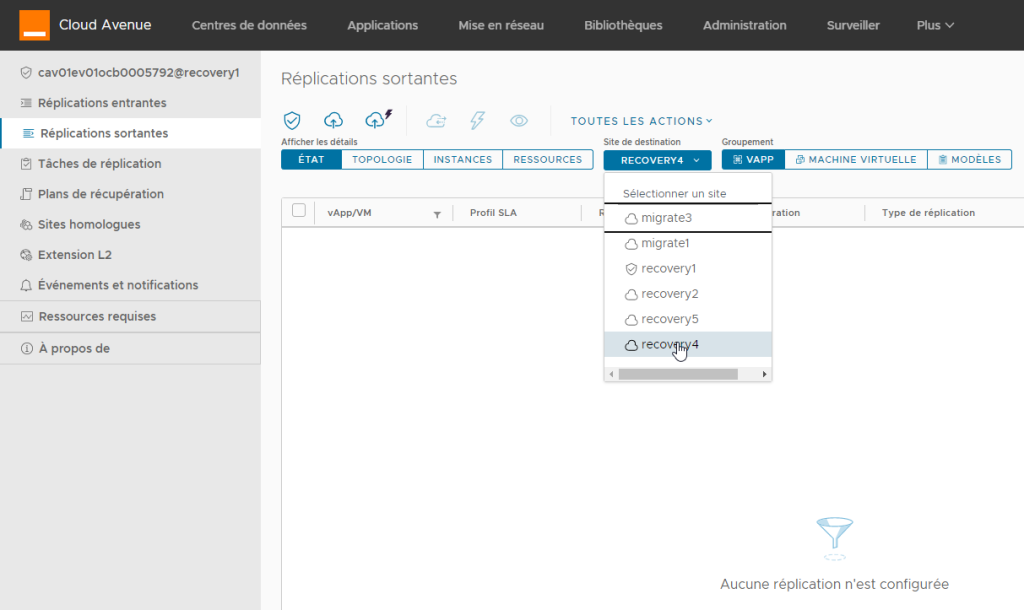
Let’s now create an outbound replication, that is, from recovery1 to recovery4.
Choose recovery4 as the destination site.
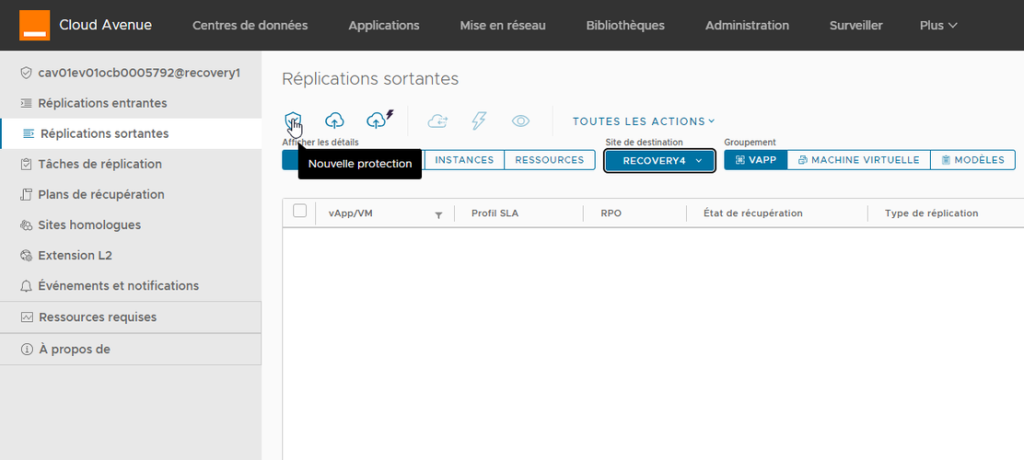
Then, click on the icon.

To create a New Protection.
A form opens to guide us through the configuration of this protection.
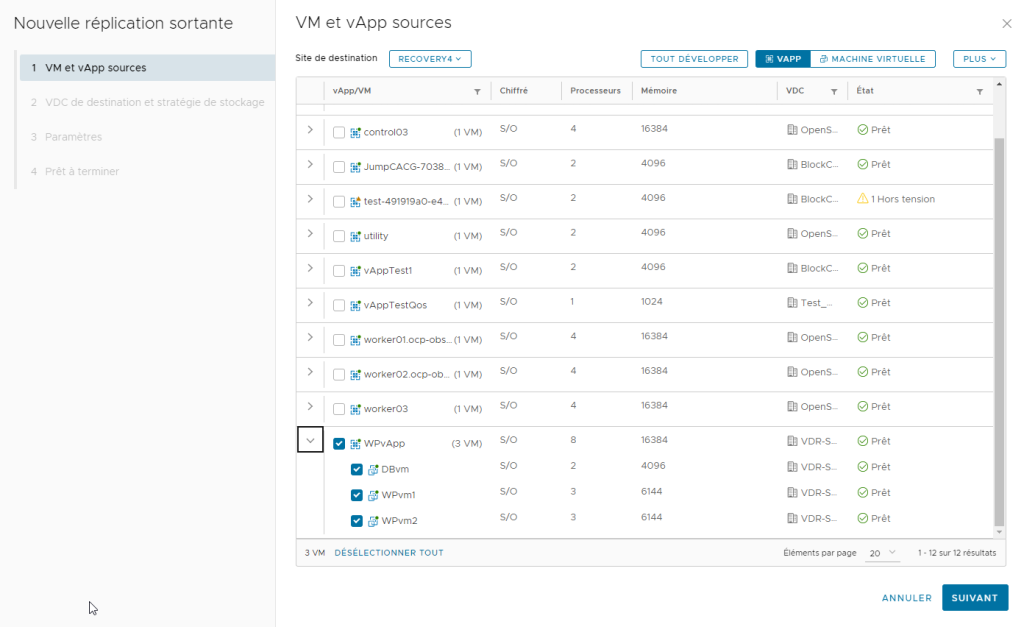
We select the VMs to be protected: here, we chose the vApp named WPvApp, which contains 3 VMs.
The top of the form includes buttons to filter the displayed content.
Once the selection is made, click on NEXT.
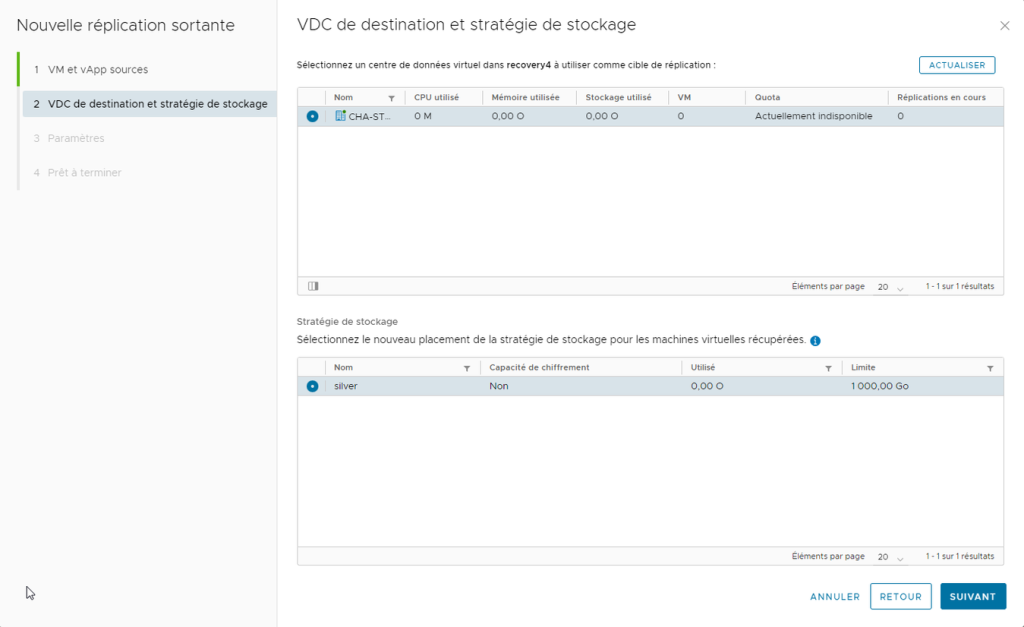
Next, select the destination vDC and the storage policy that will store our replicas.
In our target organization, there is only one vDC, with a single storage policy available.
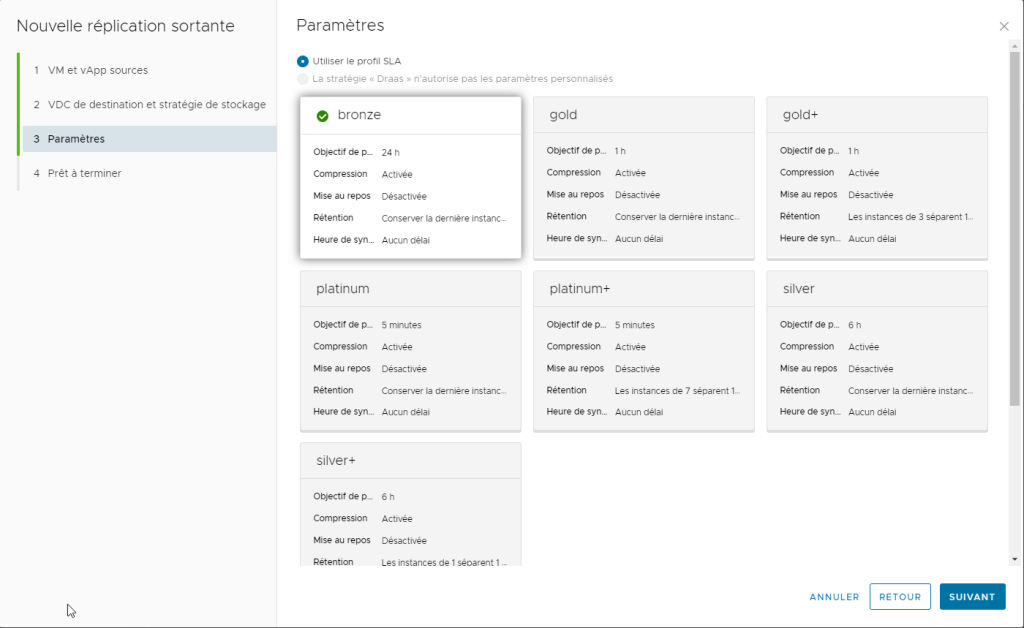
Next, choose the replication policy based on the needs and the criticality of the application.
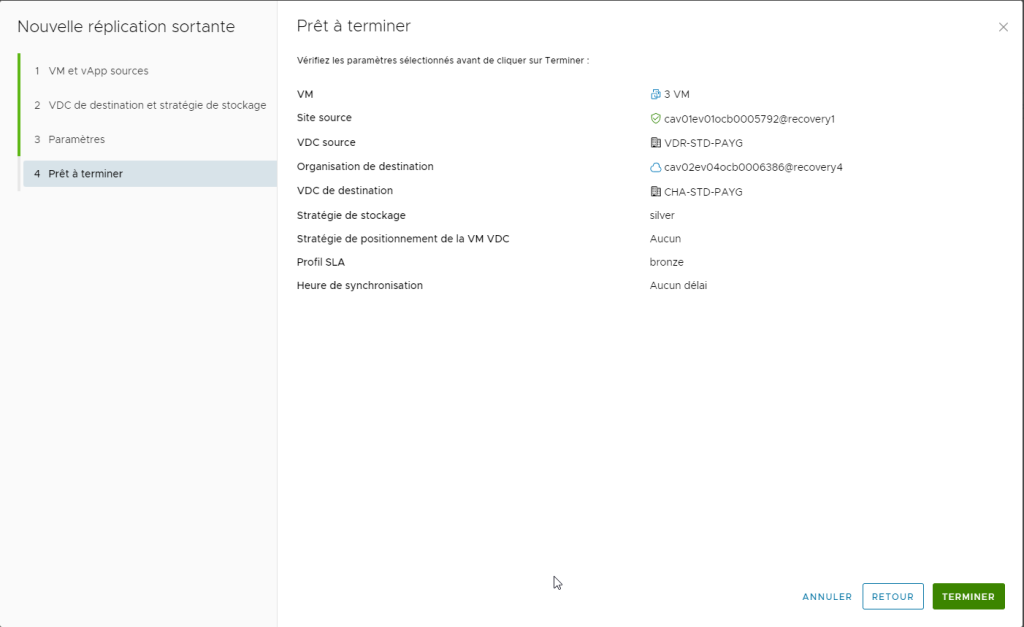
All that remains is to finalize the setup of the protection by clicking on FINISH, after reviewing and confirming that the parameters are correct.
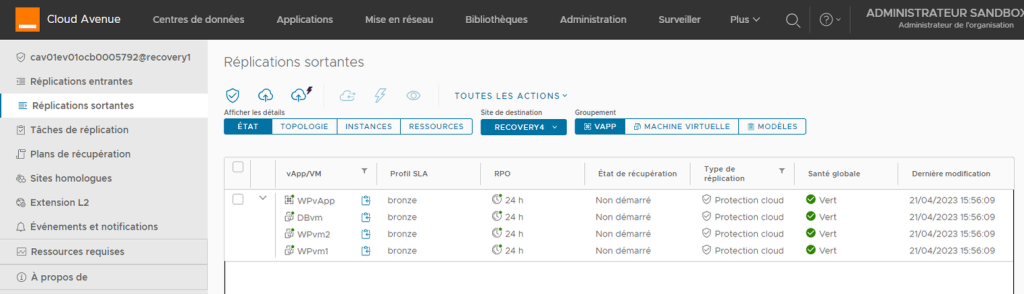
The initial replication of the vApp starts immediately and can take anywhere from a few seconds to several minutes, depending on the size of the data to be replicated.
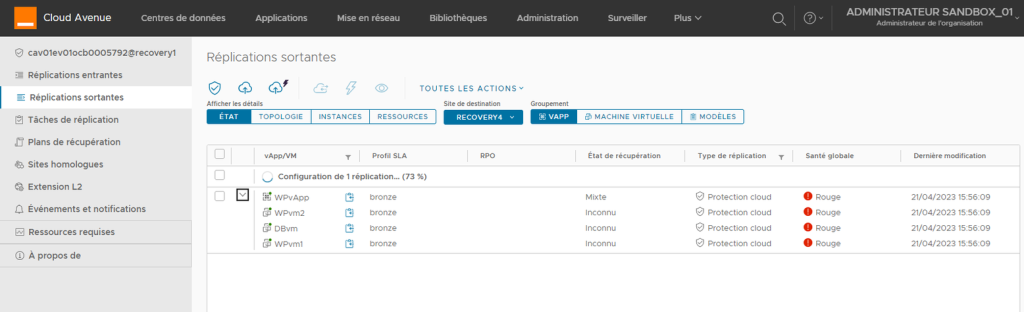
Here, in less than 10 seconds, the VMs are replicated and protected (they are all small).
On the portal’s homepage, at the top right, you can see that we have one vApp and three VMs with the replication status OK.
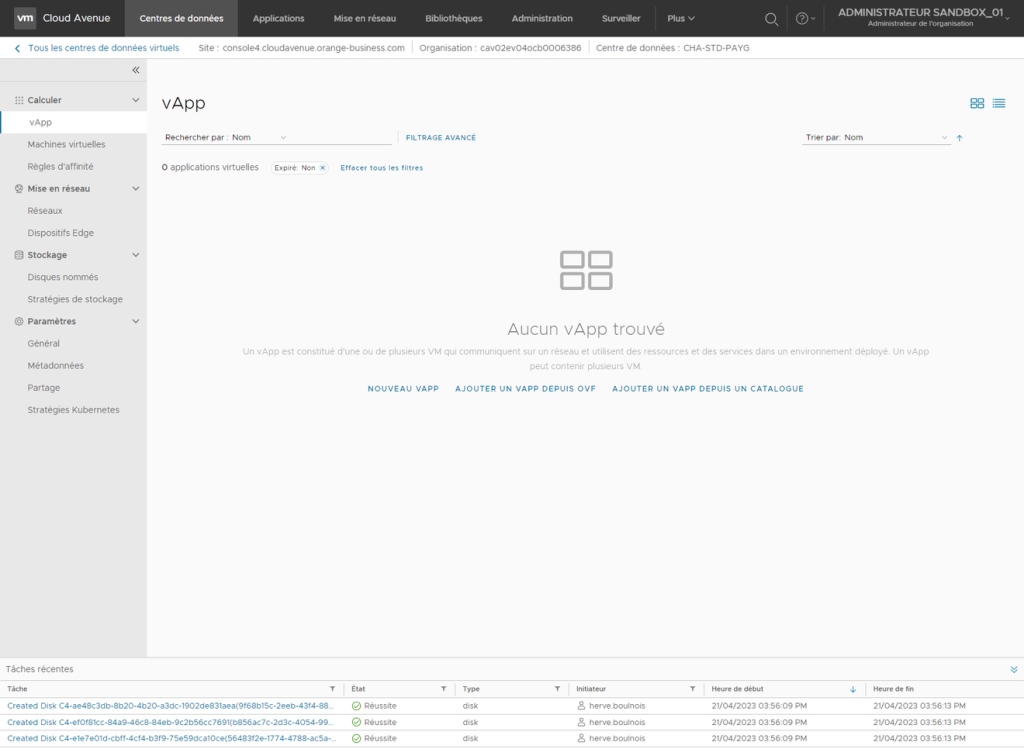
We are now connected to our target vOrg: cav02ev04ocb0006386 on CHA.
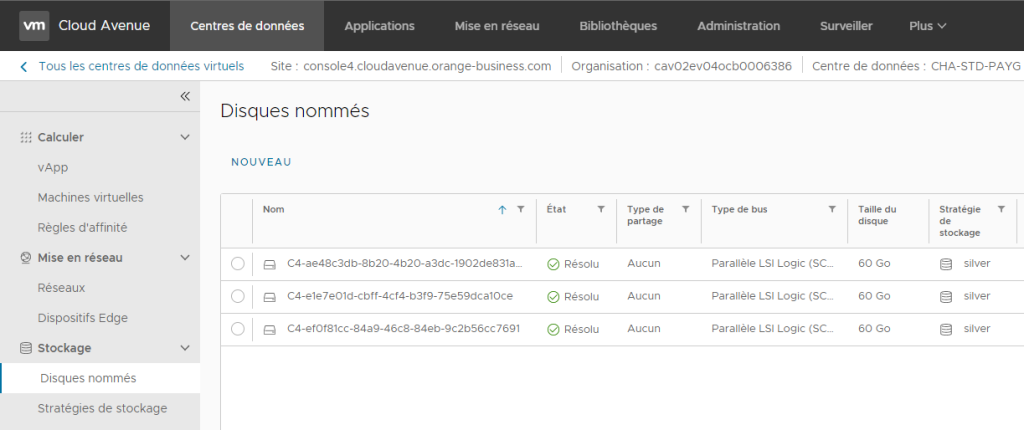
We don’t see our vApp, and that’s normal. It doesn’t exist yet. However, we can see in the recent tasks that disks have been created.
These disks correspond to the storage of the replicated VMs.
In the Virtual Data Center section, you will find our named disks, one for each replicated VM.
These named disks are updated with each replication task (according to a schedule matching the policy set during the protection setup), and will be attached to VMs created by VCDA in the event of a failover.
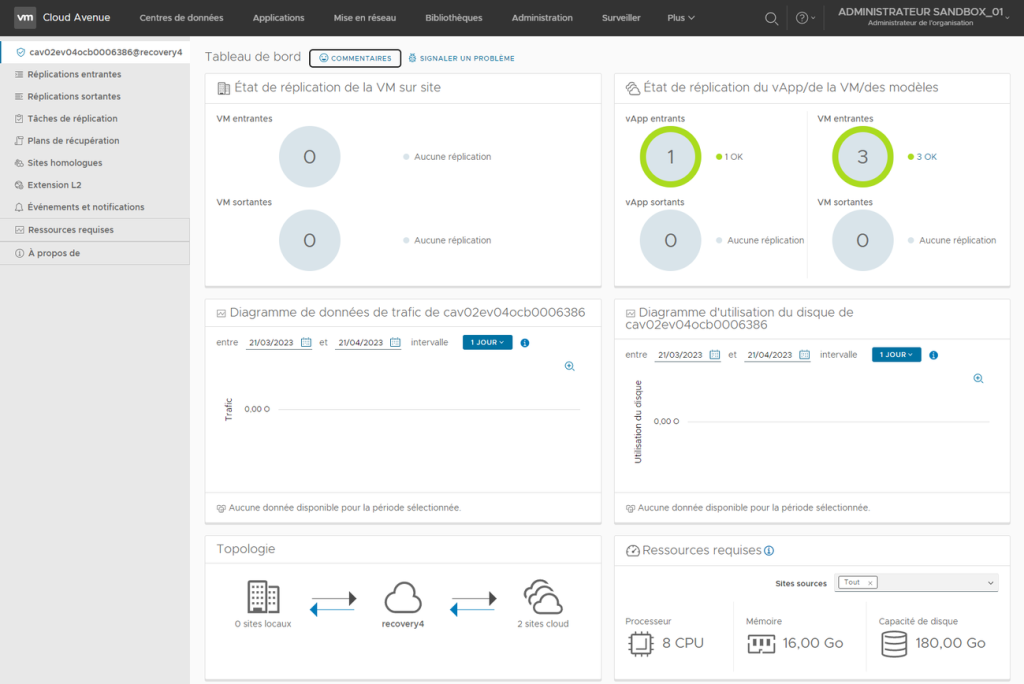
On the VCDA homepage of our target vOrg (on the CHA site), we see our VMs with an OK status, and at the bottom right, the resources required to start the VMs in case of failover.
Our recovery vDC has been configured in PAYG mode to ensure the necessary capacity for starting the VMs without incurring charges for compute power.
See the billing modes for vDCs on this page.
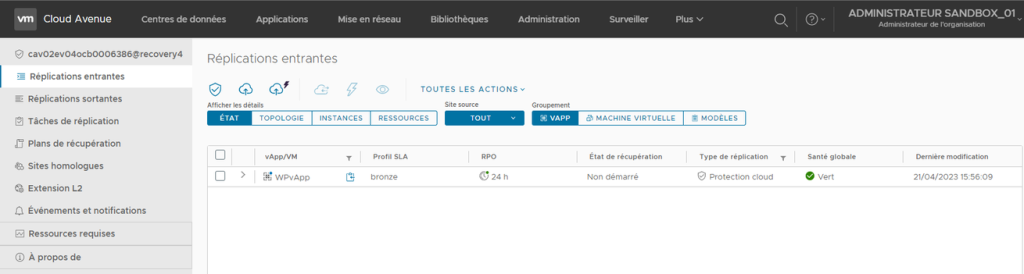
On our CHA site, an incoming replication is visible.
That’s it: you’ve protected a vApp, which runs on the VDR site, by creating a replication to the CHA site.
In the event of a (total or partial) unavailability of the VDR site, it will be possible to switch over the updated vApp and run it on CHA.
The switchover procedure will be detailed in a later step.
For more information:
VMware site on VCDA: https://www.vmware.com/fr/products/cloud-director-availability.html
Enable application failover for testing (Coming soon)
Enable application failover (disaster recovery trigger)
Dual-site page
VM replication page