-
Overview
-
Practical sheets
-
-
- Aucun article
-
-
- Aucun article
-
-
-
- Backup : Agent-Level B&R via NSS for IAAS offer
- Backup : Create VCOD Backup
- Backup : Netbackup Agent Installation for Linux
- Backup : Netbackup Agent Installation for Windows
- Backup : Overall Design for VCOD Offer
- Backup : User's Guide for VCOD Offer
- NSX-T : Configuring a Distributed Firewall
- NSX-T : Create VPN Ipsec
- NSX-T : Creation of T1
- NSX-T : DNAT configuration
- NSX-T : How to configure a Gateway Firewall
- NSX-T : SNAT configuration
- NSX-T: Create and Configure a Geneve Overlay Segment
- NSX-T: How to configure an IPSEC solution
- vCenter : Clone a VM
- VCenter : Create a new VM
- VCenter : Create a snapshot of a VM
- VCenter : Reset cloudadmin password
- VCenter : Storage Vmotion on a VM
- VCenter : Upgrade Vmware tools on a VM
-
-
Q & A
-
Services
-
-
- Aucun article
-
- Aucun article
-
- Aucun article
-
- Aucun article
-
- Aucun article
-
- Aucun article
-
- Aucun article
-
-
-
- Aucun article
-
- Aucun article
-
- Aucun article
-
-
-
- Aucun article
-
- Aucun article
-
-
Managing OS Disks
Overview
Before modifying the disks of your VMs, remember to check that you have sufficient resources on your VDC.
Reminder : You can adjust the resources of your VDC from the Cloud customer space independently.

Warning !
If you have a temporary need to increase the storage capacity of a VM, we recommend adding a new disk because you will be able to delete it afterwards.
It is not possible to decrease the size of a disk.
The size of a “vmdk” file is limited to 2 TB.
When a VM must have storage greater than 2 TB, you must add several disks of a maximum of 2 TB.
Prerequisites
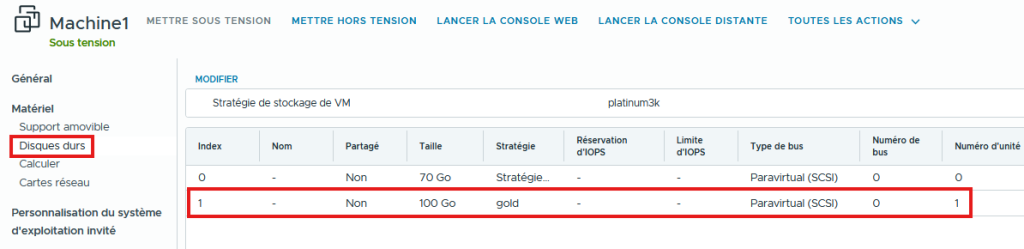
Adding a Disk from vCD
Go here to add a disk and configure your VM
VM with Windows OS
- Open a console on your VM
- Open the disk manager
- format the new partition or extend an existing partition
If however you get the following message : The disk is offline because of policy set by an administrator
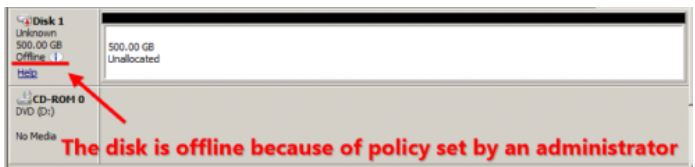
Perform the following operations :
From the command line :
- diskpart.exe
- san policy=OnlineAll
- list disk
- select disk X
- attributes disk clear readonly
- attributes disk
- online idsk
- list disk
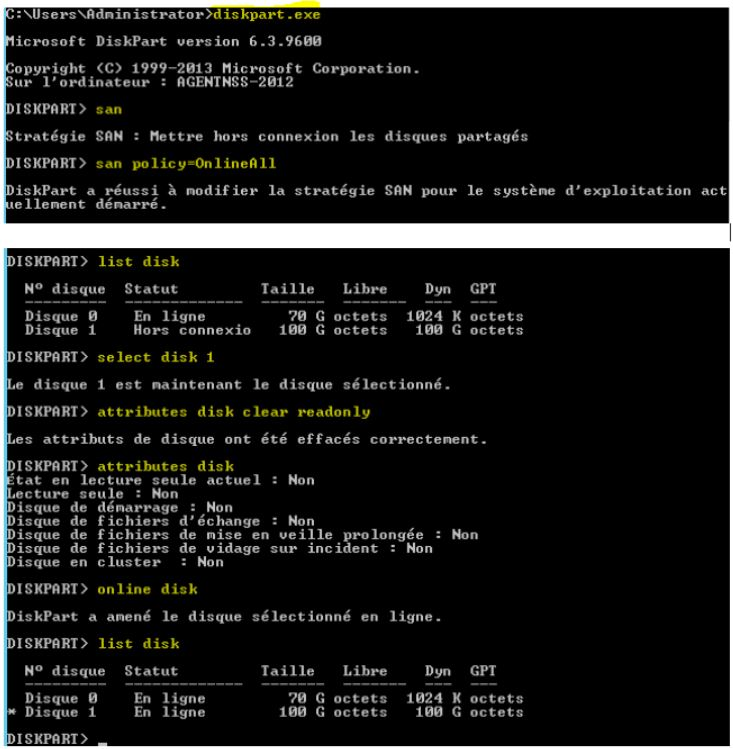
- Restart the Disk Management. tool.
- You can create the new Volume.

VM with Linux OS
You can follow the following documentation to discover the disk and add it to the existing VG.