First Use of Object Storage
Overview
This practical guide describes initial operations, enabling your first use of object storage.
Prerequisite
You must have requested the creation of your Organization from Cloud Store so that the pre-configured automation mechanisms set up access to the Object Storage service.
Limitations

Warning !
The vCD plugin described below is offered to you in its “beta” version to facilitate your usage. However, it does have certain limitations or behavioral issues.
Please consult the page : limitations and common errors
Warning !
The URL provided by the vCD plugin, https://s3console2.cloudavenue.orange-business.com, is limited in usage and performance. We recommend not using it.
Instead, prefer the URL https://s3-region01.cloudavenue.orange-business.com, which provides direct access to object storage and will be more efficient.
Please refer to the page: How to Access Object Storage to identify the most suitable URL for your environment.
Accessing the “Object Storage” menu in vCD
For first-time use of the vCD portal and initial login, it is recommended to first consult the practical guide: vCloud Director Portal.
Once this connection is established, you can then navigate the object storage menu as follows:
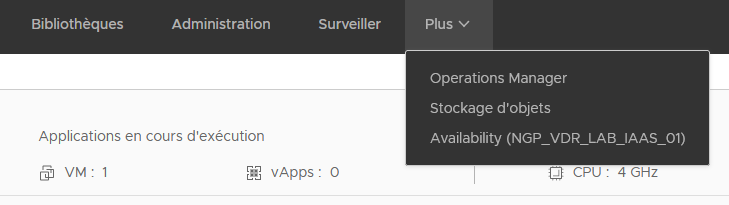
To access the “Object Storage” menu,
Click on “More” in the menu bar,
Then select “Object Storage.”
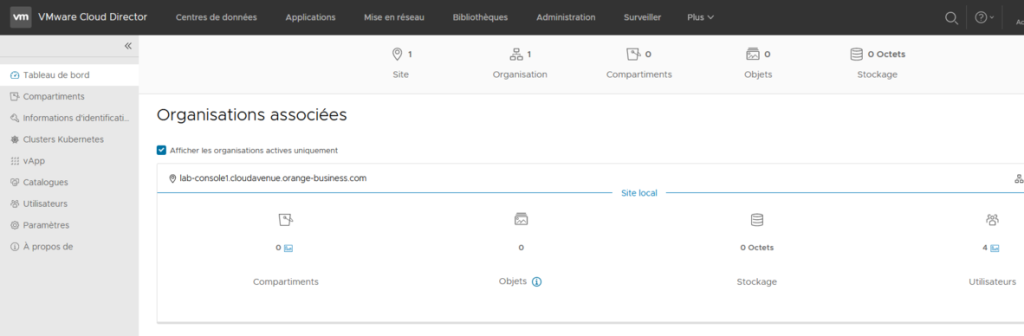
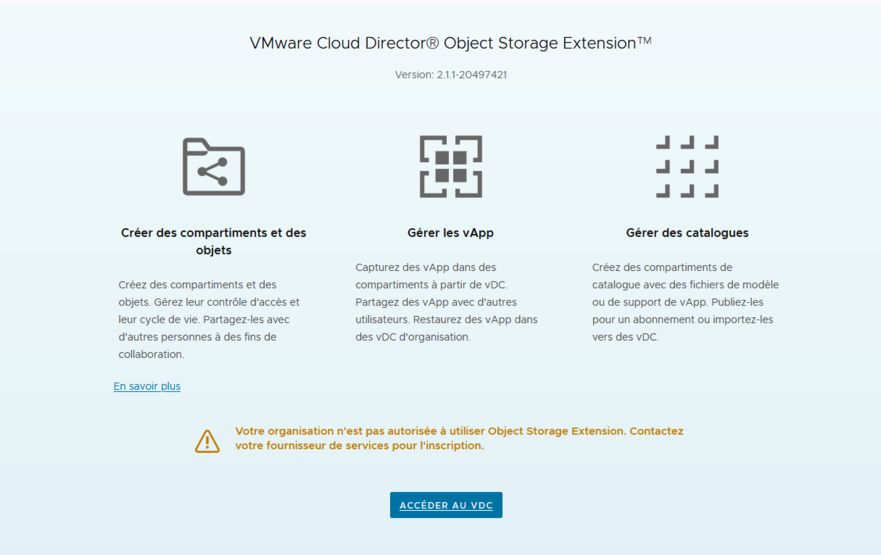
The “Dashboard” page will then be displayed.
It shows a summary of your usage.
Creating a Storage Bucket
Prerequisites: If the concepts of Bucket, access key, endpoint, IAM API, seem unclear to you, we recommend consulting the practical guide: Object Storage Overview. It will help you better understand the nuances of object storage.
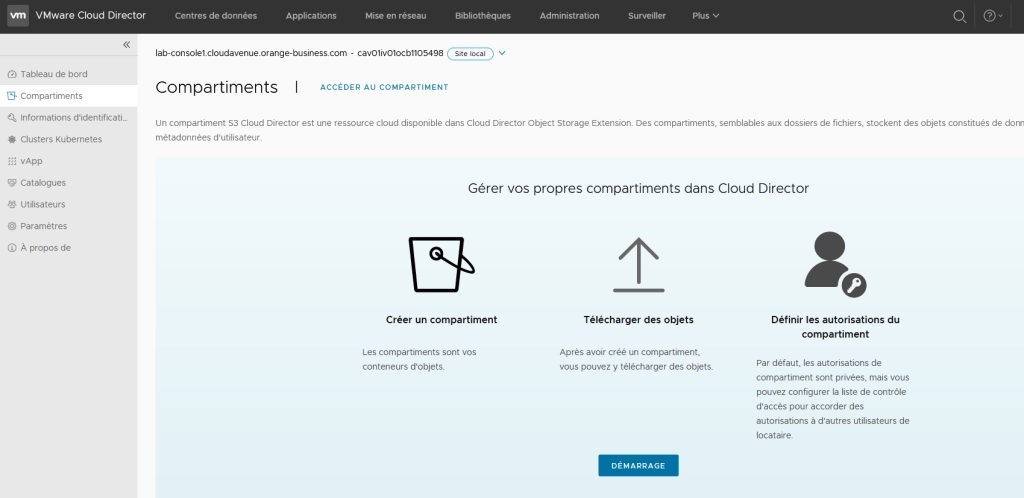
Storing data (objects) requires creating an initial Bucket: select the “Buckets” menu.
To create your first Bucket, click on the “Get Started” button.
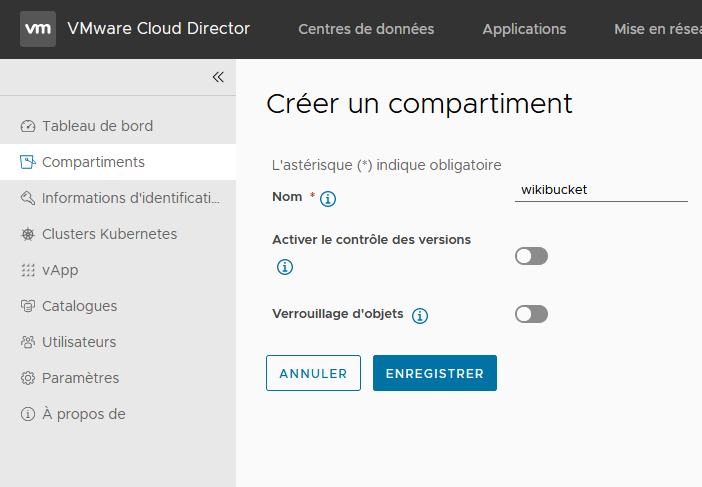
Name your Bucket
Be sure to follow the naming rules
These are detailed in the document: Object Storage Overview
The “versioning” and “object locking” options are not necessary for initial use.
However, if you wish to implement them, the following guides will assist you:
- Versioning
- Object Lock
Click on Save to complete the creation of your Bucket.
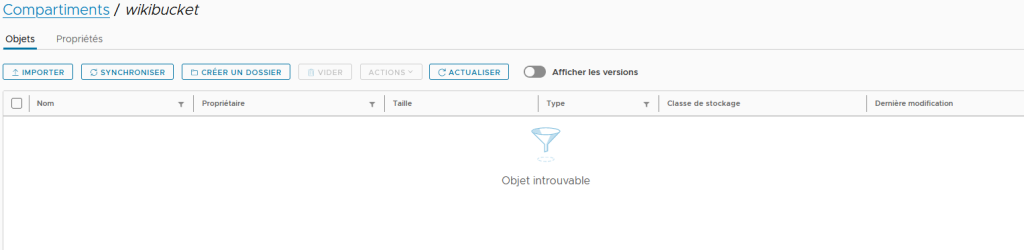
Your Bucket has been created and is listed.
Click on the name of your bucket (in blue).

You can now put your Bucket to work by creating a folder or prefix and uploading or importing your first objects.
Warning !
This feature is not available in the current version of the interface.
Creating this first object will allow you to define the permissions associated with your Bucket: ACL-type permissions.
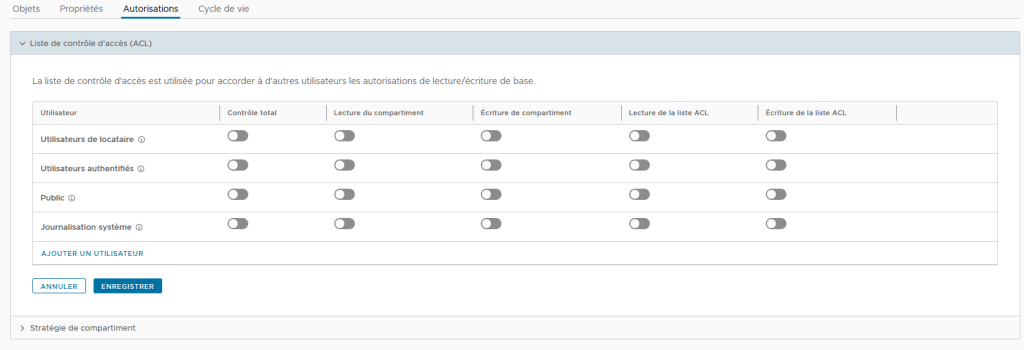
Warning !
This feature is not available in the current version of the interface.
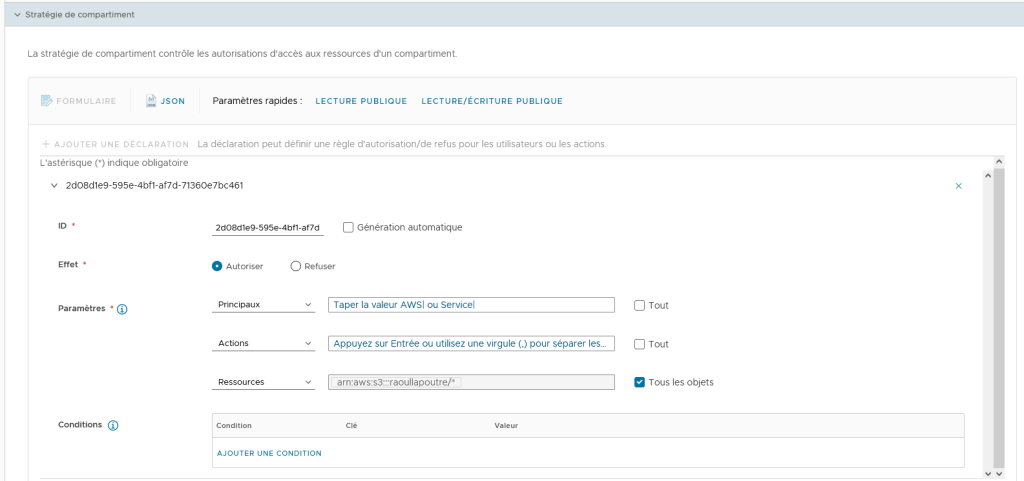
Similarly, you can create Bucket permissions in the form of policies, which allow you to define specific access strategies.
A predefined policy can be added using examples such as “public read” or “public read/write.”
Finally, adding a policy via the JSON menu allows you to manually set up your own strategies.
Creating an Access Key
Before creating your first set of access keys, we recommend reviewing best practices: Best practices for securing access and users.
Click on “Security Credentials” in the menu on your left.
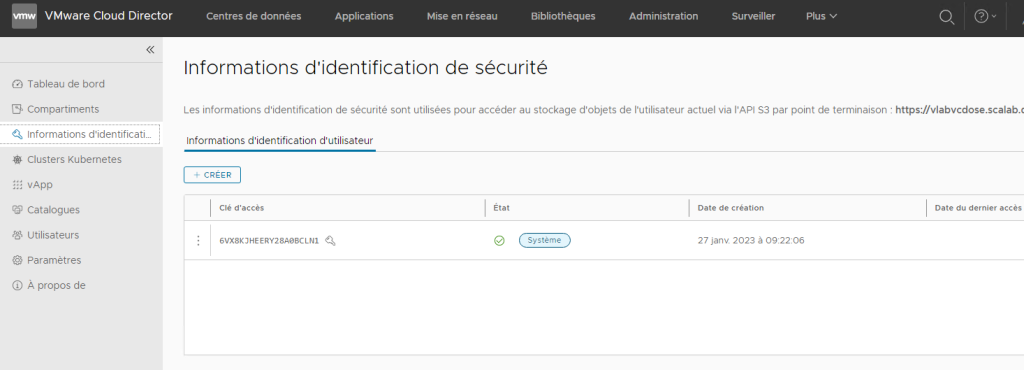
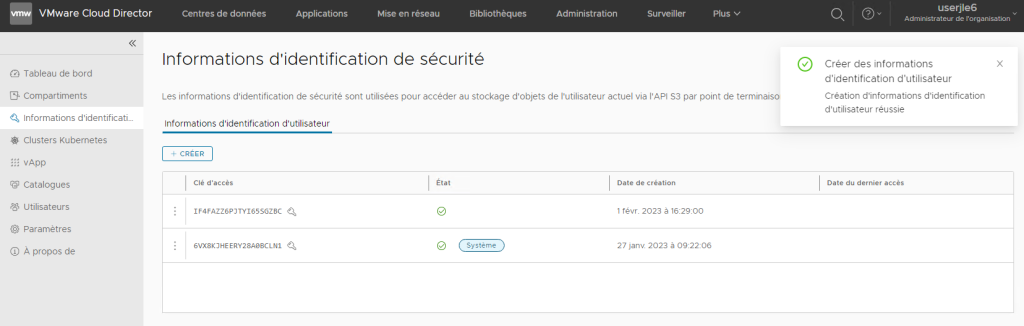
Click on the “Create” button: A new access key will be added to the list.
On the right, a message indicating successful creation will appear.
Network flows
To access the object storage service from a VM within your Organization (Org or Tenant), it is necessary to first configure the firewall rules to allow access to certain elements: VMs, networks.
The configuration of these various elements is linked to the “global service” Edge gateway.
Please continue with the Object Storage – VCD Interco guide.