Cloud Avenue Wiki
-
Overview
-
Practical sheets
-
-
- Aucun article
-
-
- Aucun article
-
-
-
- Backup : Agent-Level B&R via NSS for IAAS offer
- Backup : Create VCOD Backup
- Backup : Netbackup Agent Installation for Linux
- Backup : Netbackup Agent Installation for Windows
- Backup : Overall Design for VCOD Offer
- Backup : User's Guide for VCOD Offer
- NSX-T : Configuring a Distributed Firewall
- NSX-T : Create VPN Ipsec
- NSX-T : Creation of T1
- NSX-T : DNAT configuration
- NSX-T : How to configure a Gateway Firewall
- NSX-T : SNAT configuration
- NSX-T: Create and Configure a Geneve Overlay Segment
- NSX-T: How to configure an IPSEC solution
- vCenter : Clone a VM
- VCenter : Create a new VM
- VCenter : Create a snapshot of a VM
- VCenter : Reset cloudadmin password
- VCenter : Storage Vmotion on a VM
- VCenter : Upgrade Vmware tools on a VM
-
-
Q & A
-
Services
-
-
- Aucun article
-
- Aucun article
-
- Aucun article
-
- Aucun article
-
- Aucun article
-
- Aucun article
-
- Aucun article
-
-
-
- Aucun article
-
- Aucun article
-
- Aucun article
-
-
-
- Aucun article
-
- Aucun article
-
-
NSS Home Page
Dashboard
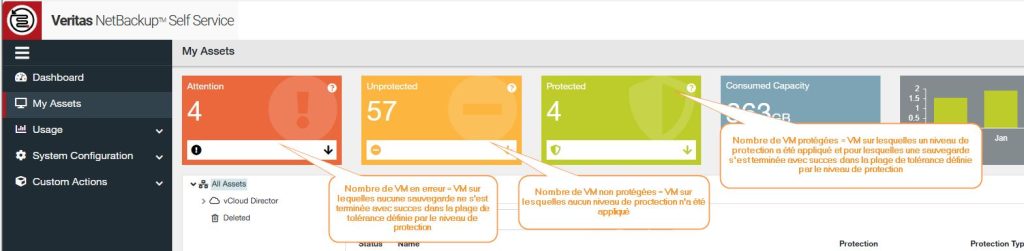
The Dashboard is the upper part of the “Home” page of the NSS Portal. It groups your organization’s VMs according to 3 statuses:
- Protected (Green): A Protection level has been applied to these VMs and they have been successfully backed up within the range allowed by said protection level.
- Unprotected (Orange): No Protection level has been applied to these VMs because no protection has been defined for them.
- Attention (Red): A Protection level has been applied to these VMs, but there is no backup within the tolerance range allowed by said protection level. Tolerance ranges are described in the Protection Level Backup Policies factsheet.
- Consumed Capacity (Blue): Cumulative storage consumed by backups performed. The current month is displayed by default, but you can select one of the last 6 months.

Backup status by VM
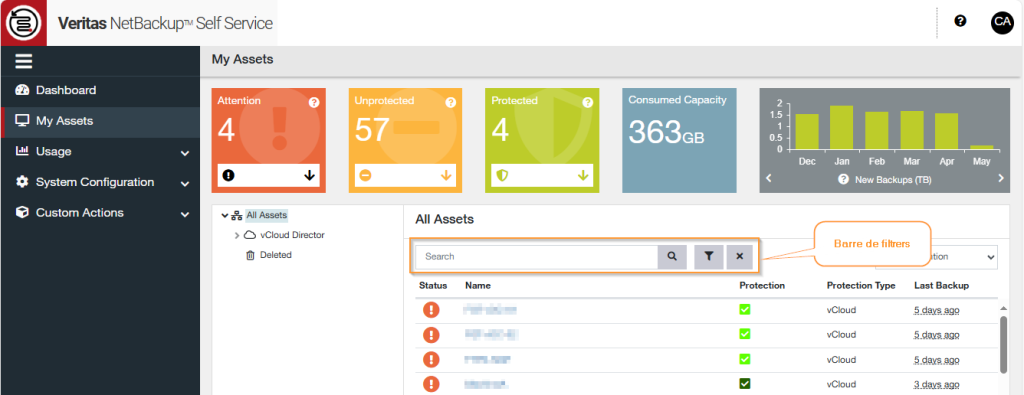
The Protection tab below the Dashboard lets you quickly view and configure backups for each VM in the organization.
This tab features a banner which allows you to sort (blue label) or filter (choice list and input field) by :
- Backup status (“Status” column). The color code corresponds to that of the Dashboard.
- VMvApp name (“Name” column). This is a free input field. Clicking on the magnifying glass icon triggers a partial search on the text entered.
- Protection level (“Protection” column). This column is empty for VMs with “Unprrotected” status. To display a VM’s protection level, hover over the icon on the corresponding line. The color of the icon also indicates the chosen backup policy.
In addition to these 3 pieces of information, you’ll also find a view of the last backup (“Last Backup” column).
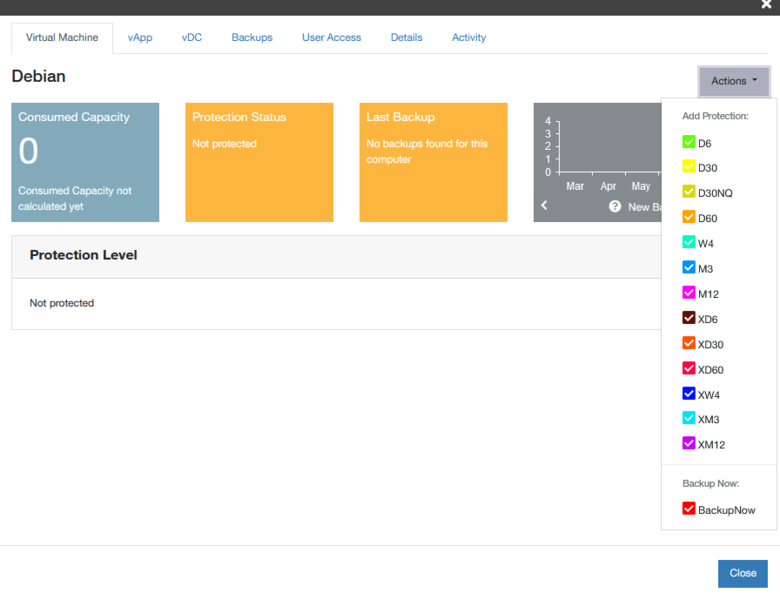
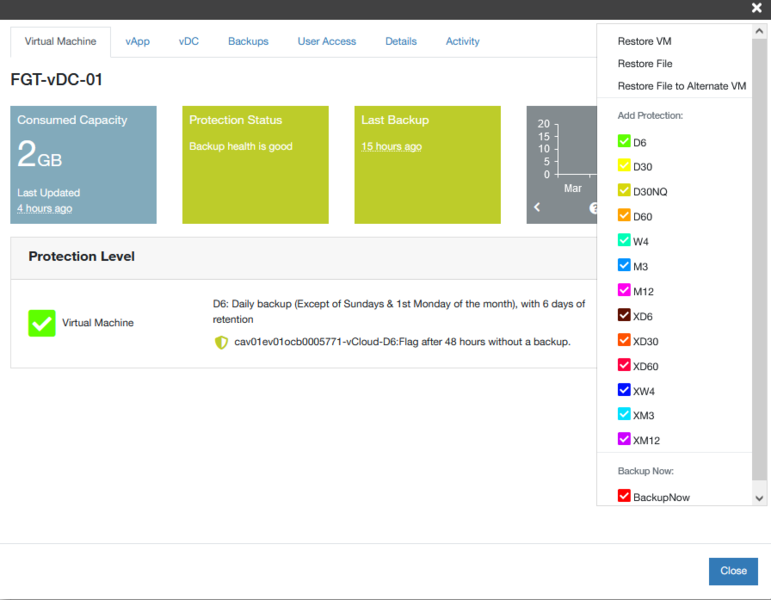
By clicking on the VM name, the portal displays a quick action button (“Action” column). Possible actions are :
- Add Protection: Set up a VM Protection Policy.
- Restore VM: Trigger VM Restore.
- Restore Disks: Restore a VM disk.
- Restore File: Restore a VM file.
- Restore File to Alternate VM : Restore a file and drop it on another VM.
- Backup Now: trigger an immediate backup of the VM. The Backup Policy must be configured by the User.
- Backups tab: Display VM backup dates/times.
- Details tab: Display detailed VM backup information.
Cloud Avenue/NGP
Add a new user
By default, two users are automatically added:
- The account administrator, linked to the contract bearer.
- An “API” user, who can query the NSS API.
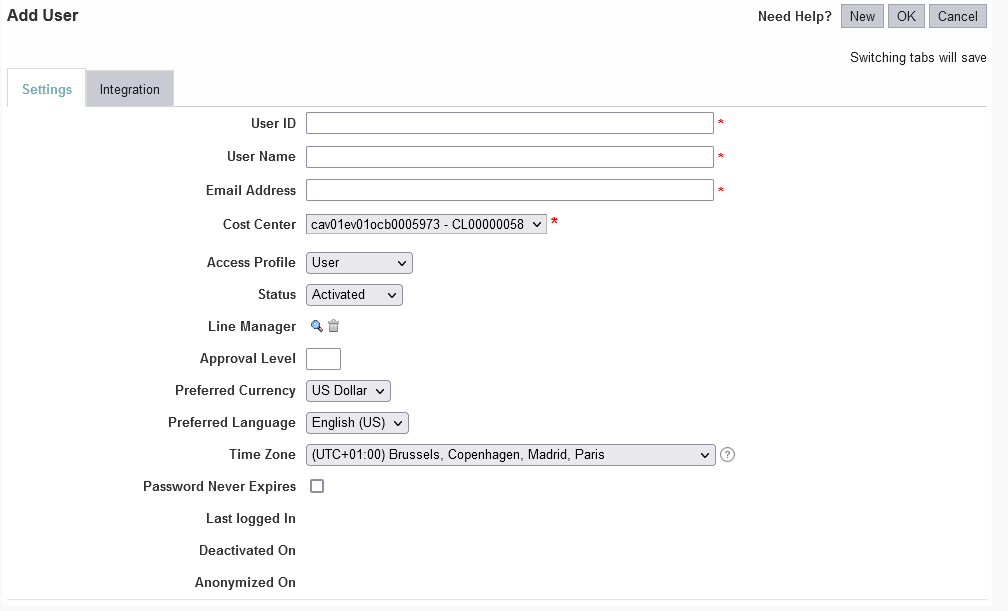
Additional users can be added via the NSS portal.
- From the “Dashboard” page, click on the gear or cog symbol in the top right-hand corner.
- In the “Administration” page that appears, select “User Management”.
- The list of existing users appears, click on the “New” button at top right.
- Scroll through the various configuration fields to add the characteristics of your new user