Wiki Cloud Avenue
Parcours Client Sauvegarde WORM pour l’Offre IaaS STD
Introduction
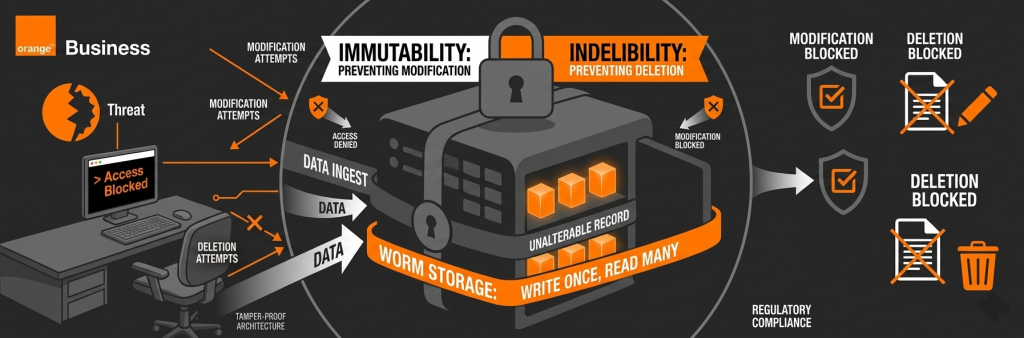
📌 Scope du Service (Release initiale)
ℹ️ Disponibilité
Seuls les niveaux de protection mensuel et hebdomadaire sont disponibles au lancement du service. (Le niveau journalier sera ajouté dans une prochaine version.)📅 Politique de Rétention
La période de rétention est de 12 mois pour les niveaux de protection mensuels.
Parcours Client
La capture d’écran ci-dessous résume le parcours client global, tandis que les sections suivantes fournissent plus de détails sur la manière de gérer cette fonctionnalité.
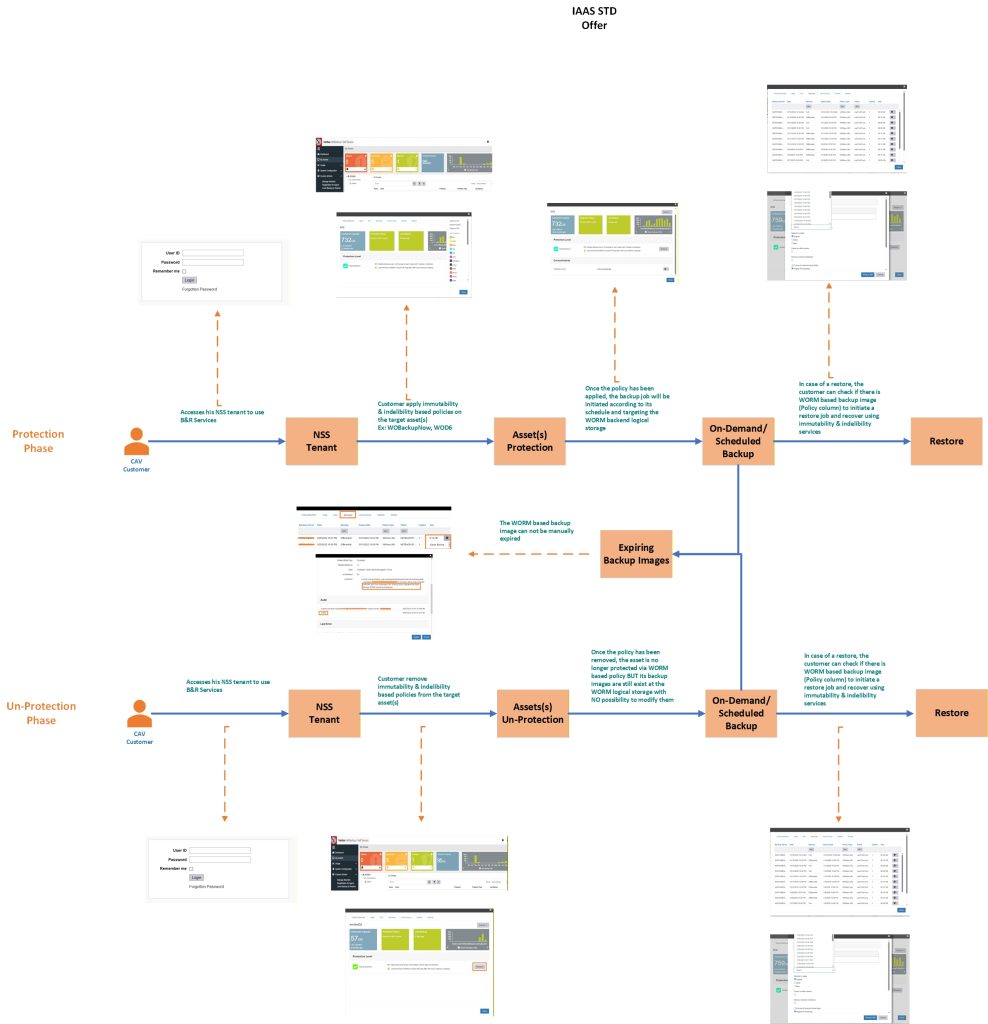
Phase de Protection
- Accès Portail NSS
- Connectez-vous à votre tenant NetBackup Self Service (NSS)
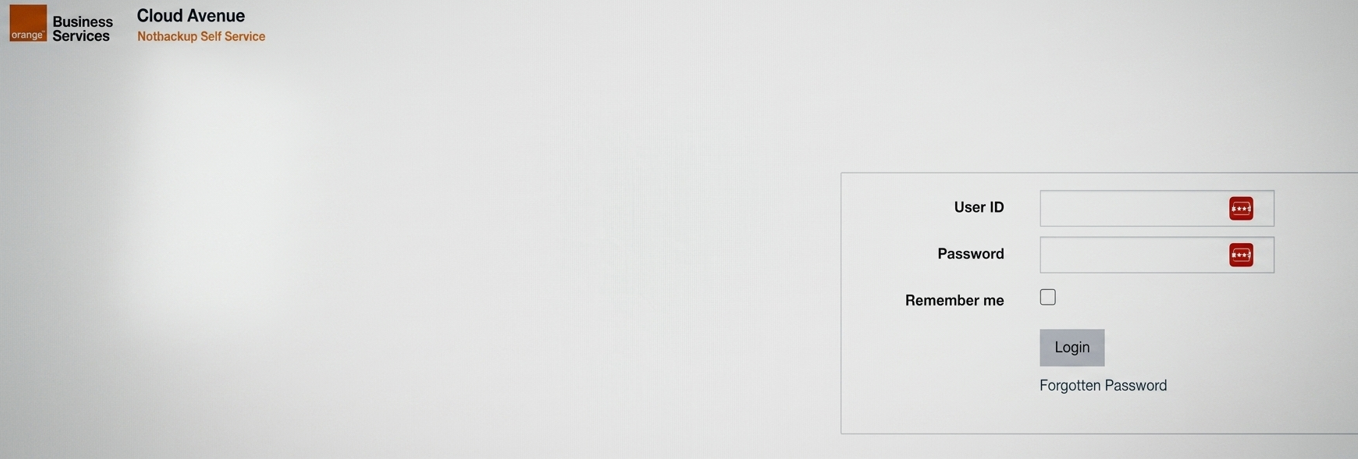
- Accédez à la page My Assets.
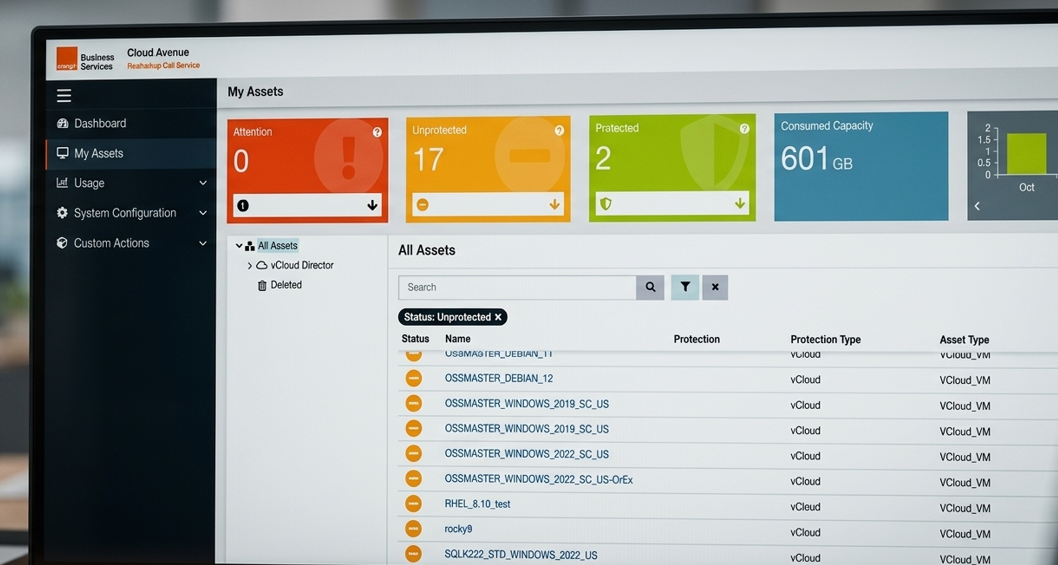
- Connectez-vous à votre tenant NetBackup Self Service (NSS)
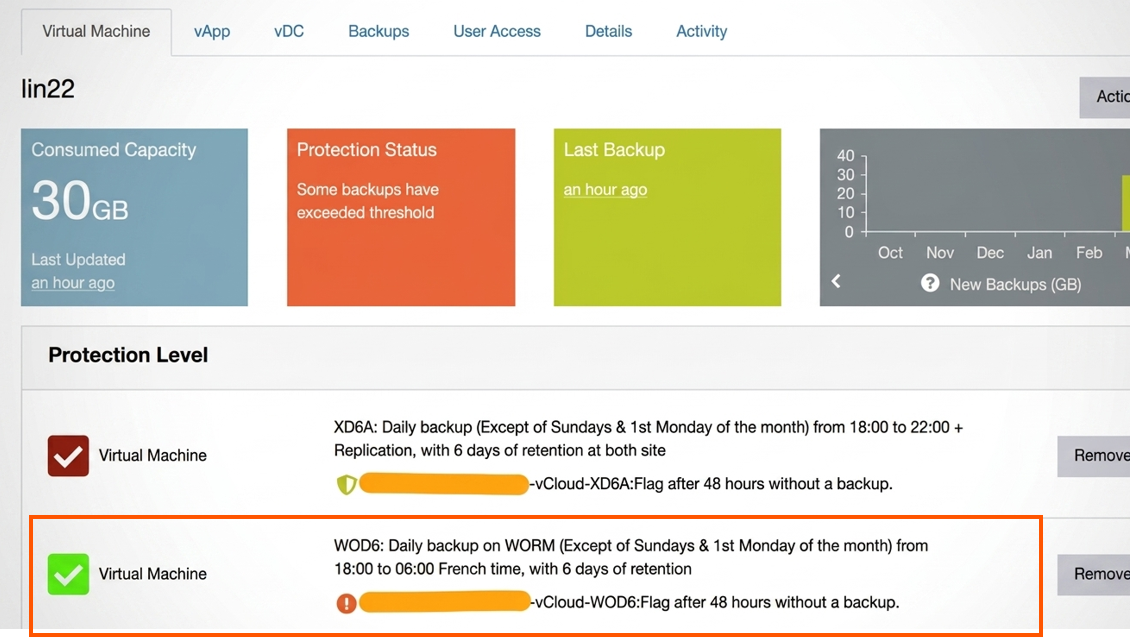
- Pour activer le WORM, configurez la politique de protection.
- Sélectionnez l’actif cible (ex : VM, …)
- Choisissez parmi les niveaux de protection (PLs) préconfigurés disponibles.
- Sélectionnez un niveau de protection incluant l’immuabilité (WORM) et l’indélébilité.
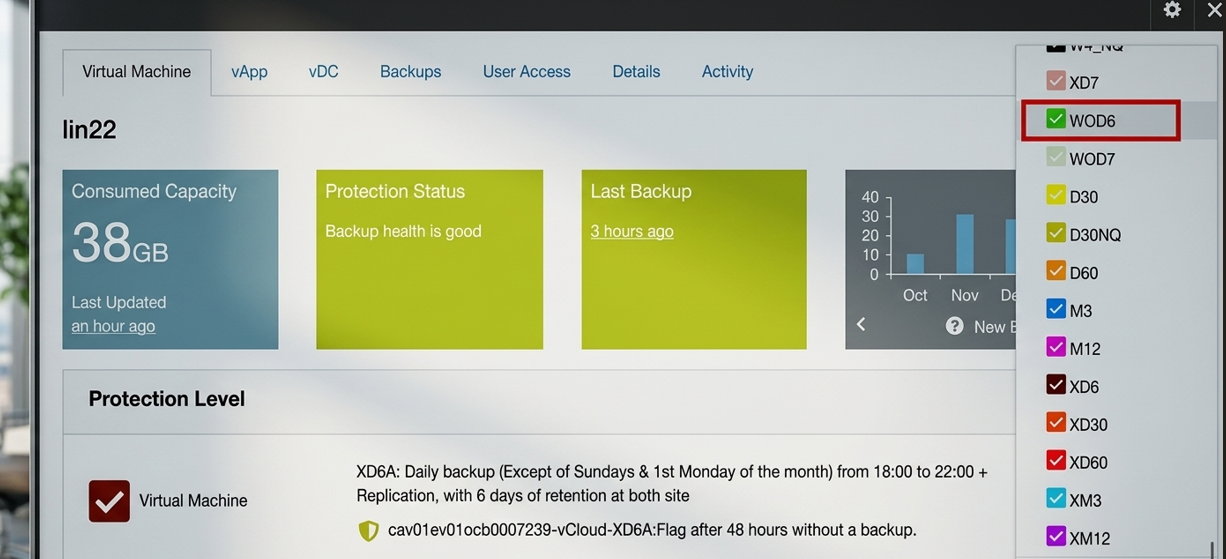
- Notes:
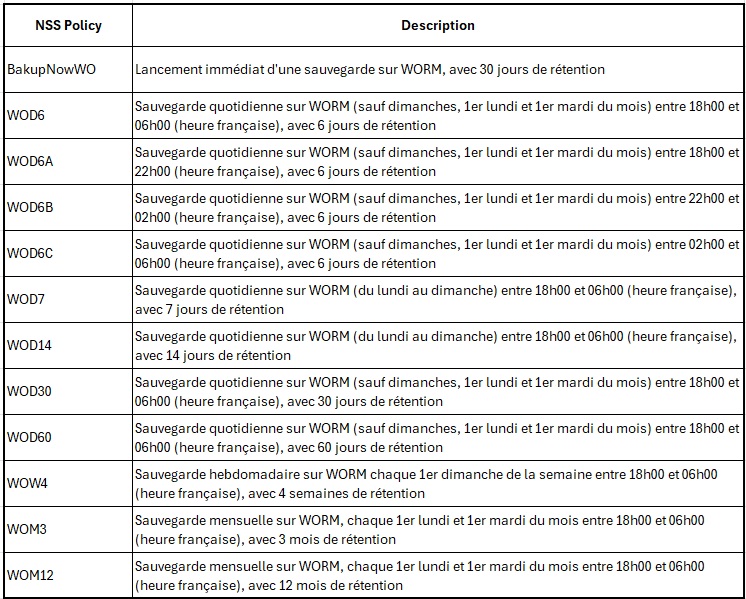
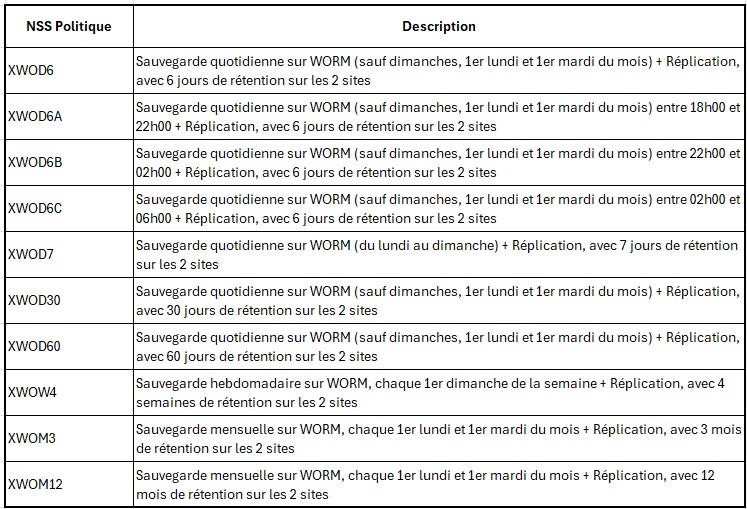
- Les niveaux de protection sont préconfigurés par la plateforme et incluent la fréquence de sauvegarde, la rétention et les paramètres WORM.
- La Fenêtre de sauvegarde désigne la plage horaire durant laquelle un job de sauvegarde est autorisé à démarrer. Le job peut commencer à n’importe quel moment dans cette fenêtre définie.
- Une fois qu’une sauvegarde est créée avec un niveau de protection WORM activé, elle ne peut être ni modifiée ni supprimée avant l’expiration de la période de rétention.
- A) Niveaux de protection VMware sans réplication.
- B) Niveaux de protection VMware avec réplication « X-Series ».
- C) Niveaux de protection pour agent Windows sans réplication.
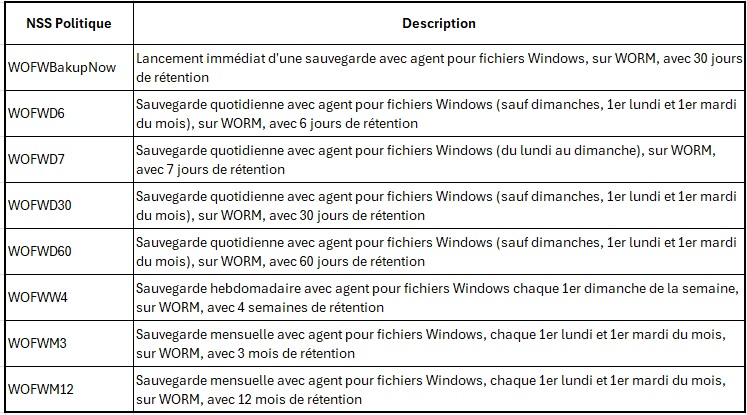
- D) Niveaux de protection pour agent Windows avec réplication « X-Series ».
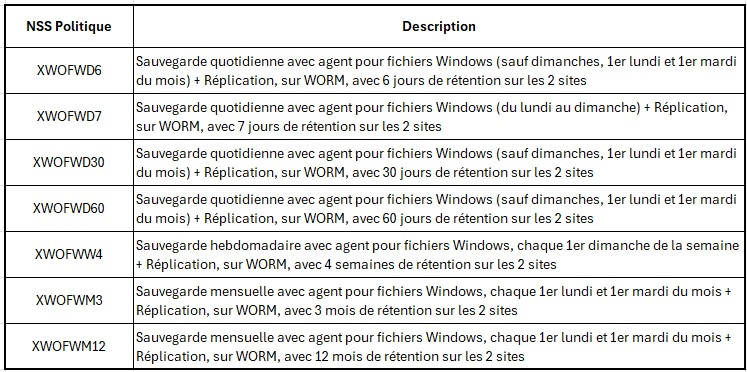
- E) Niveaux de protection pour agent Linux sans réplication.
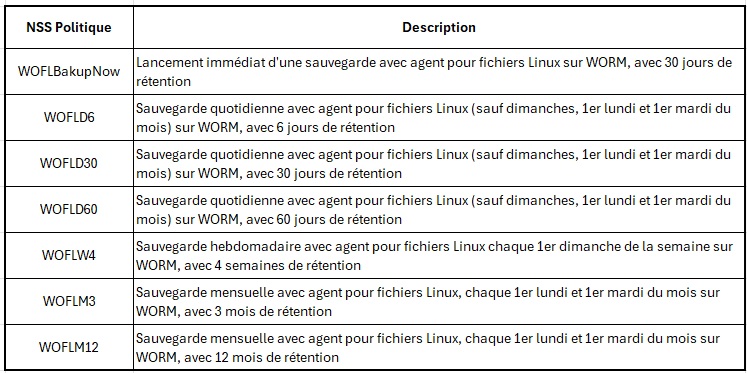
- F) Niveaux de protection pour agent Linux avec réplication « X-Series ».
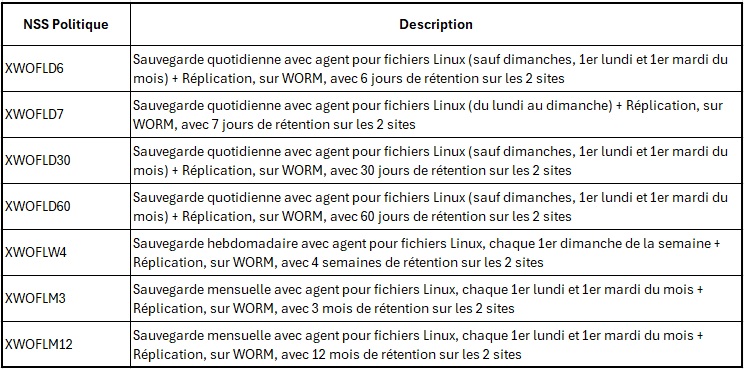
- Run Backup
- Sauvegarde planifiée
- Une fois le niveau de protection (PL) appliqué, le job de sauvegarde sera déclenché conformément à sa planification.
- Sauvegarde planifiée
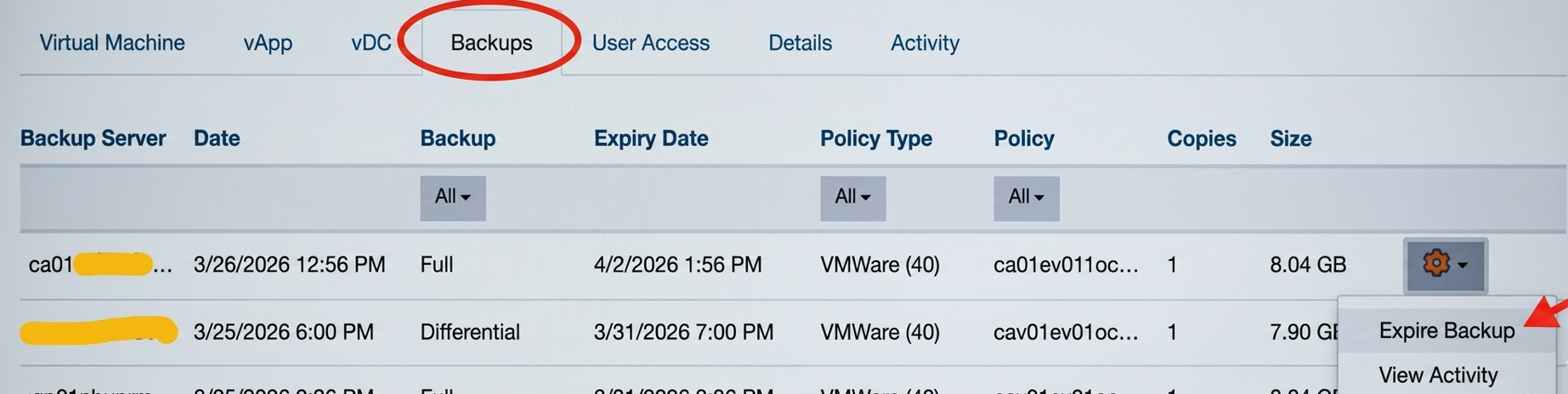
- Effet de la protection WORM
- Les images de sauvegarde sont :
- ❌ Non modifiables
- ❌ Non supprimables
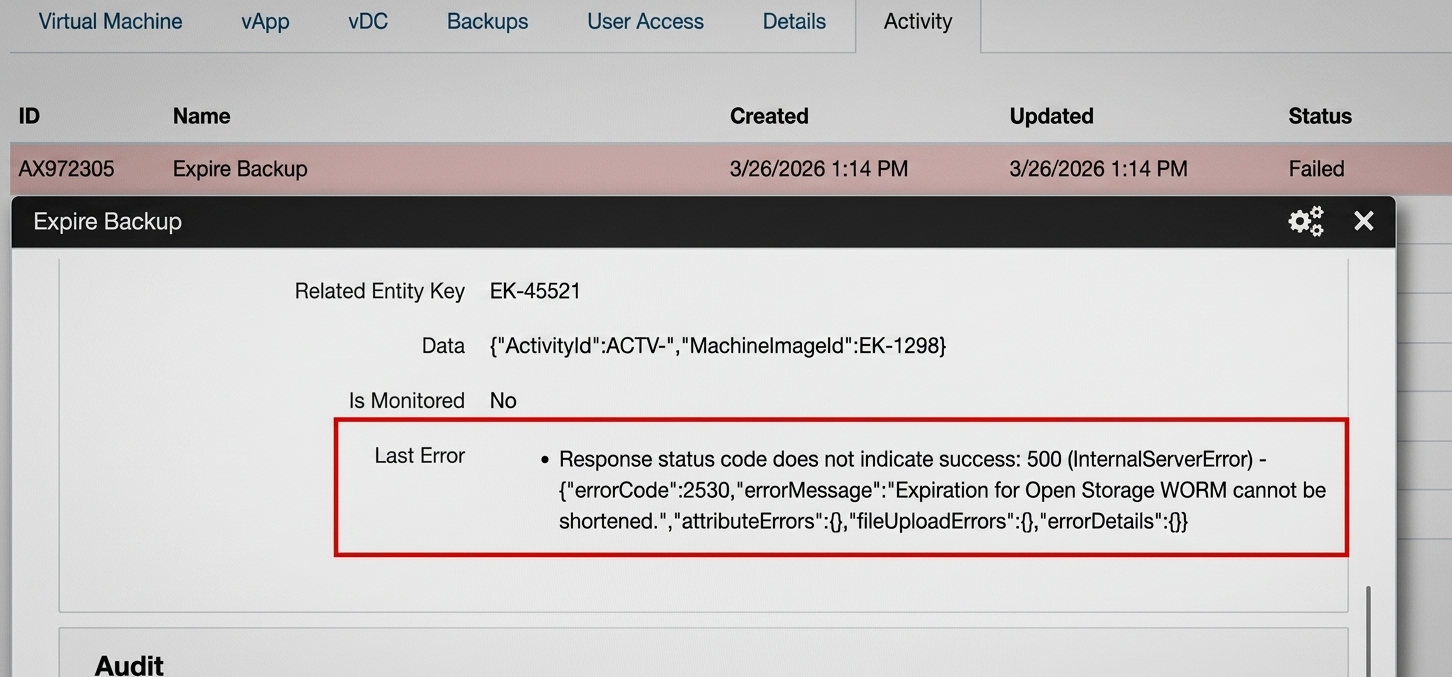
- ❌ Non expirables manuellement
- ✅ Protégées jusqu’à l’expiration de la période de rétention:
- Les images de sauvegarde sont :
- Restauration des données
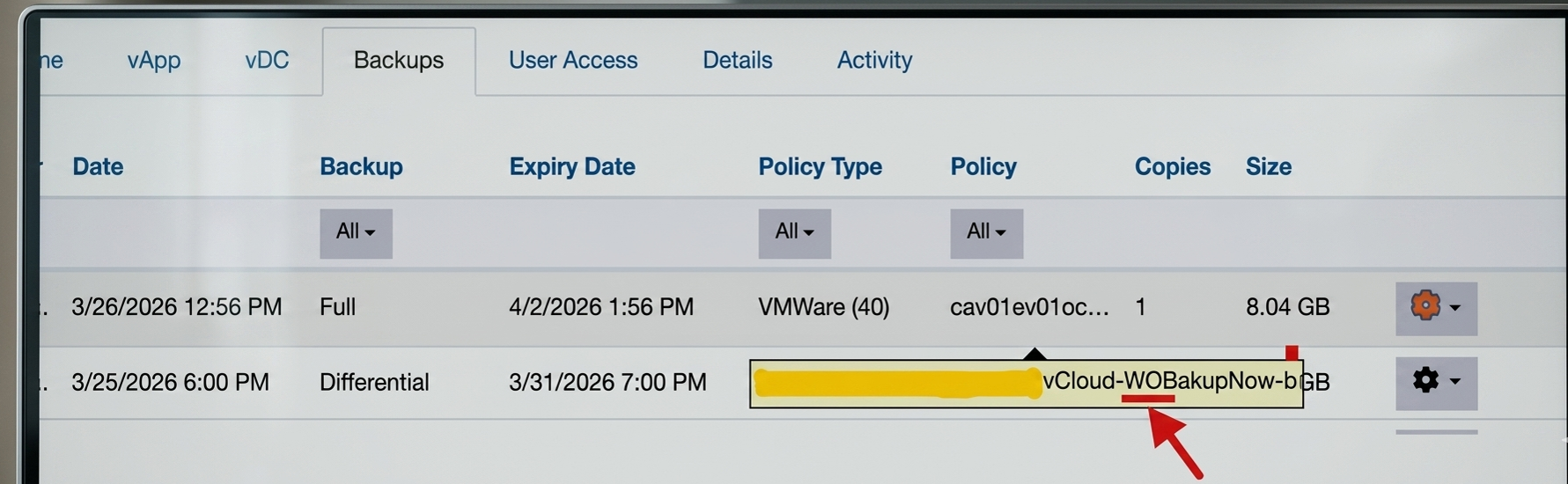
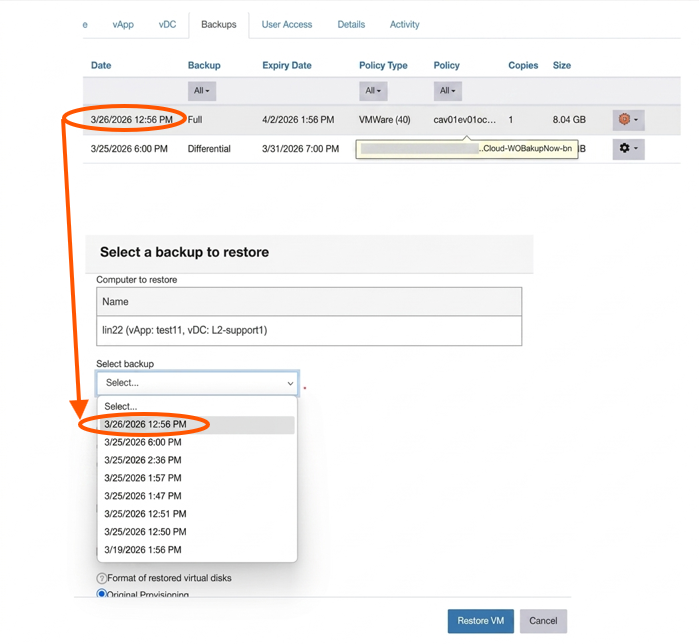
- NAccédez à l’onglet Sauvegardes..
- Depuis la colonne Politique, vous pouvez vérifier l’attribut WORM des images de sauvegarde :
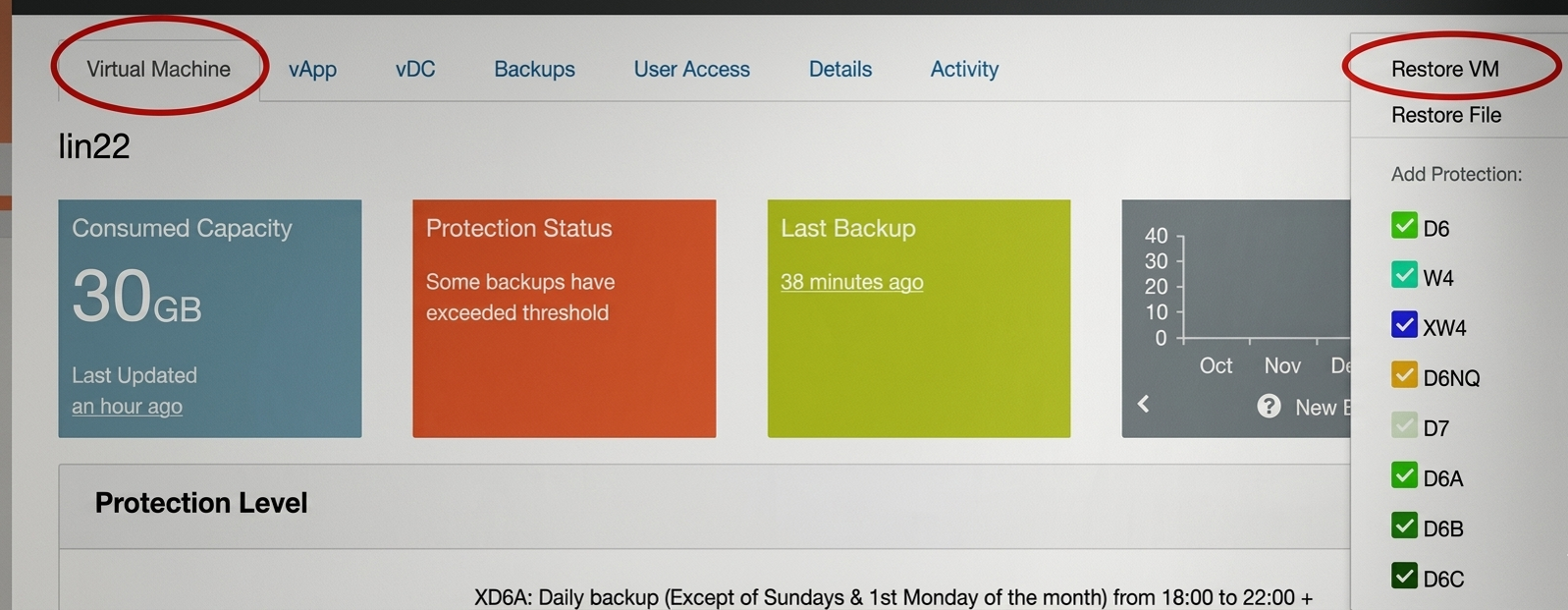
- Effectuez la restauration comme d’habitude (la procédure est identique pour les sauvegardes WORM et les sauvegardes non-WORM).:
- Sélectionnez l’image de sauvegarde que vous souhaitez restaurer:
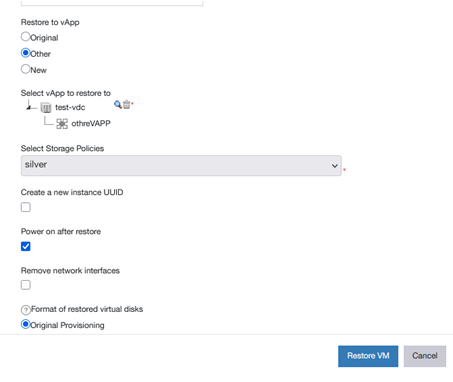
- Effectuez vos choix pour les autres options, puis sélectionnez Restaurer la VM:
Phase de Dé-protection
- Supprimez le Niveau de Protection (PL).
- Accédez à l’actif cible (par exemple : une VM):
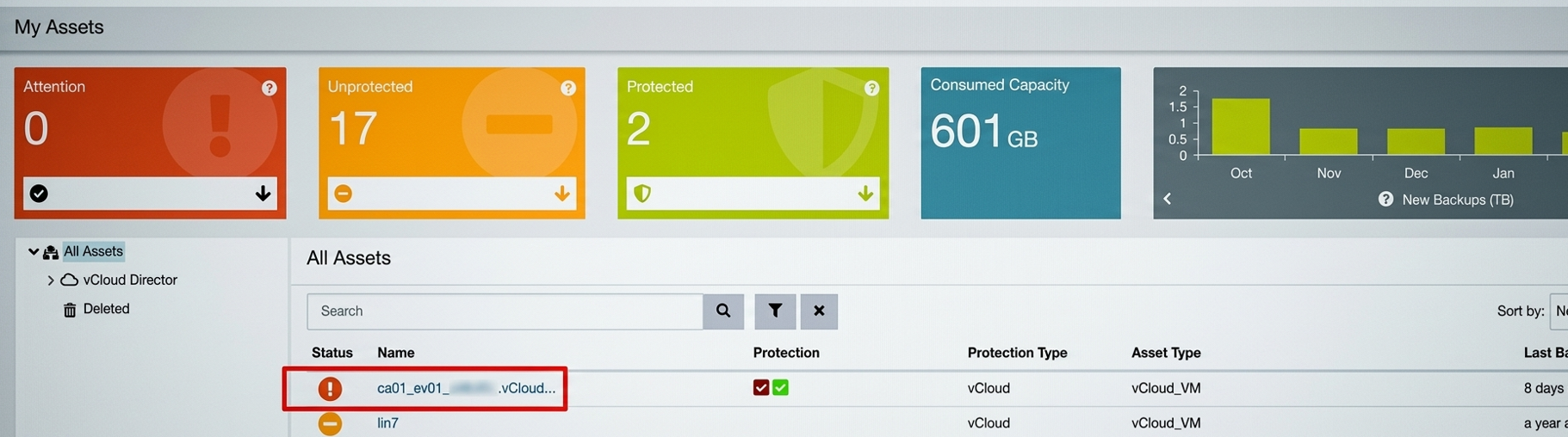
- Sélectionnez l’actif et cliquez sur « Supprimer ».
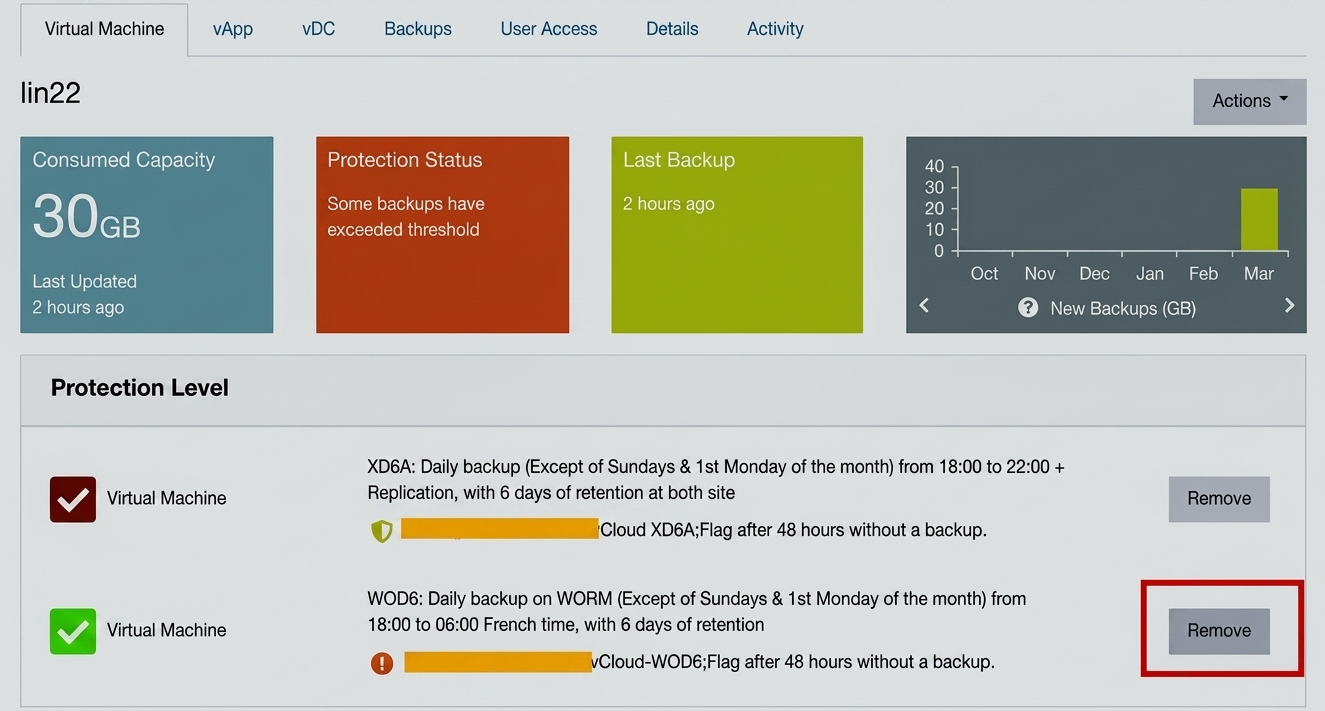
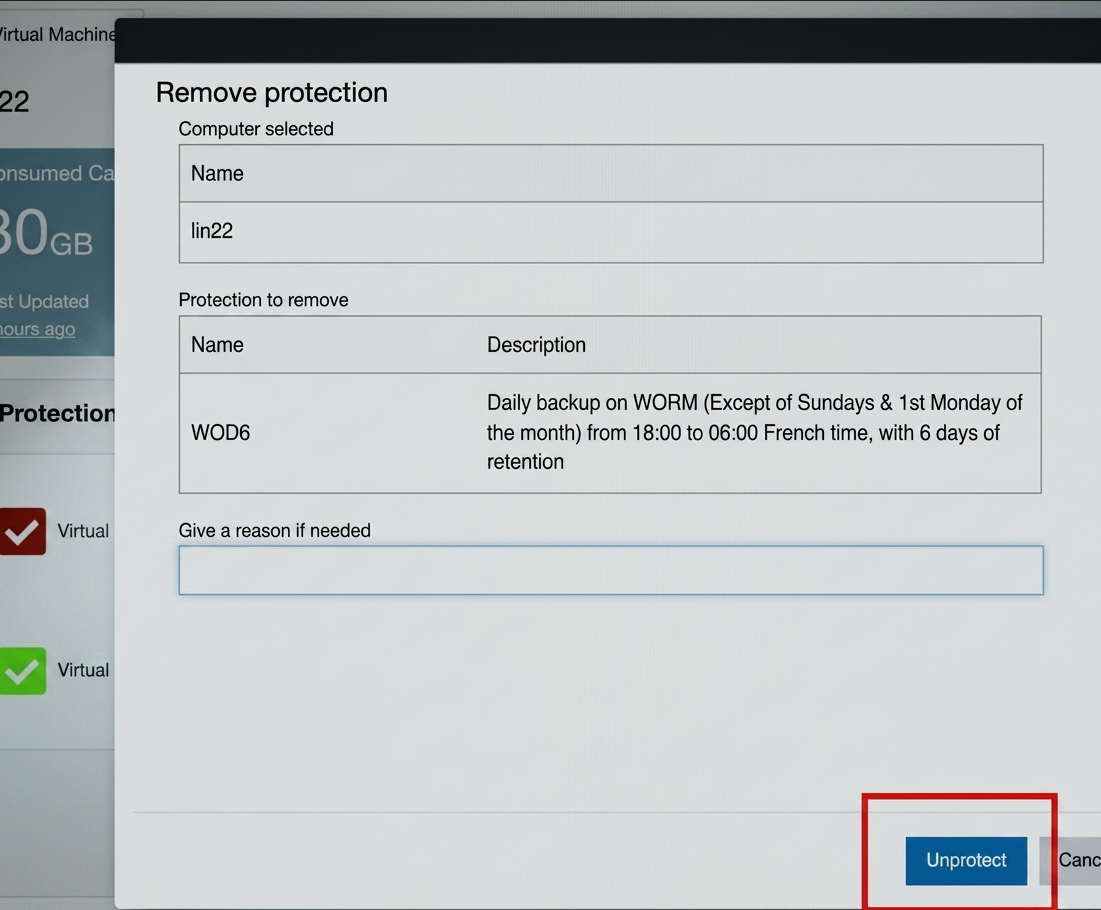
- Depuis l’onglet Activité, vous pouvez suivre le statut de l’activité de la VM (ici : modification de la protection) :

- Depuis l’onglet Activité, vous pouvez suivre le statut de l’activité de la VM (ici : modification de la protection) :
- Accédez à l’actif cible (par exemple : une VM):
- Comportement après la suppression des Niveaux de Protection (PL)
- Sauvegardes existantes:
- Restent protégées par WORM.
- Ne peuvent pas être modifiées ou supprimées.
- Demeurent verrouillées jusqu’à l’expiration de leur période de rétention.
- Nouvelles Sauvegardes
- Aucune nouvelle sauvegarde ne sera créée (étant donné que le Niveau de Protection est supprimé).
- Remarque : La suppression de la protection n’affecte pas les sauvegardes WORM existantes — elles restent immuables jusqu’à la fin de la période de rétention.
- Sauvegardes existantes:
- Expiration des Images de Sauvegarde
- Après l’expiration de la période de rétention :
- Les sauvegardes protégées par WORM deviennent :
- Éligibles à l’expiration.
- Automatiquement supprimées par les processus système de NetBackup.
- Remarque : L’expiration est entièrement gérée par le système — aucune suppression manuelle n’est requise.
- À titre d’exemple, veuillez trouver ci-dessous le résultat lors d’une tentative d’expiration manuelle d’une image de sauvegarde WORM :
- Les sauvegardes protégées par WORM deviennent :
- Après l’expiration de la période de rétention :
- Restauration des Données
- Accédez à l’onglet Sauvegardes.
- Depuis la colonne Politique, vous pouvez vérifier l’attribut WORM des images de sauvegarde.