Updating a Contract Referent
Introduction
This guide explains how to update the referent of a contract in the Cloud Customer Area.
Prerequisites
- Be the current referent of the contract.
- The new referent user must already have rights on the contract. If not, you must first add them by following the procedure described here.
Steps to Update the Referent of a Contract
Step 1: Access the Dashboard
1 – Log in to your Cloud Customer Space.
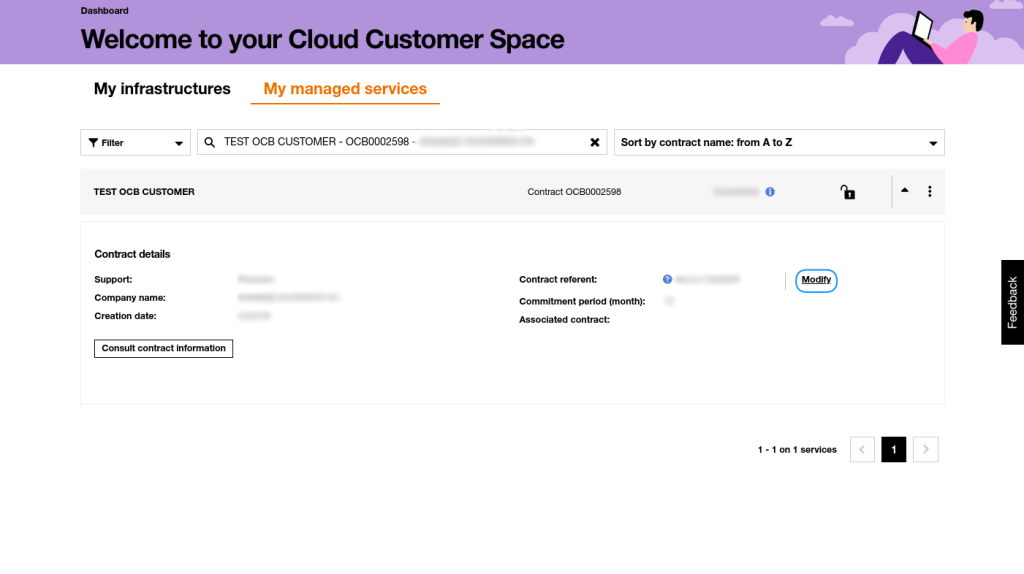
2 – Select the contract for which you want to update the referent.
3 – Click on the “Modify” button to the right of the current referent.
Step 2: Select the New Referent User
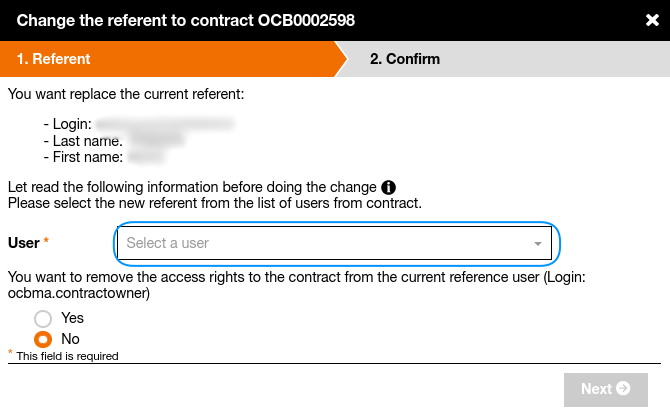
1 – You will see the information of the current referent user.
2 – Click on the “User” field and select the new referent user from the list of users in the customer area declared on the contract.
3 – If the new user is not in the list, you must first add them by following the procedure described here.
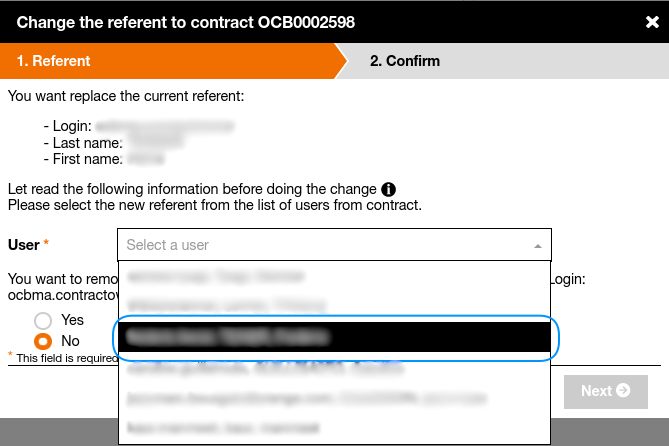
4 – If you wish to remove the access rights of the current referent user, select “Yes” for the option “You wish to remove the access rights on the contract from the current referent user”.
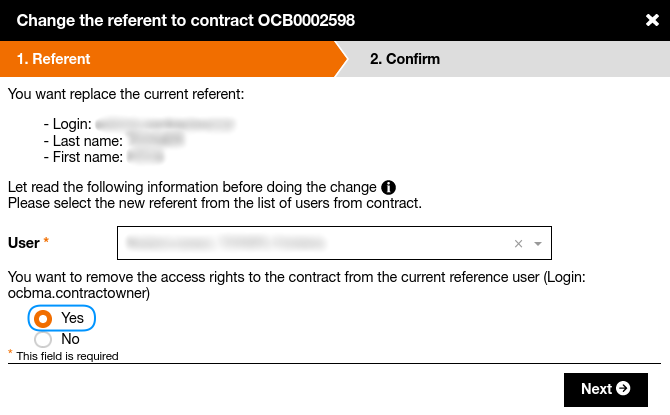
Step 4: Validate the Update
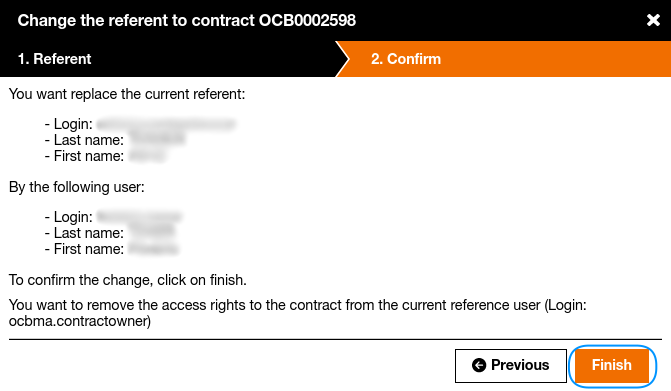
1 – Click on the “Next” button to proceed to the confirmation step.
2 – Verify the displayed information and click on “Finish” to finalize the update.
3 – A confirmation email will be sent to the new referent once the update is completed.